
What is Tor? (Official Website Description)
Tor is a software project that helps you defend against traffic analysis, a form of network surveillance that threatens personal freedom and privacy, confidentiality in business and relationships, and state security. Tor protects you by transmitting your communications through a distributed network of repeaters run by volunteers around the world: it prevents someone watching your Internet connection from learning which sites you visit, and it prevents the sites you visit from learning your physical position. Tor works with many of your existing applications, including web browsers, instant messaging clients, remote access, and other applications based on the TCP protocol.
What is vidalia?
It is a graphical manager to manage and "configure" Tor
What is Privoxy? (Wikipedia description)
Privoxy It is a program that works like web proxy, frequently used in combination with Tor and Squid. It has advanced filtering capabilities to protect privacy, modify web page content, manage cookies, control access and eliminate ads, banners, pop-ups and other unwanted elements from the Internet. Privoxy has a very flexible configuration and can be customized to suit individual needs and tastes. Privoxy is useful for both isolated systems and multi-user networks.
Once everything has been explained, let's get down to business, let's add the repositories
rokitoh@red-orbita:# gedit /etc/apt/sources.listand we add
#tor
deb     http://deb.torproject.org/torproject.org <DISTRIBUTION> main
in which to substitute the word above (etch, lenny, sid, squeeze, karmic, cheerful, fearless, strong) instead of <DISTRIBUTION>
We add the key
gpg --keyserver keys.gnupg.net --recv 886DDD89
gpg --export A3C4F0F979CAA22CDBA8F512EE8CBC9E886DDD89 | sudo apt-key add -
We update and install Tor
rokitoh@red-orbita:# apt-get update && apt-get install tor privoxy vidaliaWe configure Privoxy to work with Tor
rokitoh@red-orbita:# gedit /etc/privoxy/configWe add the following lines at the end of the document
forward-socks4a / localhost:9050 .

logfile logfile
Note: Don't forget the period at the end of the line.
Restart Prioxy
rokitoh@red-orbita:# /etc/init.d/privoxy restartOnce installed we are going to configure our Chrome
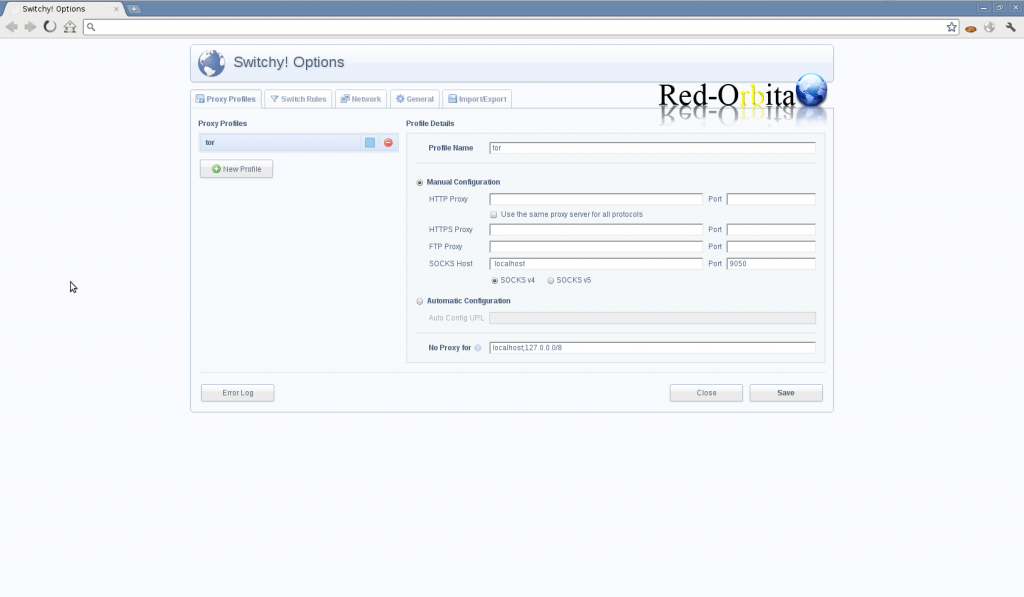
For this we are going to install the equivalent of tor-button of firefox in Chrome, to do this we go to the web and search and install: Proxy Switchy!
https://chrome.google.com/extensions/search?itemlang=&q=proxy+switchy
Once installed we go to the Sqitchy Proxy icon that is located at the top right, and we go to Options
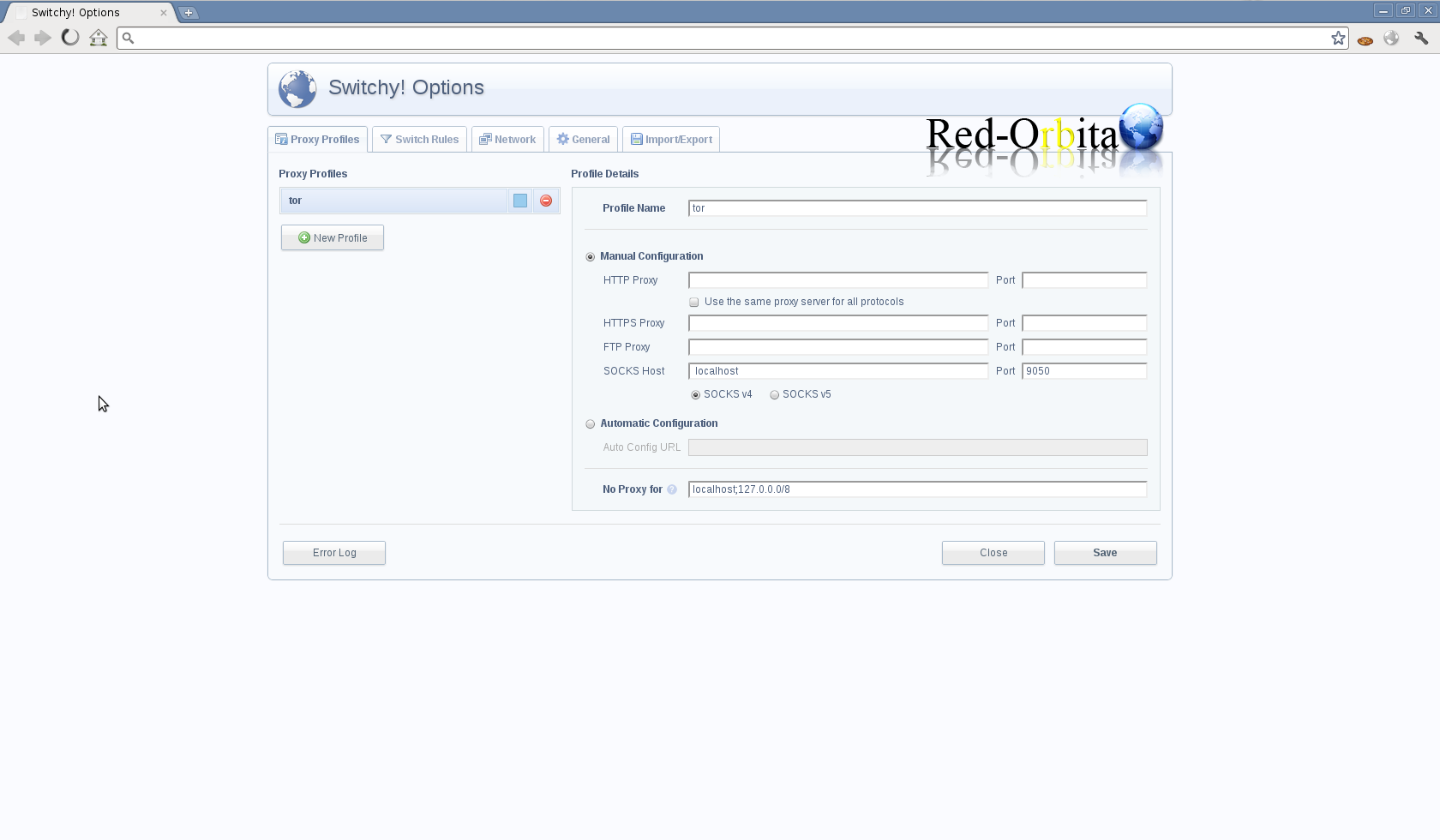
We can test that everything works using the following link:
https://check.torproject.org/
Once our Tor is installed and configured, we are going to install User-Agent Switcher for Chrome
What is User-Anget? (Wikipedia)
A user agent is a computer application that functions as a client in a network protocol; The name is generally applied to refer to those applications that access the World Wide Web. User agents that connect to the Web can range from web browsers to search engine web crawlers, to mobile phones, screen readers and Braille browsers used by people with disabilities.
When a user accesses a web page, the application typically sends a text string that identifies the user agent to the server. This text is part of the HTTP request, prefixed with User-agent: or User-Agent: and generally includes information such as the application name, version, operating system, and language. Bots, such as web crawlers, sometimes also include a URL or email address so that the website administrator can contact the website operator.
User agent identification is one of the exclusion criteria used by the Robot Exclusion Standard to prevent access to certain sections of a website.
What is User Agent Switcher?
It is a browser extension that will allow you to mask the Mozilla browser, pretending to be Internet Explorer, Opera, Safari or any other browser.
We access the following Link and install it
https://chrome.google.com/extensions/detail/aafciojnlamllgpkpdkbamkfgbofhgcj
Once a logo with a mask is installed at the top right, we click on it and choose the browser we want to make it go through.
Comments