
Before starting to install, let's remember some basic but important concepts.
DHCP (Dynamic Host Configuration Protocol)
It is a client/server type protocol in which a server generally has a list of dynamic IP addresses and assigns them to clients as they become free, knowing at all times who has been in possession of that IP, how long they have had it and to whom it has been assigned afterwards.
LISTEN BY THE PORT: 68 UDP
TRABSNUTE THROUGH THE PORT: 67 UDP
What is a DHCP Relay Agent: It is a software that relays messages DHCP and BOOTP between clients and servers on different subnets.
How the Relay Agent works
1º DHCPDISCOVER: It is a request that a machine makes when it turns on. (just by pressing the power button on the device you can do it)
2º DHCPOFFER: It is the connection that the DHCP server gives to the PC.
3º DHCPREQUEST: The client requests the connection.
4º DHCPACK or NOT ACK: That is, it gives you the assignment or It does not give you the assignment.
MAP:
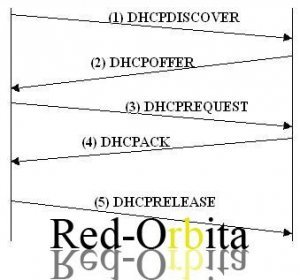
There is no defined limit to the number of records that a DHCP server can store. The size of the database depends on the number of DHCP clients on the network. The DHCP database grows over time as clients start and end sessions on the network
This method is based on defining a pool of IP addresses for DHCP clients (also called IP address pool) that supply their configuration properties dynamically as requested by client computers. When a DHCP client is no longer on the network for a certain period, the configuration expires and the poll's IP address is released for use by other DHCP clients.
MAC address
This method is based on using the DHCP protocol to identify the unique hardware address of each network card connected to the network and then assigning a constant configuration as well as the same IP address each time the client's DHCP configuration makes a request to the DHCP server from the same network device.
Before starting to install the DHCP server, you might be interested in seeing how install DNS server
Install DHCPIn a console we execute:
rokitoh@redorbita:~# apt-get install dhcp3-serverBefore starting we will make a backup of the configuration file… just in case
rokitoh@redorbita:~# cp /etc/dhcp3/dhcpd.conf /etc/dhcp3/dhcpd.conf.backWe access dhcp.confg
rokitoh@redorbita:~# nano /etc/dhcp2/dhcp.confgdefault-lease-time 600;
max-lease-time 7200;
option subnet-mask 255.255.255.0;
option broadcast-address 192.168.1.255;
option routers 192.168.1.1;
option domain-name-servers 192.168.1.233;
option domain-name “redorbita.com”;
subnet 192.168.1.0 netmask 255.255.255.0 {
range 192.168.1.2 192.168.1.200;
}max-lease-time 7200; indicates the maximum allocation time in seconds.
option subnet-mask 255.255.255.0; We define the general network mask that we are going to use.option broadcast-address We define the broadcast address of the network.option routers 192.168.1.1; We define the network gateway.
option domain-name-servers 192.168.1.233; We define the address of the DNS server of the network.
option domain-name “redorbita.com”; We define the DNS domain name that is added to the host names.
range 192.168.1.2 192.168.1.200; We define the range of IP assignment to clients.
Configure using the MAC address methodWith this method you can reserve some or all of the IP addresses on our network for certain machines. As you can see, the configuration is very similar to the previous one, with the exception that to reserve the assignment of an IP to a certain NIC (network card interface) we must use the label host
default-lease-time 600;

max-lease-time 7200;

option subnet-mask 255.255.255.0;

option broadcast-address 192.168.1.255;

option routers 192.168.1.1;

option domain-name-servers 192.168.1.233;

option domain-name “redorbita.com”;

subnet 192.168.1.0 netmask 255.255.255.0 {

range 192.168.1.2 192.168.1.200;

}
host oracle{ hardware ethernet 00:03:47:31:e1:7f; fixed-address 192.168.1.20; } host printer { hardware ethernet 00:03:47:31:e1:b0; fixed-address 192.168.1.21; }rokitoh@redorbita:~# /etc/init.d/dhcp3-server restart Starting DHCP server: dhcp3If you want to configure a desktop or machine with Linux as a DHCP client, follow the following steps:
- We edit the network interfaces file
rokitoh@redorbita:~# nano /etc/network/interfacesWe must have the following lines, taking into account that eth0 is an example
auto lo eth0
iface eth0 inet dhcp
iface lo inet loopback
We save and exit the file
We configure the /etc/resolv.conf file
rokitoh@redorbita:~# gedit /etc/resolv.confand we add the domain name and ip:
domain redorbita.com
nameserver 192.168.1.233
We restart
rokitoh@redorbita:~# /etc/init.d/networking restartIn order to know the addresses assigned to client machines
rokitoh@redorbita:~# tail -n 15 /var/lib/dhcp3/dhclient.*.leases

Popularity: 16%
Sources:
http://dns.bdat.net/dhcp/x84.html
http://tecnoloxiaxa.blogspot.com/2008/10/instalar-y-configurar-un-servidor-dhcp.html
Comments