

What is it?
The user profiles They are one of the most important Windows tools for work environment configuration. Define a desktop environment personalized, which includes the individual configuration of the screen, as well as network connections, printers... Each user can have a profile associated with their username that is saved on their computer, (or in the case of Windows 2003 Server on the same server), and the user or system administrator can define the desktop environment.
TYPE OF PROFILES:
- Local user profile: is the best known, is created the first time a user logs on to a computer and is stored on the local hard drive. All modifications made to a local user profile are specific to the specific computer on which they were made.
- Mobile user profile: server oriented, is created by the system administrator and stored on a server. It is downloaded to the local computer when a user logs in and is updated both locally and on the server when the user logs out.
- Mandatory user profile: It is not updated when the user logs out. It is downloaded to the user's desktop every time they log in.
- Temporary user profile: It is removed at the end of each session. Changes made by the user to desktop settings and files are lost when the user logs out.
MOBILE PROFILE
Mobile: only if it is mobile can it be mandatory. The user when they log in against the CDP, the user finishes the profile is copied and pasted back into the share. The profile must be stored in a place where it can be written and so on, meaning that the profiles must be on a shared resource.
I am going to carry out the tests with a user that I have created in CDP call rokitoh.
We are going to domain controller > Start > Programs > Administrative Tools > Active Directory Users and Computers > Right click on the user > Properties, once there we go to the profile tab and add the following route: \192.168.1.5profiles%username%
The address IP corresponds to the server DFS that we set up in the previous manual, and "profiles" corresponds to a shared directory that we have created in it.
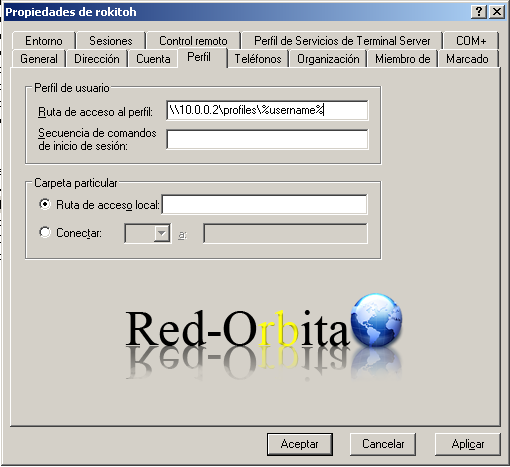
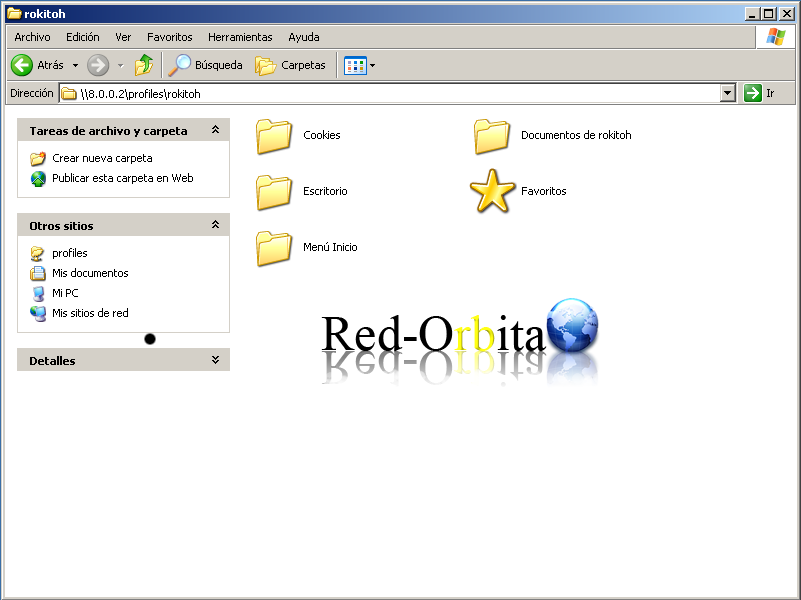
From now on when rokitoh login your profile will be stored in a folder that will be created here automatically with your name and to which in principle only you have access, so that other users, such as Domain Administrators, have access, we have to add them to the ACL.
Well, when we access the Profiles share, we will find a folder with the username, we access it and all the documents of that user must be saved there
MANDATORY PROFILE
For this profile I am going to use the same user where we left off, so as not to have to repeat steps...
in the file ntuser.dat we change the extension to ntuser.man (mandatory) which is read-only so you can't save anything on your desktop, files or etc. In order to change the file extension and for it to be effective, the user does not have to be logged in, otherwise the file will return to the extension .DAT automatically.
To do this, we are going to access the user's directory from the DFS server and change it.
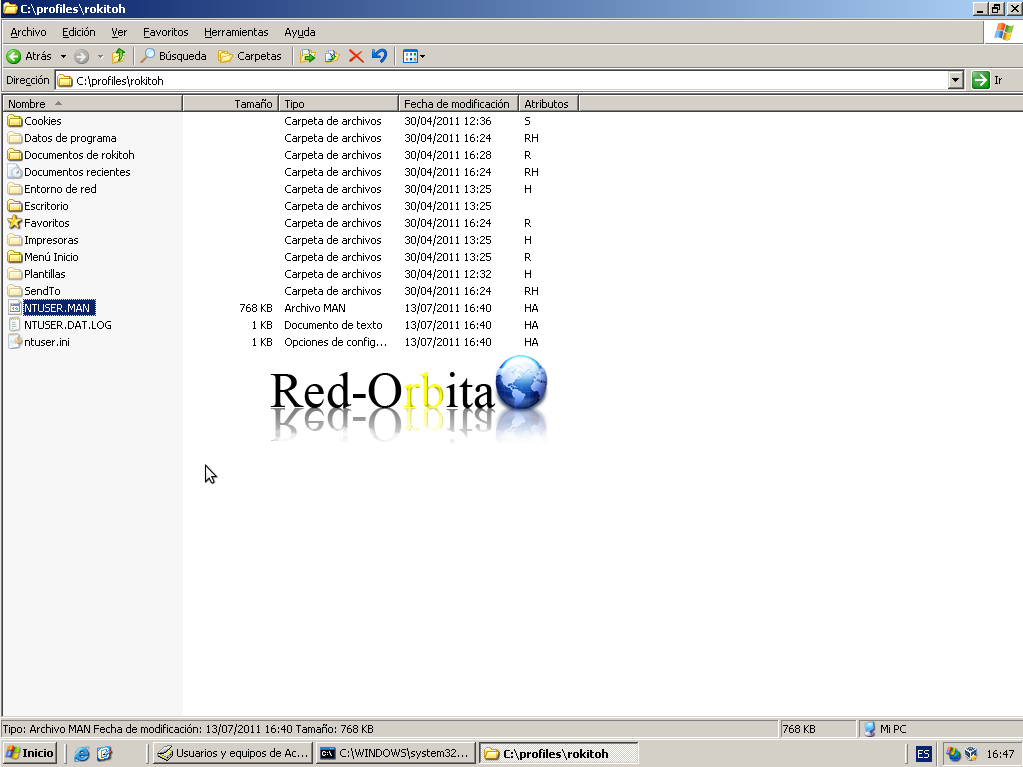
To check that it went well, we can create a file from the DFS server in the user's directory, when we log in, if that file is on the desktop it means that everything went well.
TEMPORARY PROFILE:
To temporarily make a user only vast by adding him to the I groupdomain guests.
We go to the domain controller (CDP). Home > Programs > Administrative Tools > Active Directory Users and Computers > users
and once there we go to the user we want, in my case redorbita, right click > propertys and place us in the tab "member of" There it has to be added to the groups of: Domain Guests and Domain Users
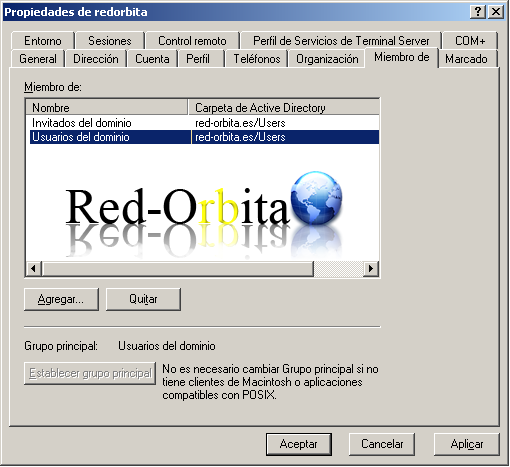
To check that it went well, what we can do is log in with the user, create a file or folder on the desktop, log out and log in again, if the folder you created has not been saved... everything is fine.
This profile is very useful... for example for establishments such as cybernetics or phone shops that many people access... and only leave... data that is useless.
All the best. rokitoh
Comments