

PrestaShop It is a free and open-source solution. Build and maintain a virtual store.
This application is very easy to install as we will see later and has a very intuitive interface. Ideal for users with low computer skills.
Facility.
We go to the official PrestaShop website and download the latest version.
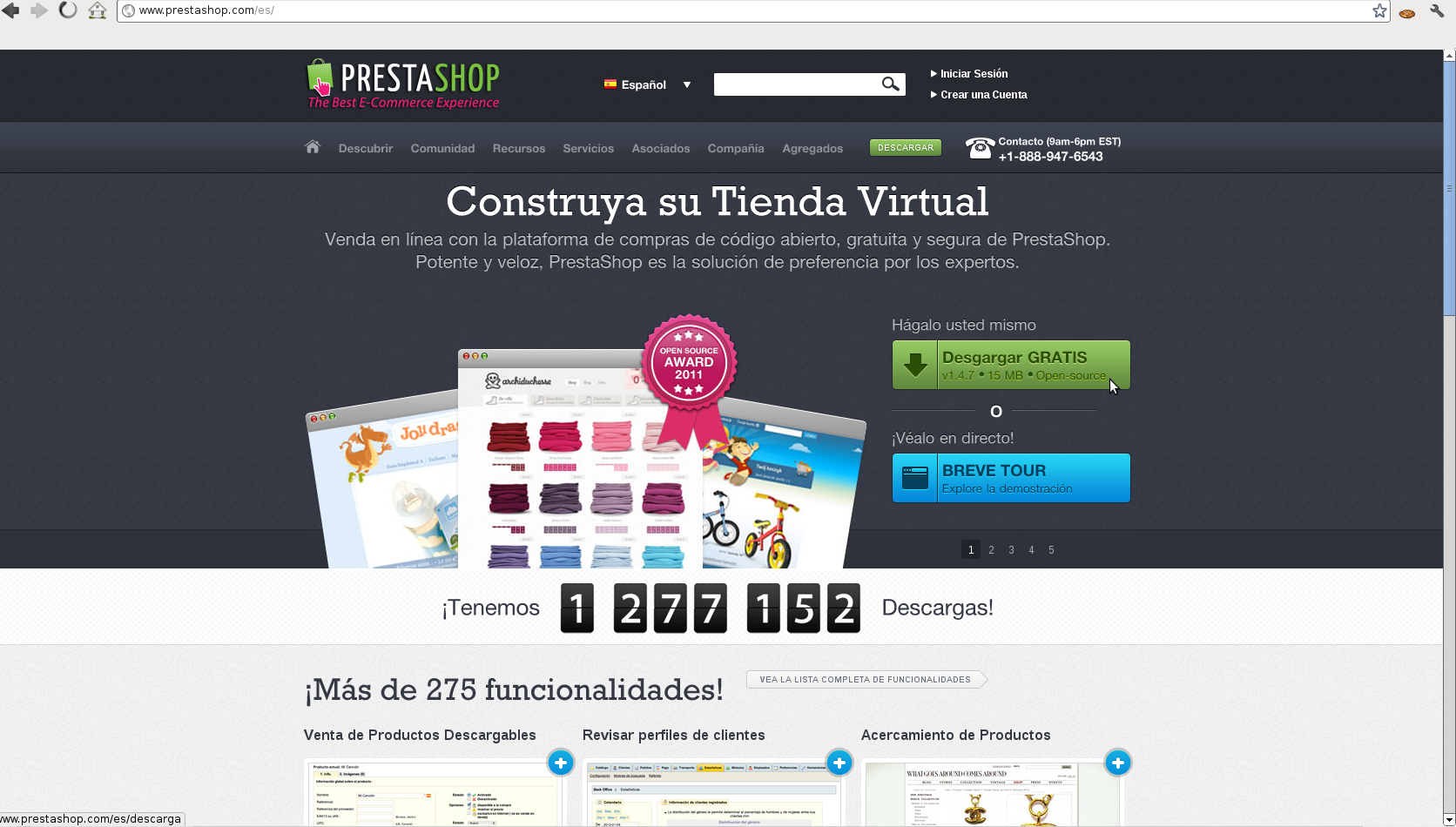
Once downloaded and unzipped, we upload it to our Hosting using FTP and create the database with our phpmyadmin panel.
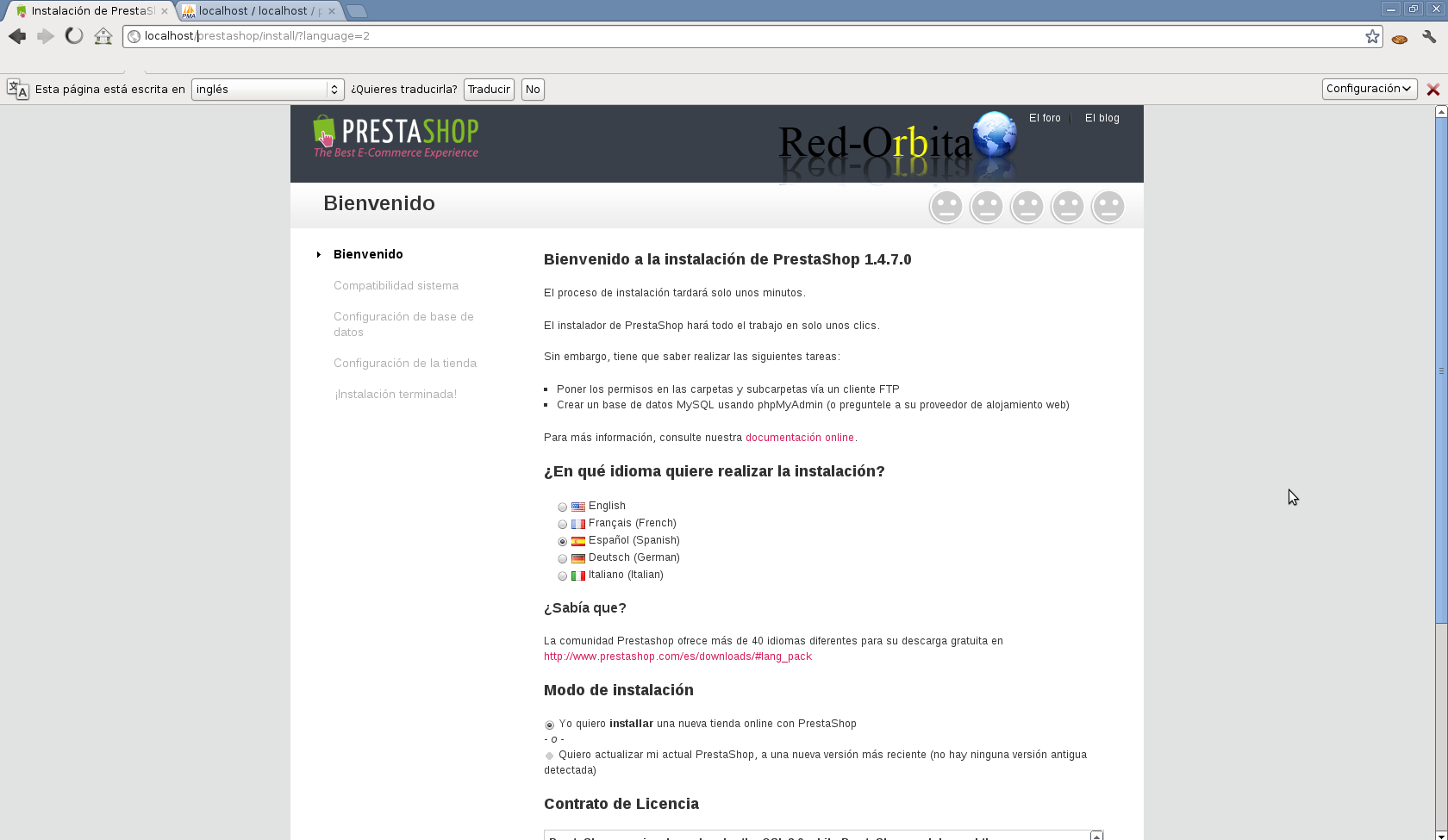
We access the URL to proceed with the installation and it will show us a screen like this:
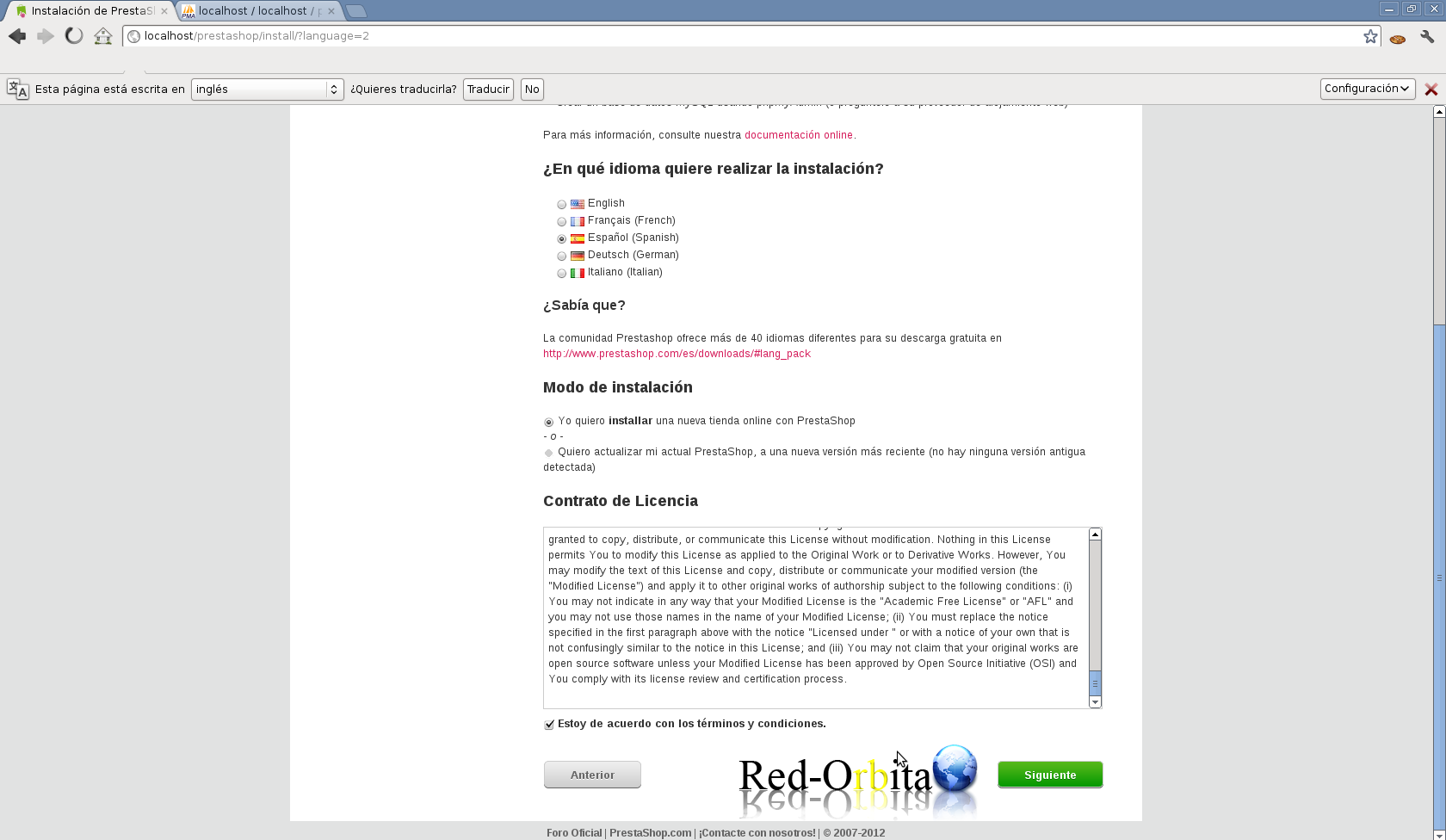
In which it will ask us for the language, installation mode and license agreement.
It then shows us the configure panel, in which we will have to add: the server (this is usually localhost although it depends on the type of Hosting we have), the database created previously with your username and password... not like me... haha
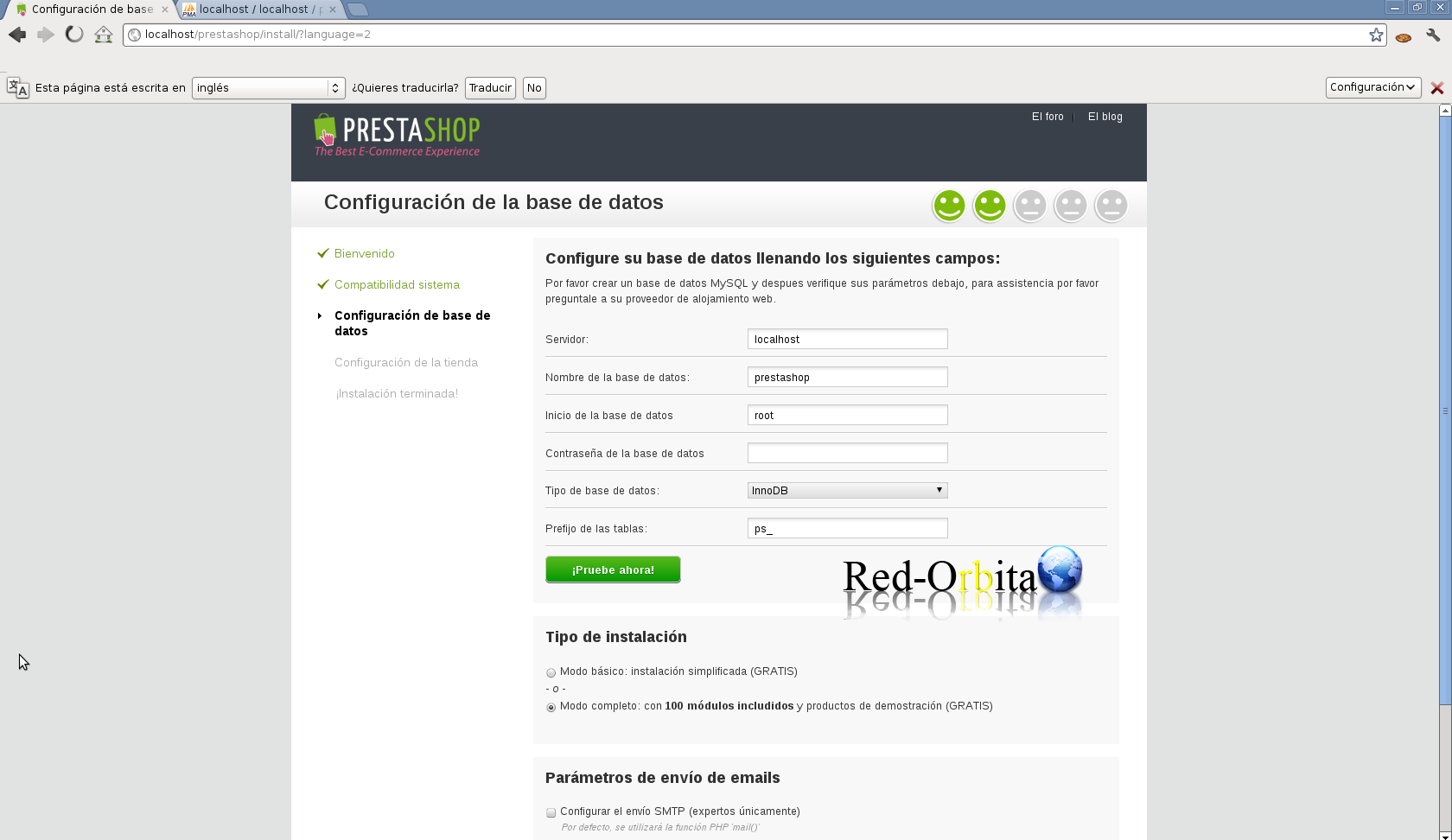
We check if we have a connection to the database.
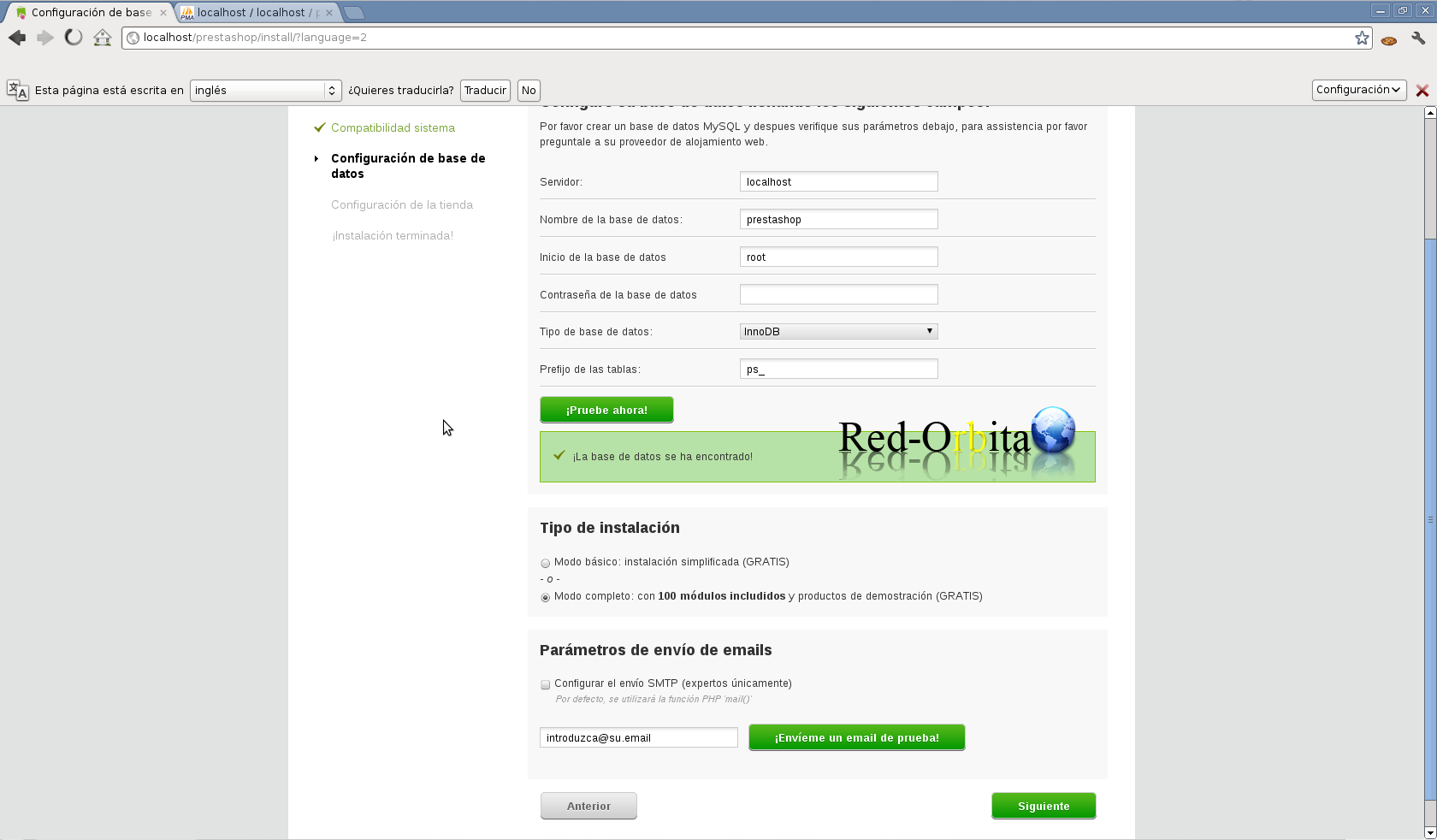
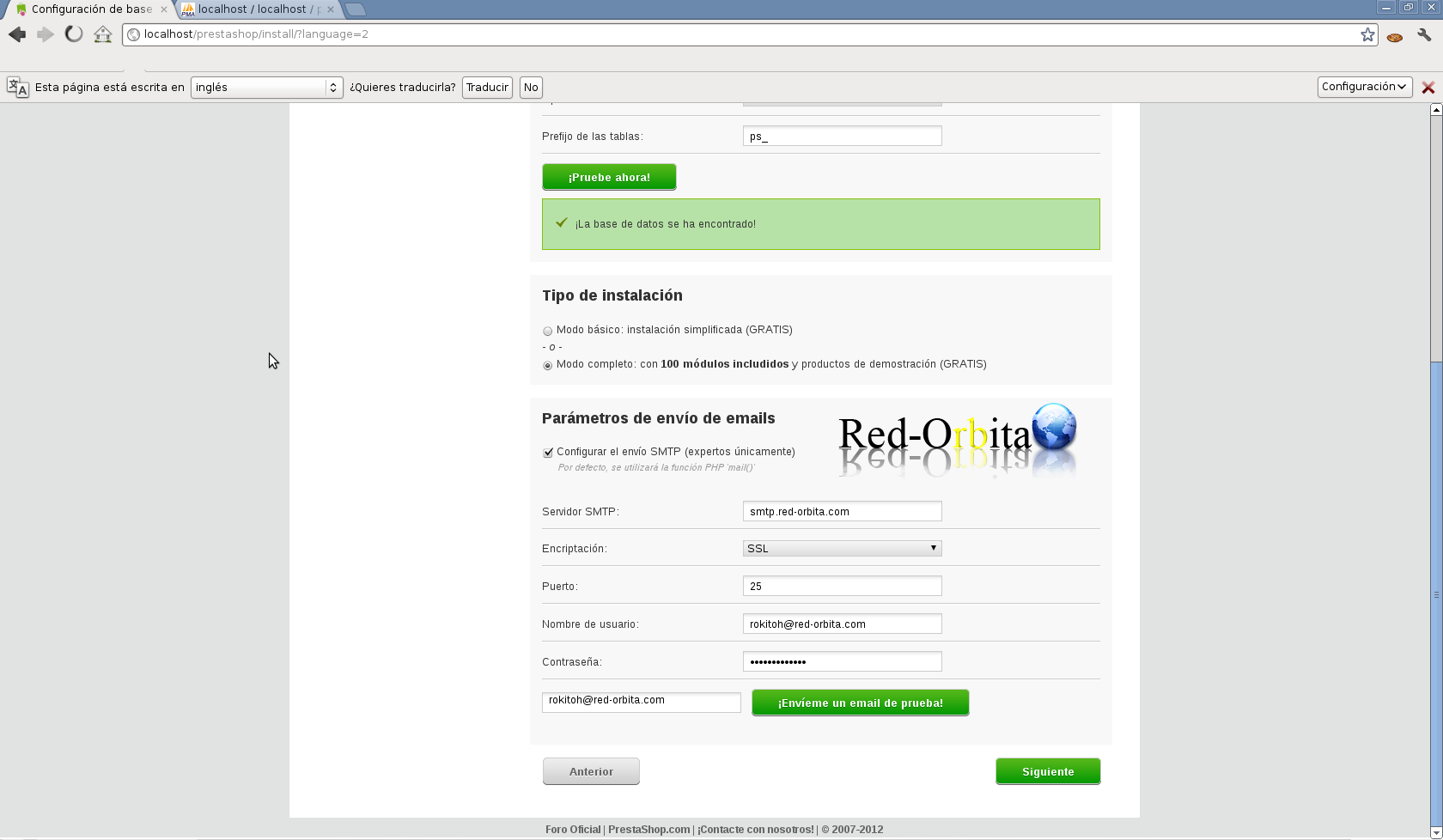
It also gives us the ability to configure the email environment and send us a test email.
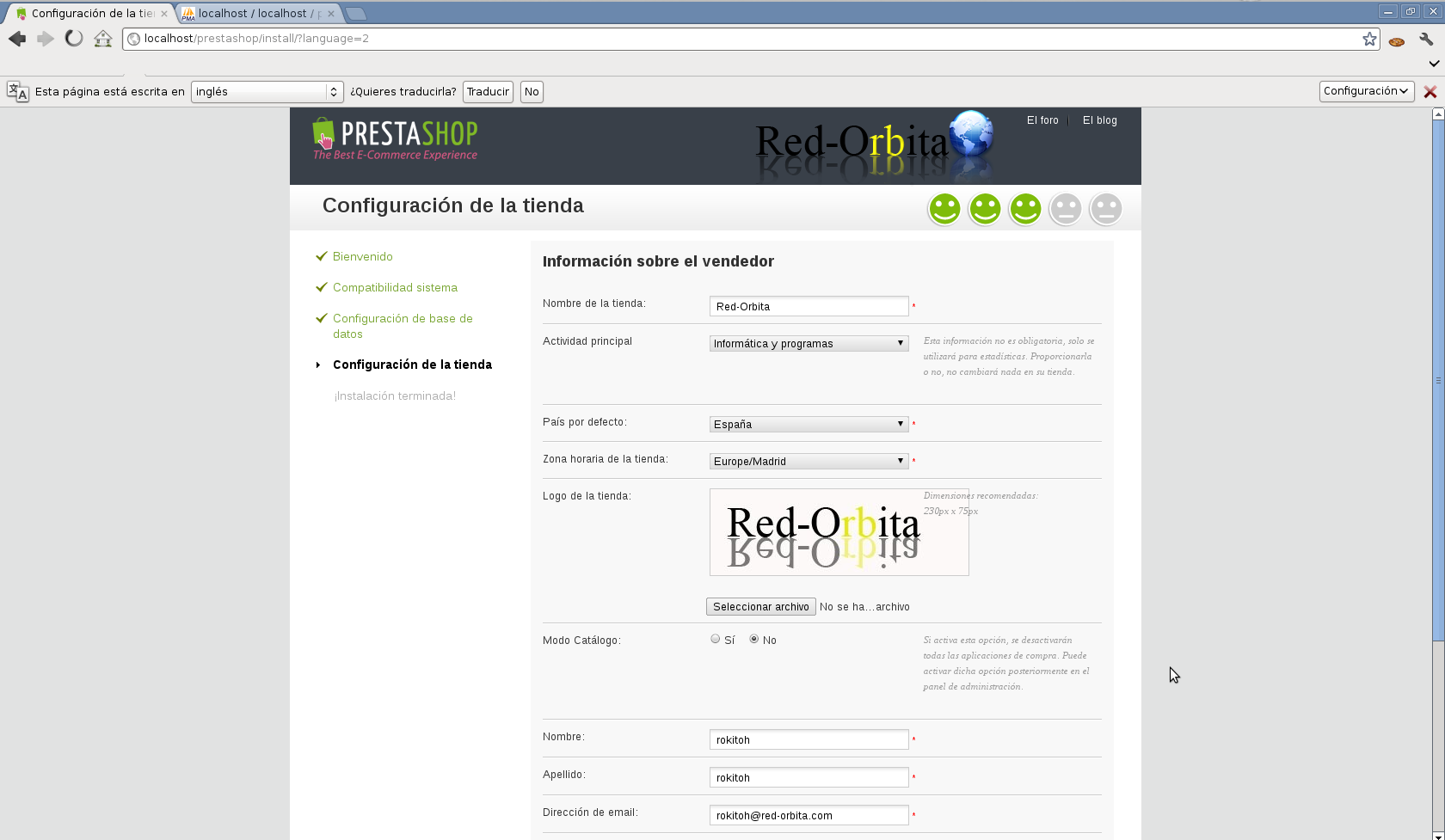
The next step is the configuration of the store, basic data, such as name, activity, country, time zone, logo... etc.
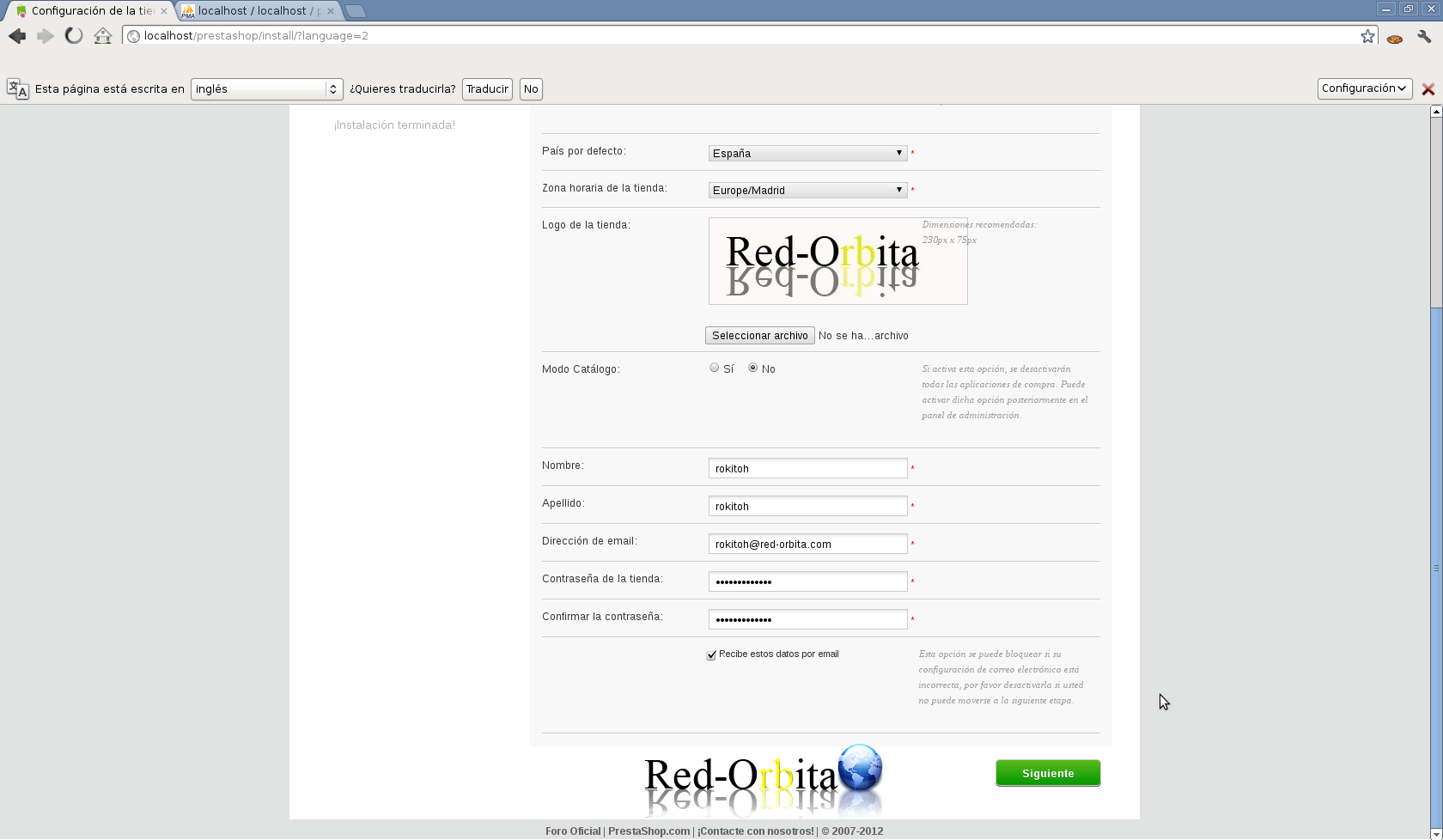
And our virtual store is already installed... Now you have the difficult job left, putting all the products... topic... etc..
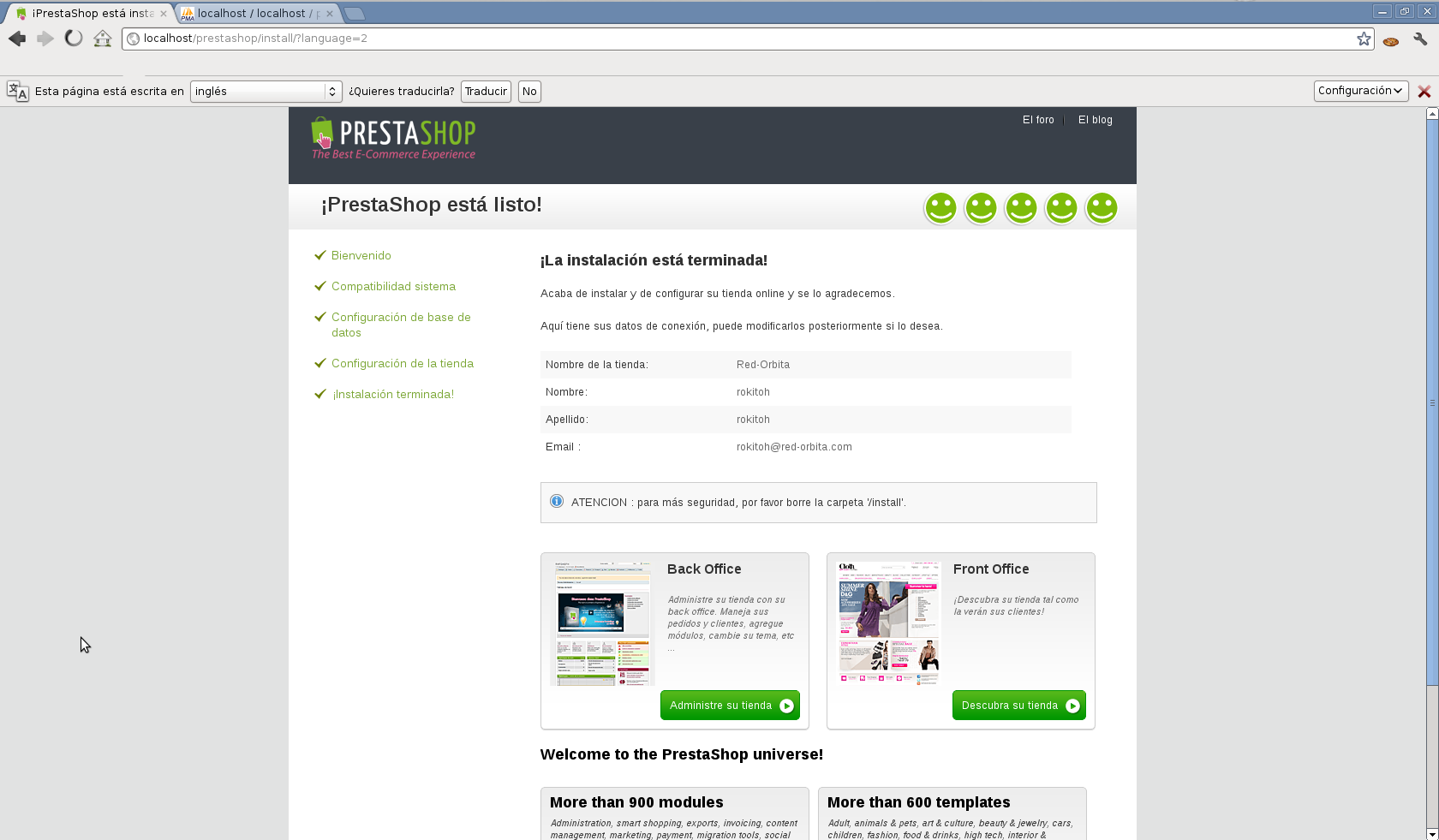
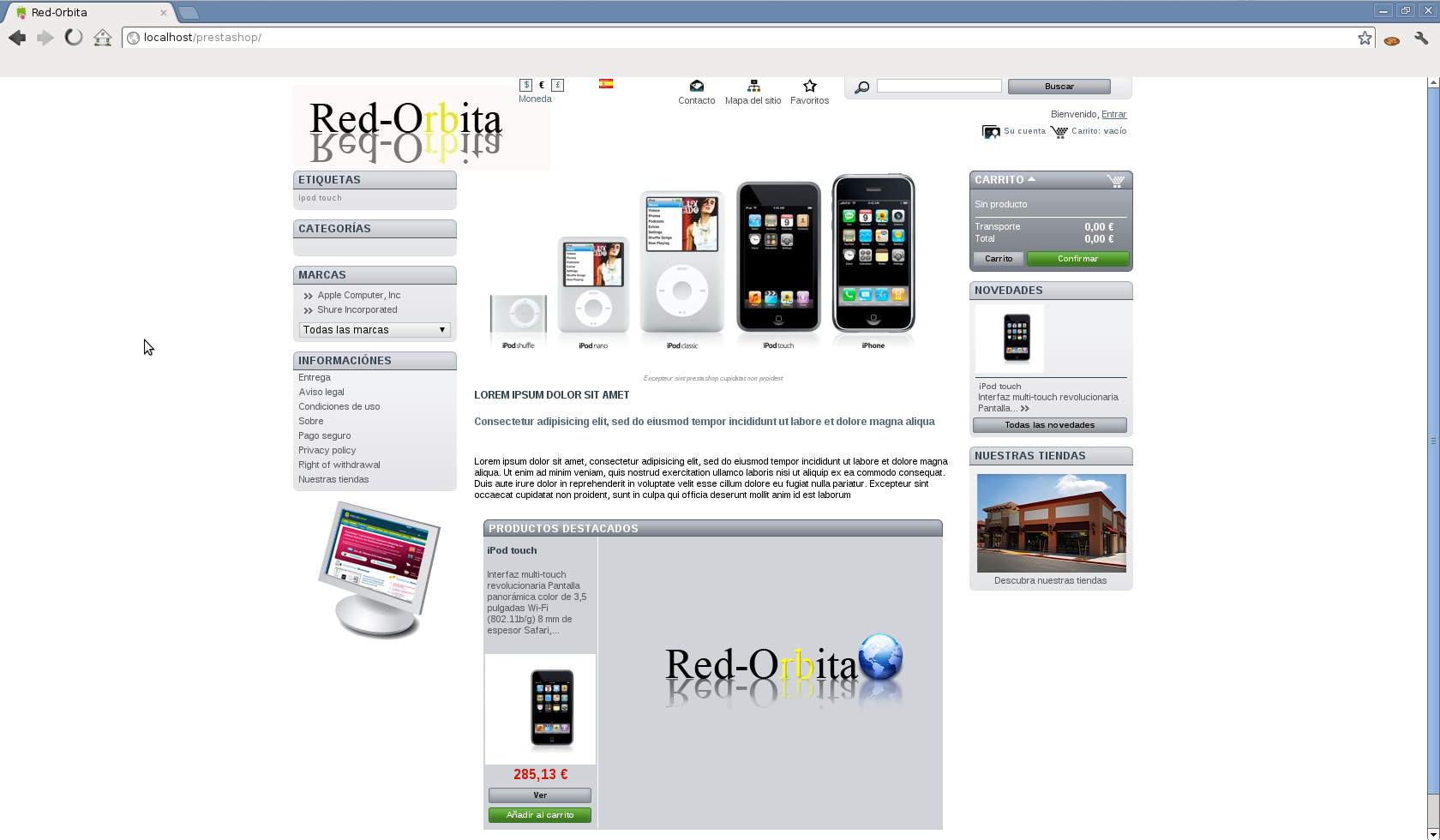
If we now enter our website, it gives us a nice example of a virtual store…
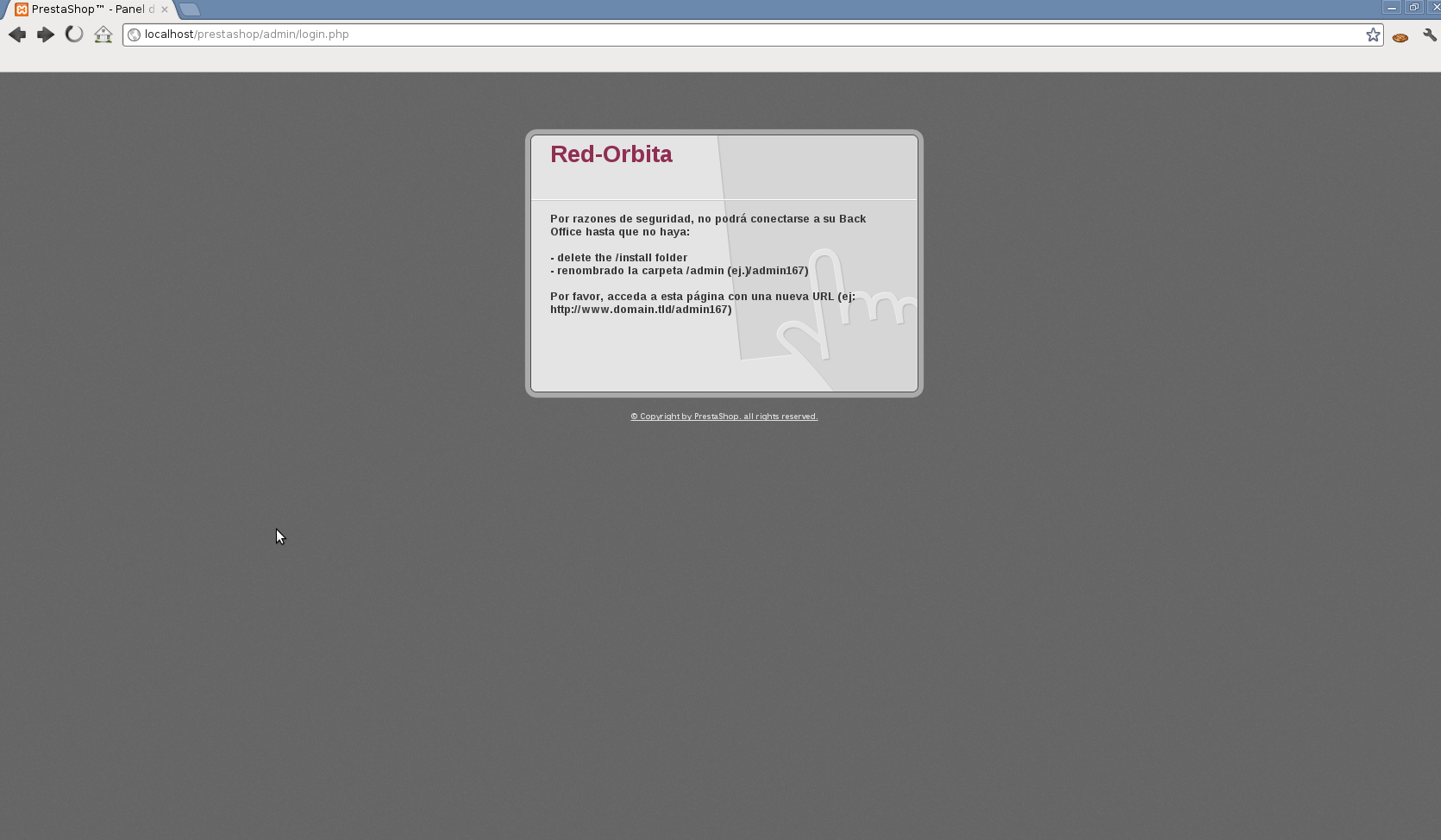
Now to access the control panel and completely configure our virtual store we have to enter the following: URL/admin. for example www.red-orbita.com/admin and it will show us the following screen Telling us to delete the /install directory (DELETE IT) and change the name of the /admin folder for security.
We delete the /install directory and change the name of the /admin directory to what it tells us and access it.
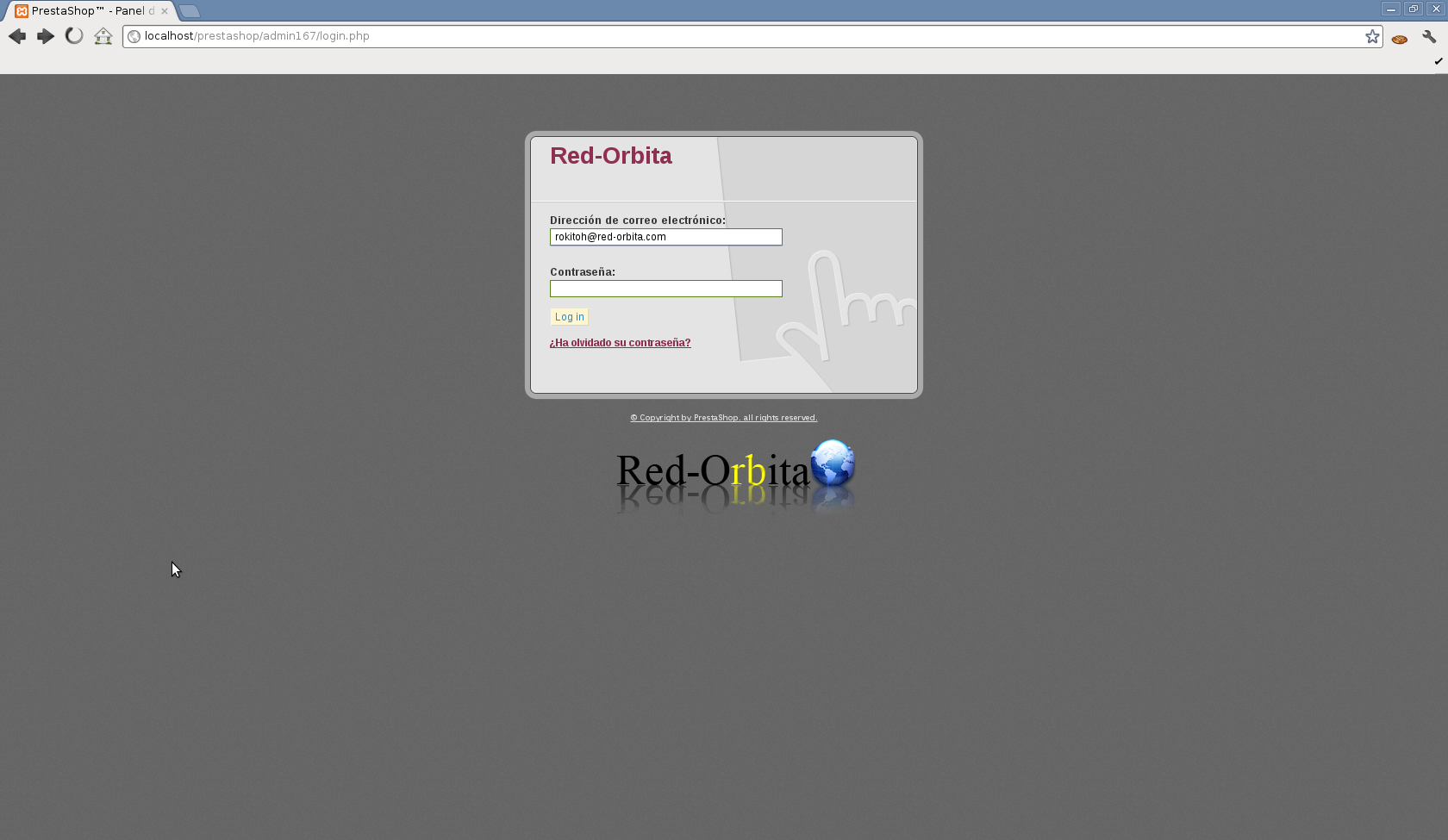
Once accessed, the panel will appear to log in with the username and password created previously.
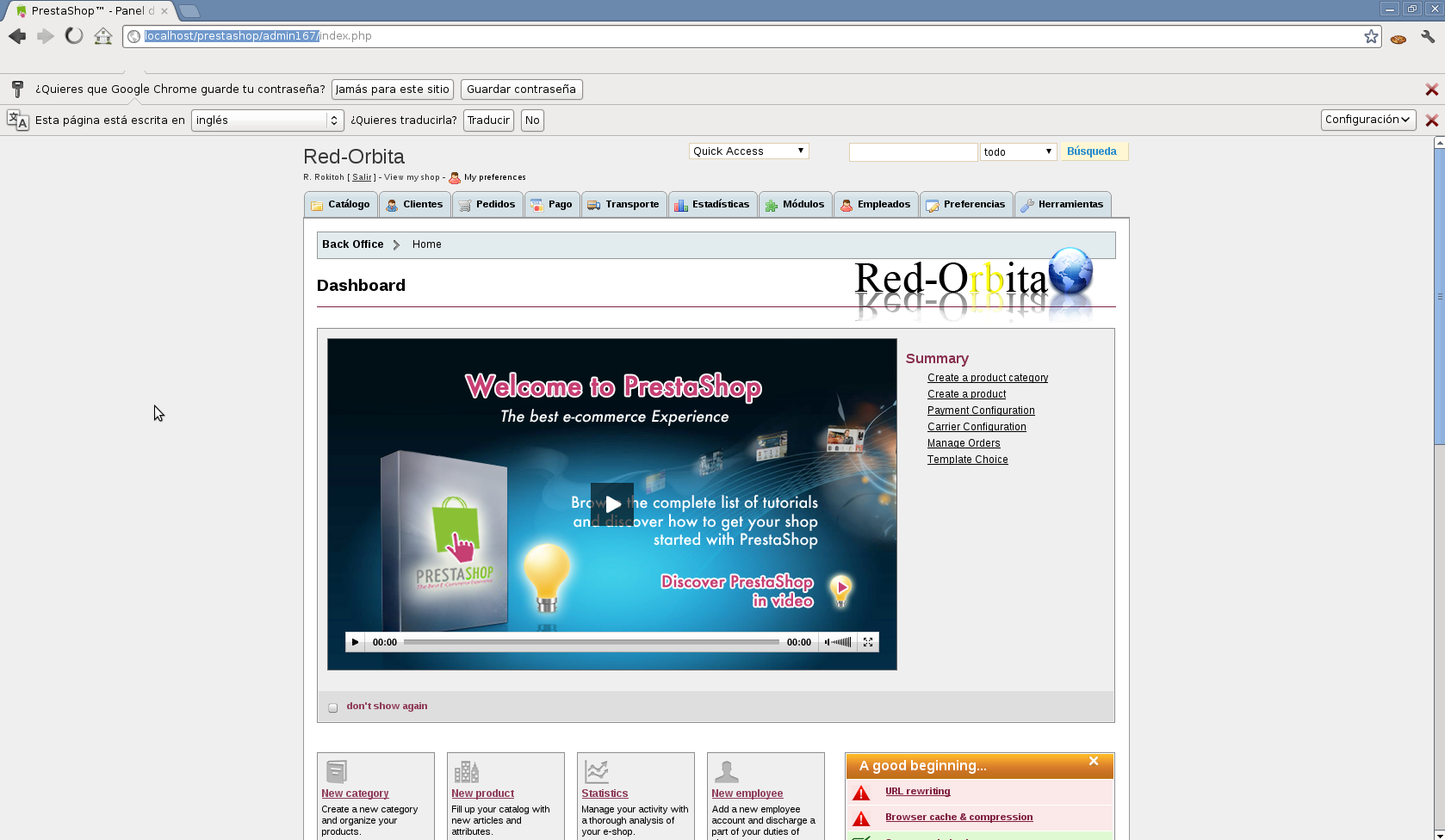
and we access the control panel with which we will add our products, themes... and many things...
Greetings and I hope that it is very helpful to you and that you sell a lot. rokitoh!
Comments