
What is a serial port?
A serial port or serial port is a digital data communications interface, frequently used by computers and peripherals, where information is transmitted bit by bit by sending a single bit at a time, in contrast to the parallel port which sends several bits simultaneously.1 The comparison between serial and parallel transmission can be explained using a highway analogy. A traditional highway with only one lane in each direction would be like serial transmission and a highway with several lanes in each direction would be parallel transmission, with the vehicles being the bits that circulate along the cable.
To make the connection we are going to use Minicom since it is a very easy software to configure and use.
Facility:
Debian-based distributions
rokitoh@red-orbita.com: # apt-get install minicomRedHat-based distributions
rokitoh@red-orbita.com: # yum install minicomOnce the cable is connected, we verify if it has been recognized.
rokitoh@red-orbita.com: # dmesg | grep tty

[ 0.000000] console [tty0] enabled

[ 2737.223332] usb 6-1: pl2303 converter now attached to ttyUSB0
Generally it shows us tty0, in my case it shows ttyUSB0 since I have a USB adapter connected
To configure minicom we execute the following command
rokitoh@red-orbita.com: # minicom -sIn the configuration panel we select the option «Serial port configuration»
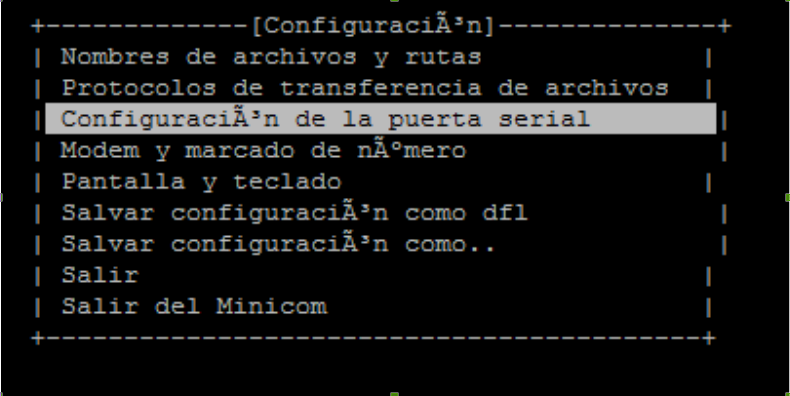
To configure the "serial device" we press the letter TO and we add the corresponding device. In my case in my case ttyUSB0
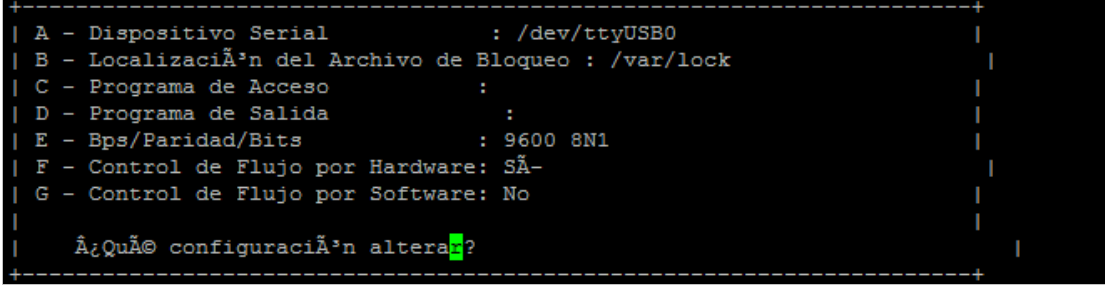
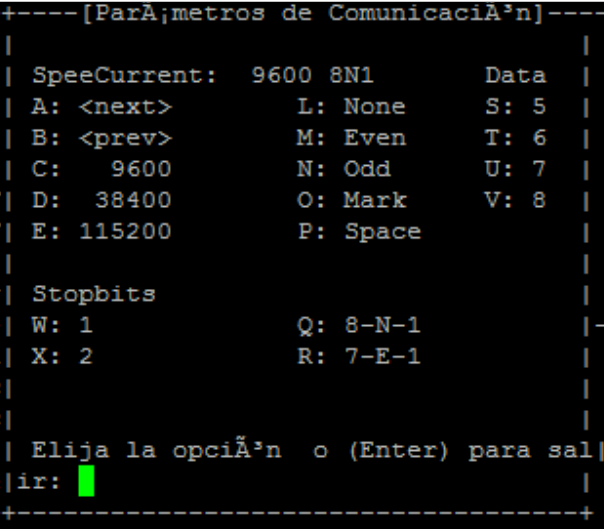
We press the letter AND to configure parity, speed, etc.
In my case given to the letter c
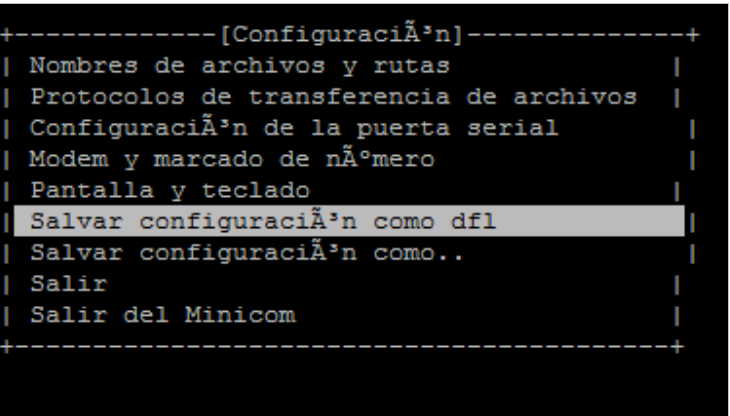
Once configured, press ENTER to return to the initial menu and save in: «Save configuration as dfl»
Finally we click Exit
To connect we only have to execute the following command:
rokitoh@red-orbita.com: # minicom:wq!
Comments