
To create an SSH/SFTP server we are going to use FreeSSHD. To do this, we access their website and download it.
http://www.freesshd.com/?ctt=download
Once downloaded we run the Installer.
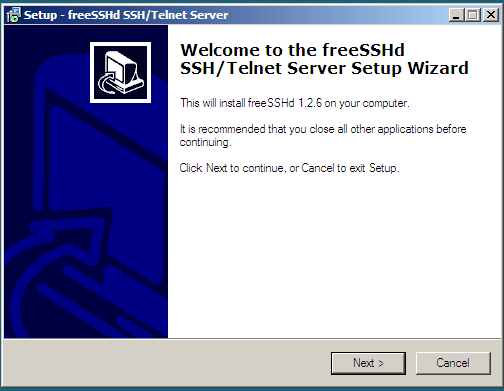
An installation wizard opens. Following
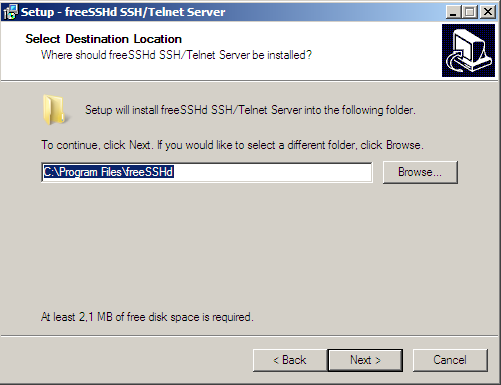
We indicate the route where we want to install it.
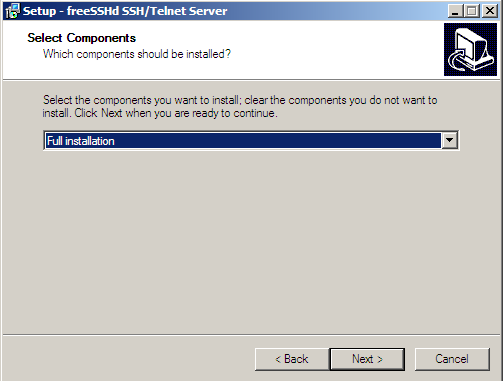
We select Full installation. Following.
We add a name to the folder
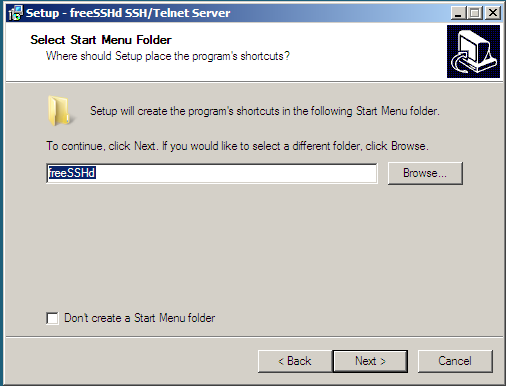
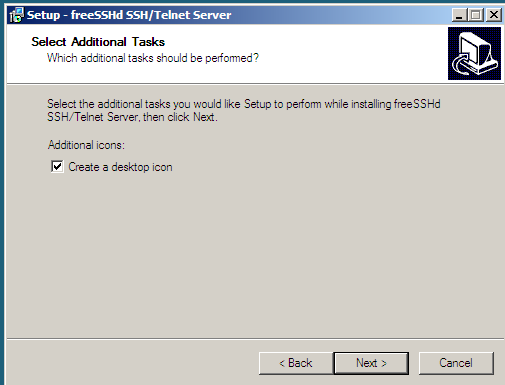
We create the icon on the desktop.
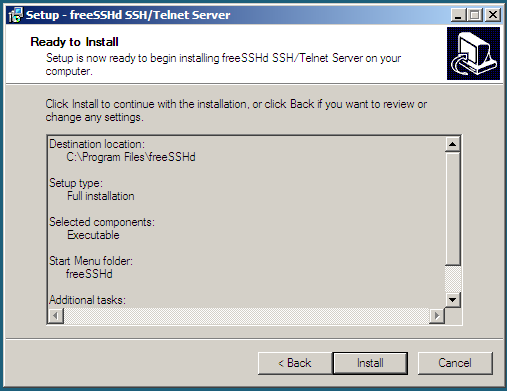
It shows us a summary. Install.
Close.
It tells us if we want to create the private key. We press yes.
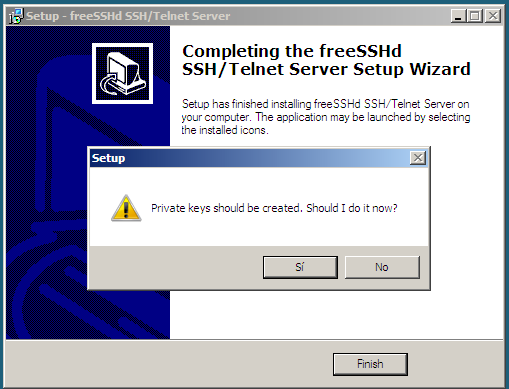
We press yes.
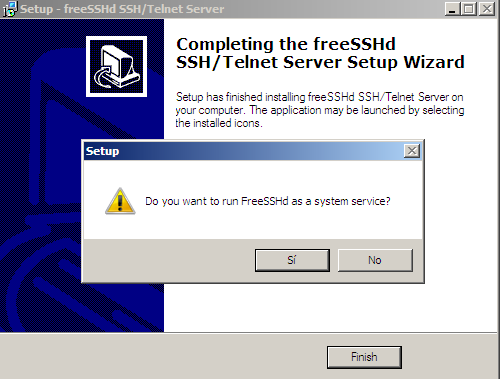
We finish the installation.
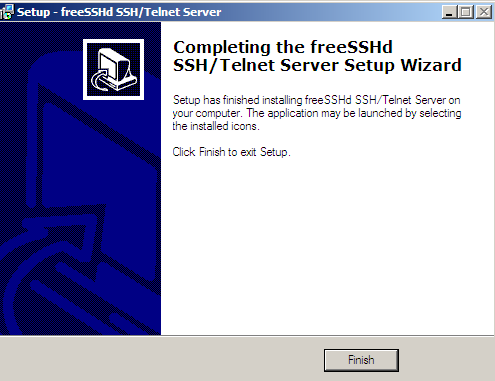
We run the FreeSSHd program with ADMINISTRATOR permissions to configure it properly.
When we start it, this screen will appear:
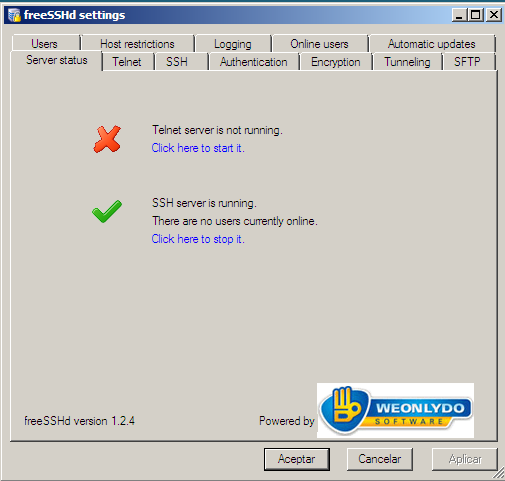
This is the main screen. In which we will start the service once configured.
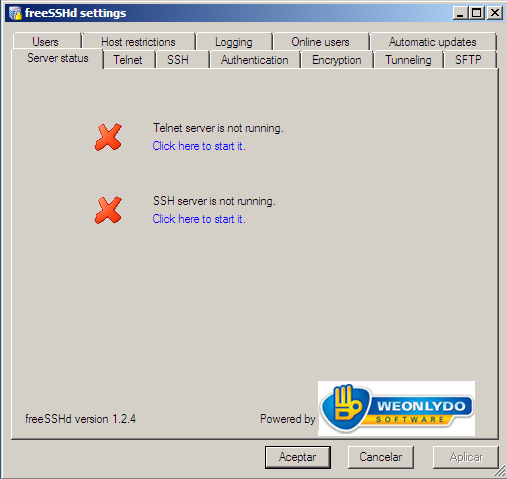
We go to the SSH tab. In it we can configure which interface we want it to listen on, port, maximum number of connected users, and shell to use. I will leave everything by default.
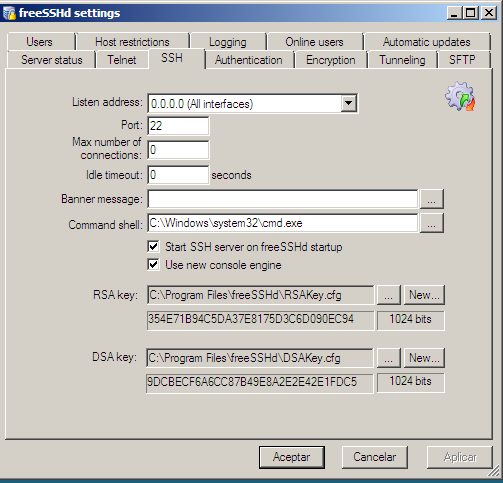
We go to the Authentication tab. Let's configure it so that it asks us for a password. In another manual we will see how to configure an RSA key to connect without a password.
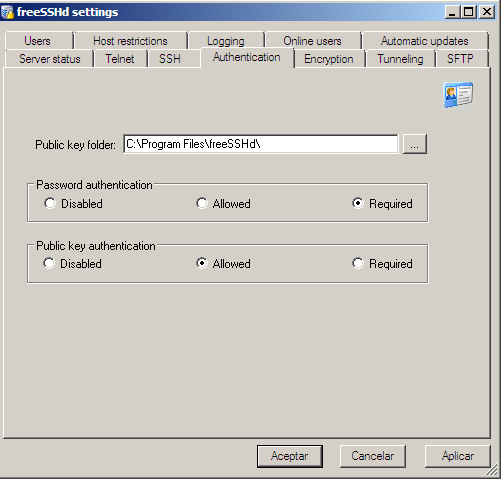
We configure the type of encryption.
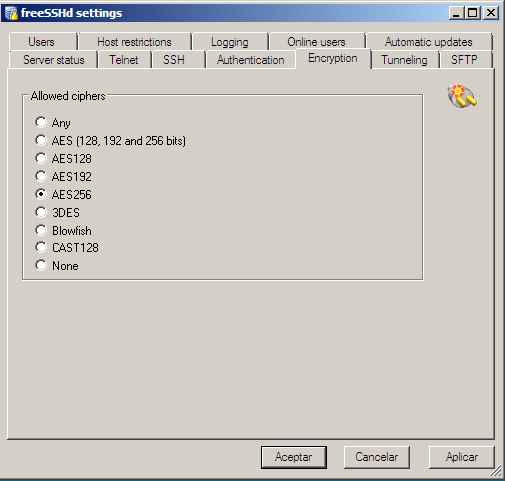
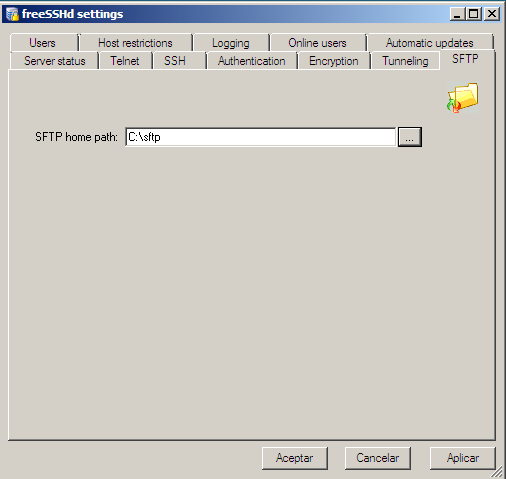
Once the SSH server has been configured, we are going to configure the SFTP server. To do this we go to the SFTP tab.
We indicate the folder where the users who have access to the SFTP server will connect.
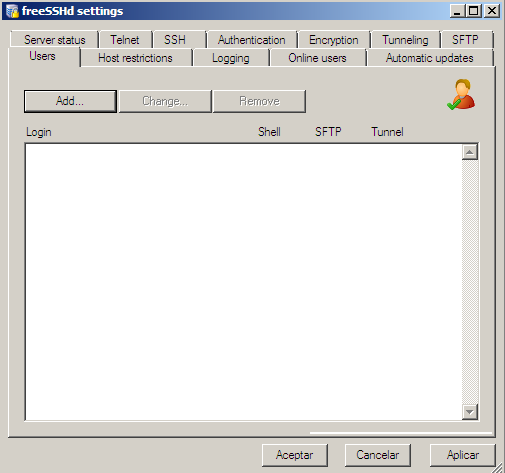
Now we have to configure the user who will connect. To do this we go to the Users tab.
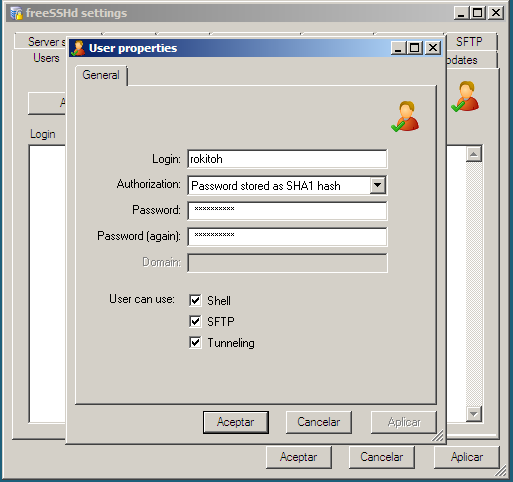
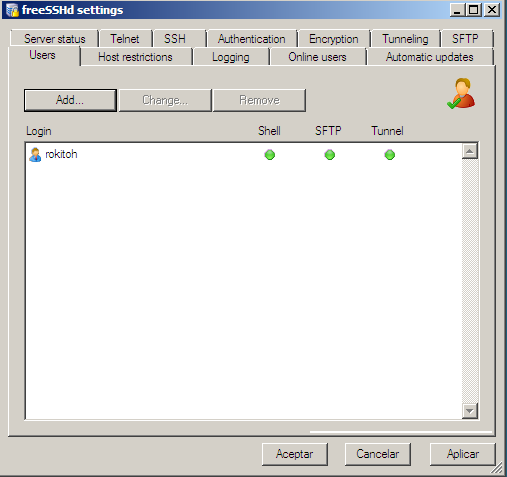
A wizard opens where we will add the username, the authentication method (in our case password), and what that user will have access to. In my case I have entered everything, but if we want it to only be for SFTP, for example, we only mark SFTP.
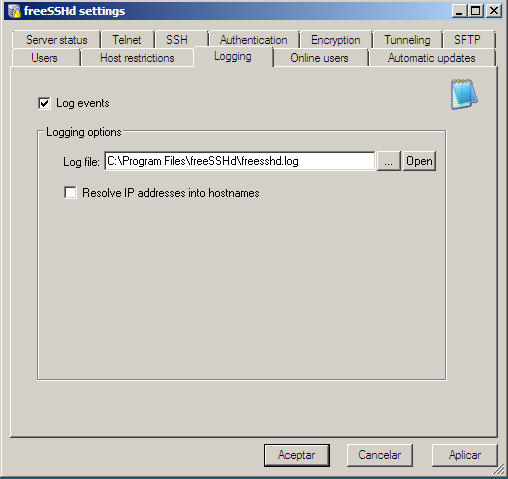
We go to the Loggin tab and activate the LOG.
Again we go to the main tab and start the server.
We access it using ssh to check that it works.


Possible problems:
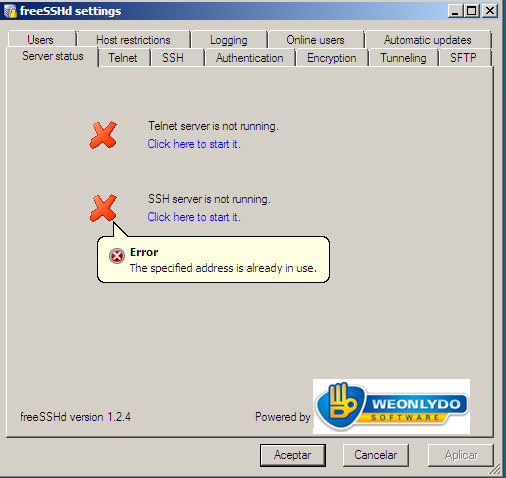
When trying to start it tells us that the port is already being used... we probably have the freesshd service open twice or another process is running on the same port.
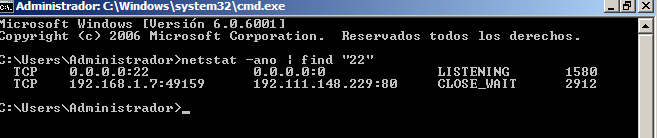
We access our MSDOS console and verify that it is running on port 22.
netstat -ano | FIND «22»
We list the process
tasklist /FI «PID eq 1580»

We kill the process.
taskkill /F /IM “FreeSSHDService.exe”

We check again

We start the program again and it should appear green.
Comments