
In this post we will see how to add a VMware ESXI 5 server to an Active Directory domain to be able to access it through the vSphere Client using the username and password of our domain.
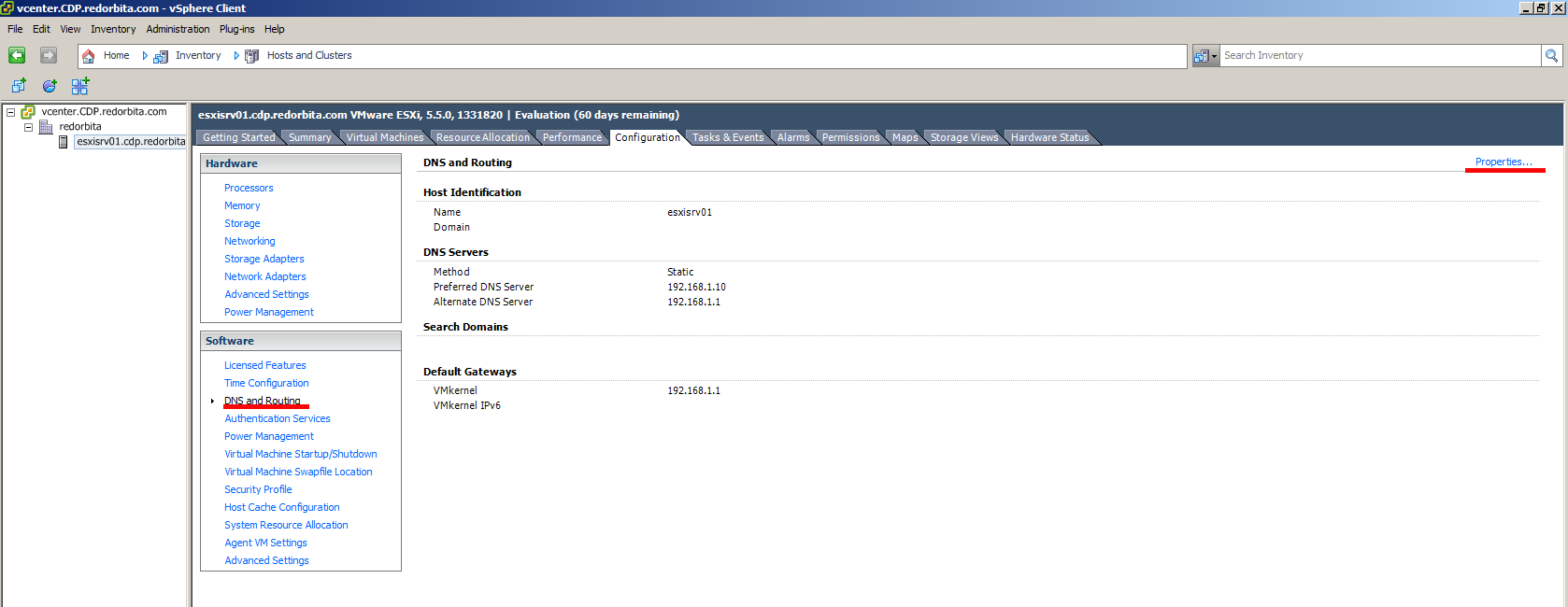
To do this, we access vSphere Client and go to: Configuration > DNS and Routing > Properties (Located at the top right)
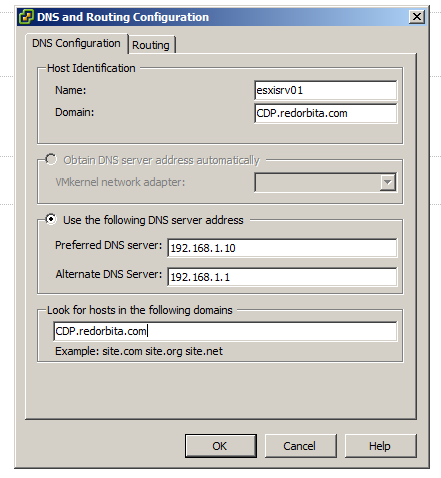
Once we have accessed the properties, we see the following configuration panel, adding the domain name of our AD and making sure that the DNS is correctly configured.
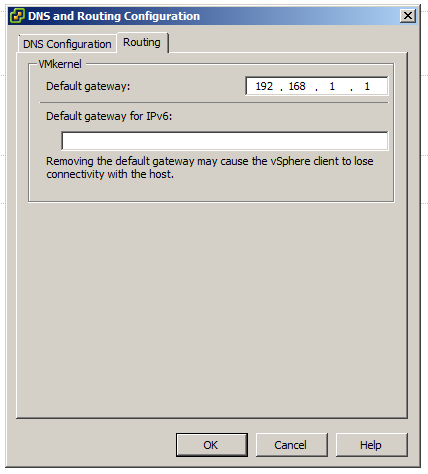
Once our domain and DNS are configured, we go to the Routing tab and we check that the gateway is correctly configured.
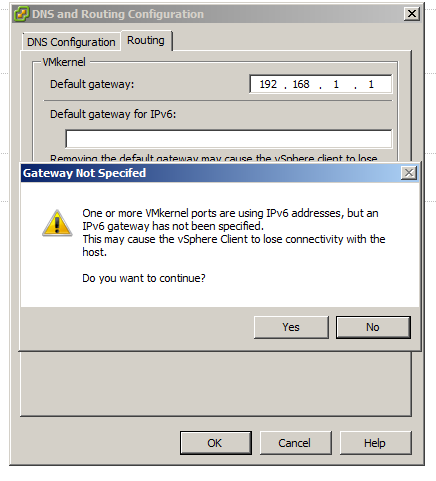
Here it warns us that we have not used IPv6 addressing in our configuration… next
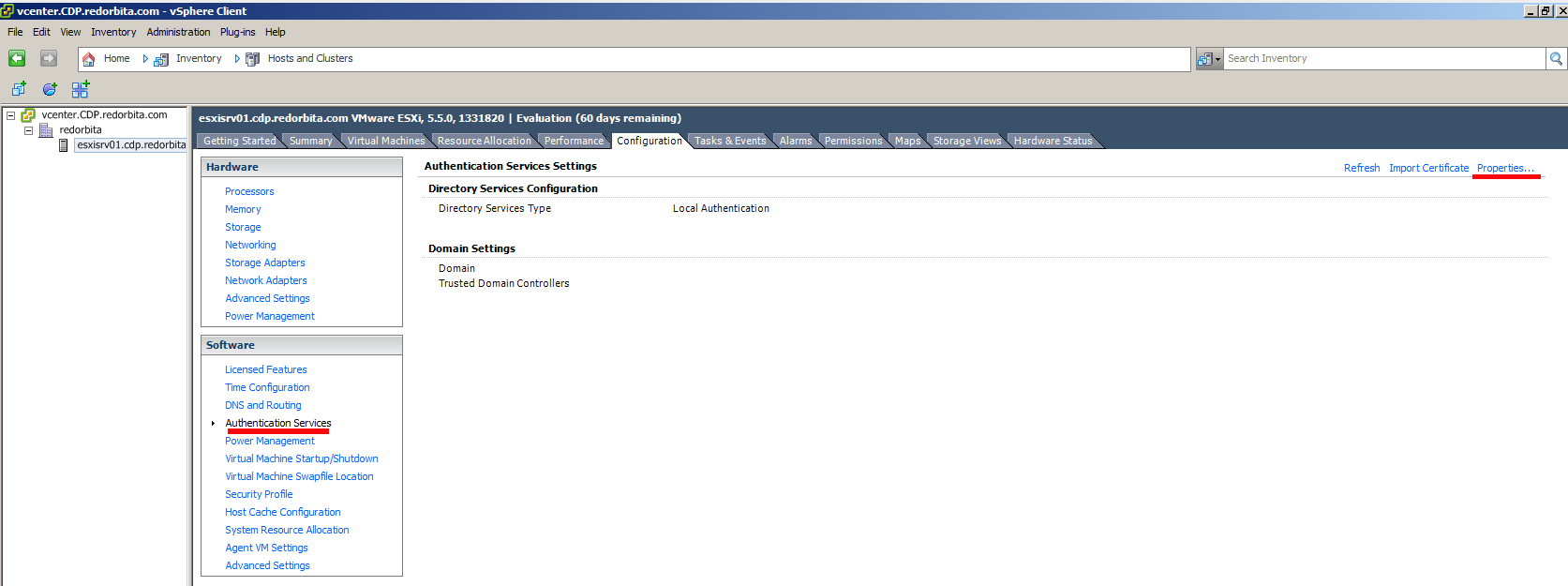
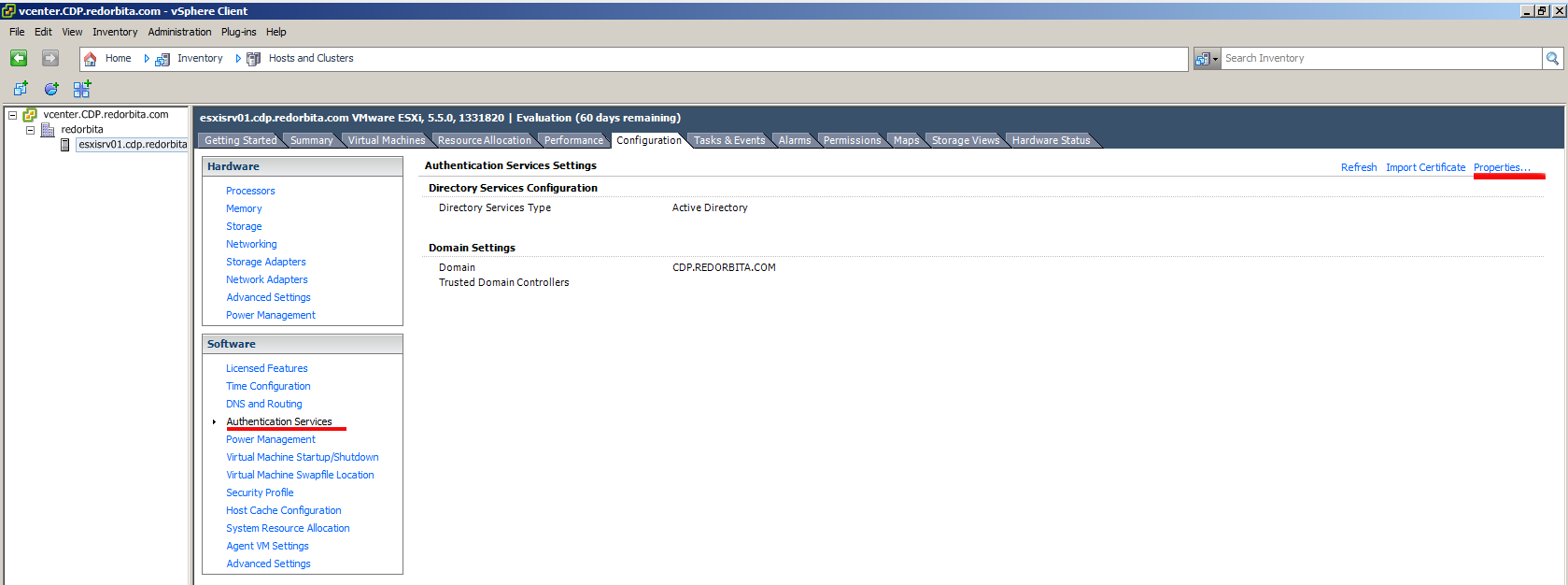
 Now we go to the option Authentication Services > Properties
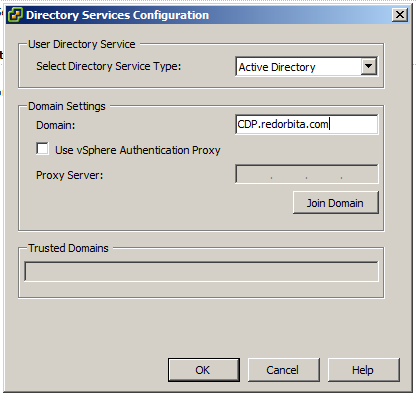
In the configuration panel we add that it connects through AD, we add our domain and press the button Join Domain
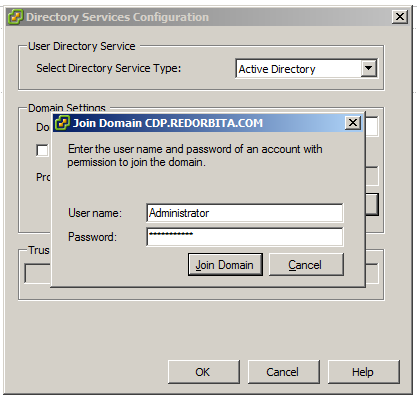
We identify ourselves with the domain username and password
We accept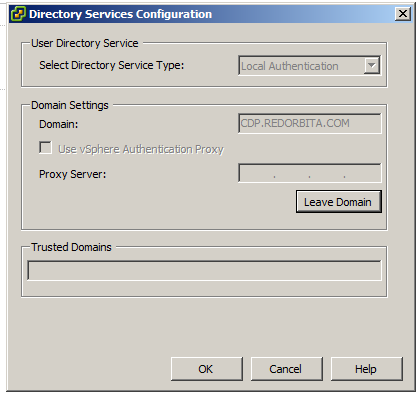
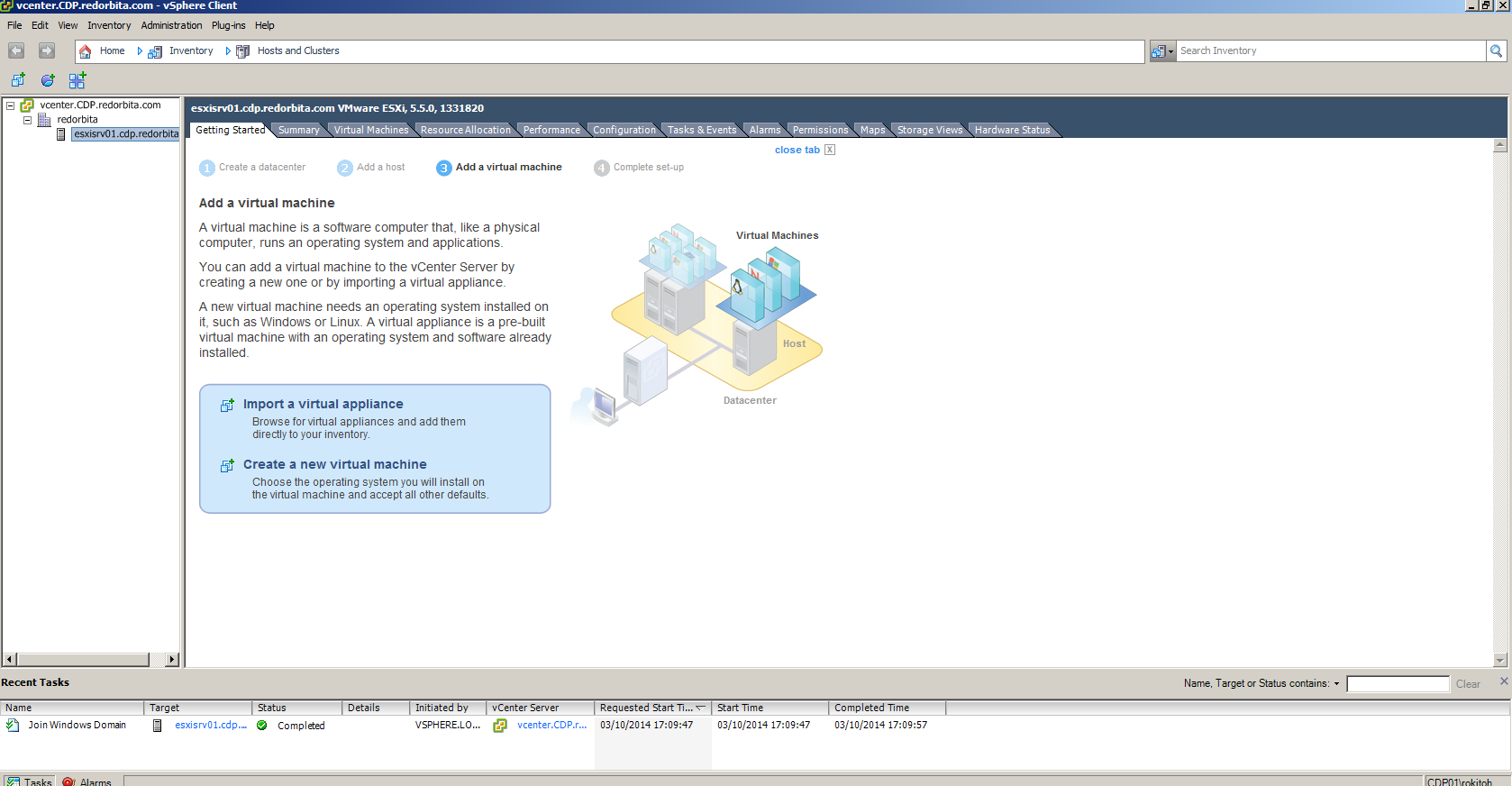
We check that the domain has been added to us
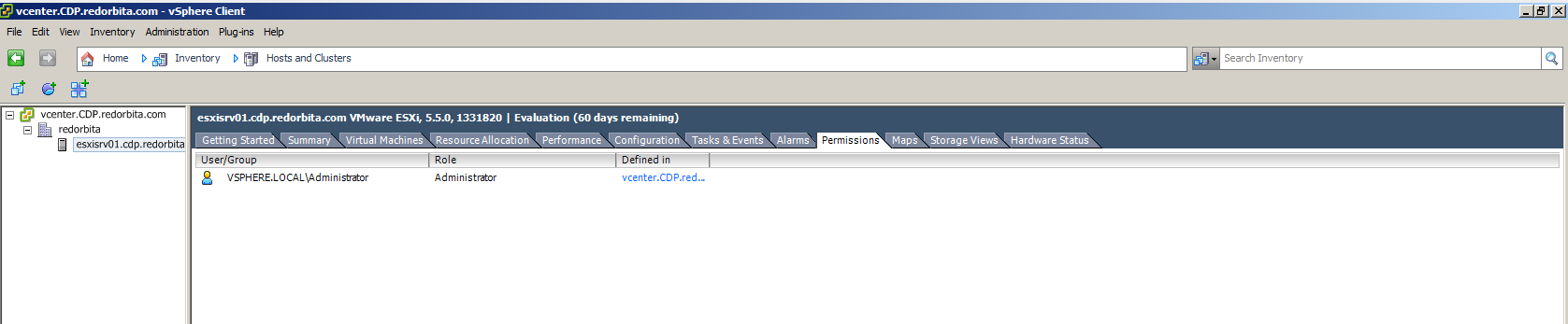
We go to the Permissions tab
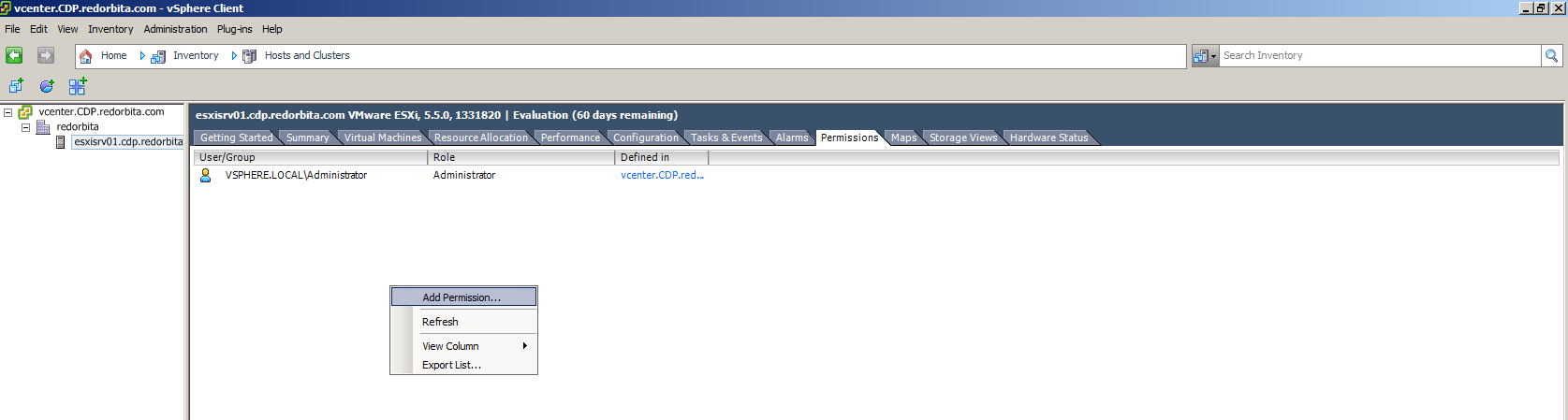
Right button > Add Permissions
We give Add..
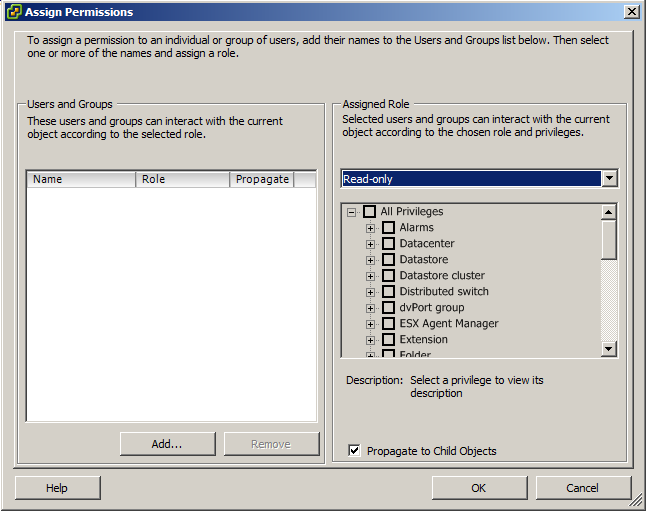
We select our domain and search for Show groups First (In my case I am going to add a group)
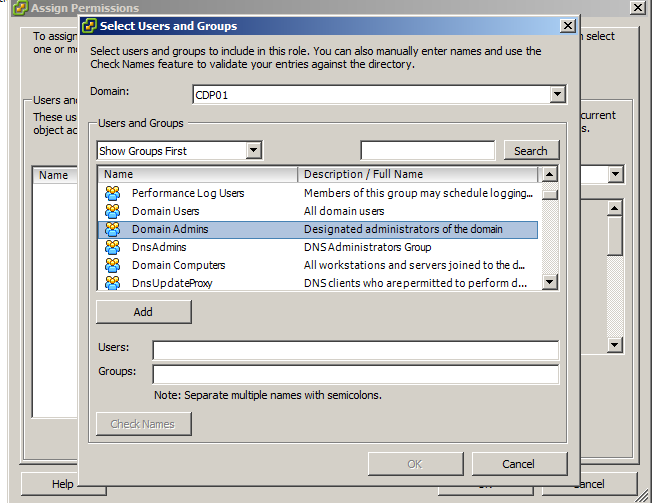
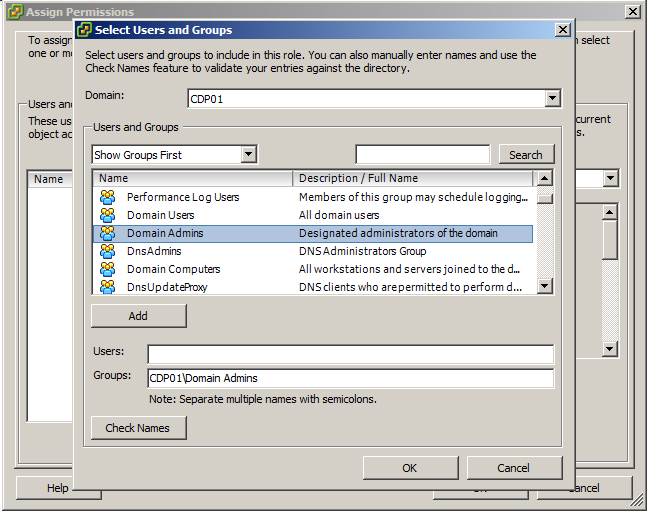
We add the group or user we want.
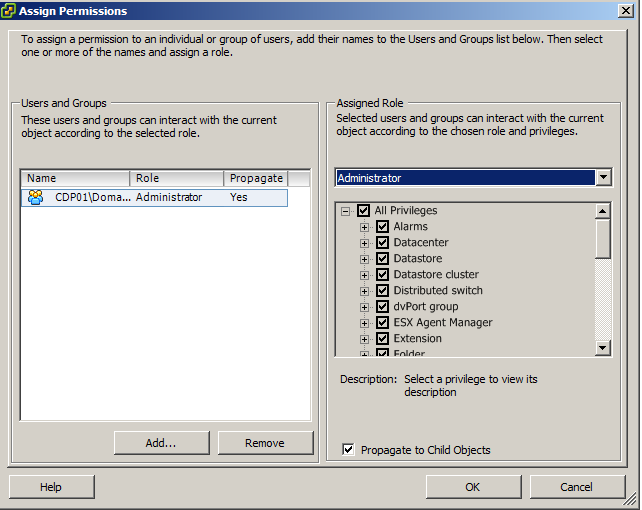
We assign All privileges
We disconnect and try to connect with the AD user (In this case, since I have added a domain, the user has to be added to that group in our AD)
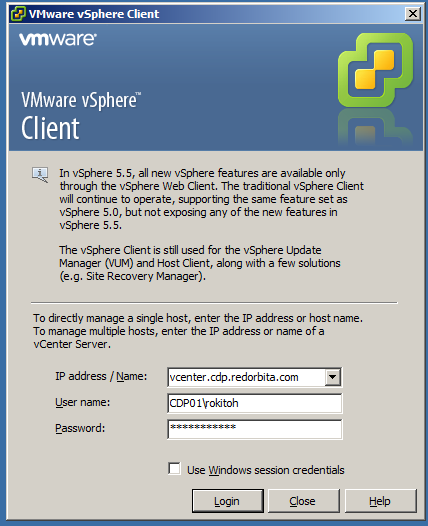
Ready to start working
Greetings, rokitoh!!!
:wq!
Comments