Home Linux & Systems Cybersecurity Cloud & DevOps Networks & Infrastructure SIEM & Monitoring DFIR & Threat Intel Development & Other All categories Projects About Tools

Install and configure Proxmox VE

Leer en espanol
Install and configure Proxmox VE

Table of contents

PROXMOX VE “Virtual Environment” is a powerful enterprise-level virtualization platform. Proxmox is a GNU solution. Offers benefits similar to the most popular ones ===

What is PROXMOX VE?

PROXMOX VE “Virtual Environment” is a powerful enterprise-grade virtualization platform.

Proxmox is a GNU solution. It offers similar benefits to the most popular enterprise virtualization products such as vmware vSphere, Citrix Xen Server, Microsoft Windows Hyper-V.

We download the image from the official website and we start with the CD-ROM

Once started, press Install Proxmox VE
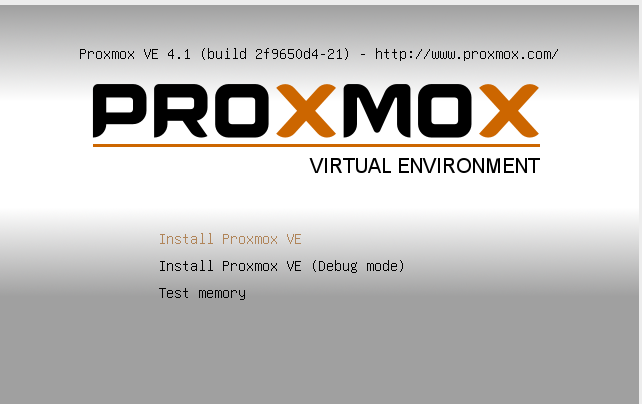
Captura de pantalla de 2016-03-28 17:19:02

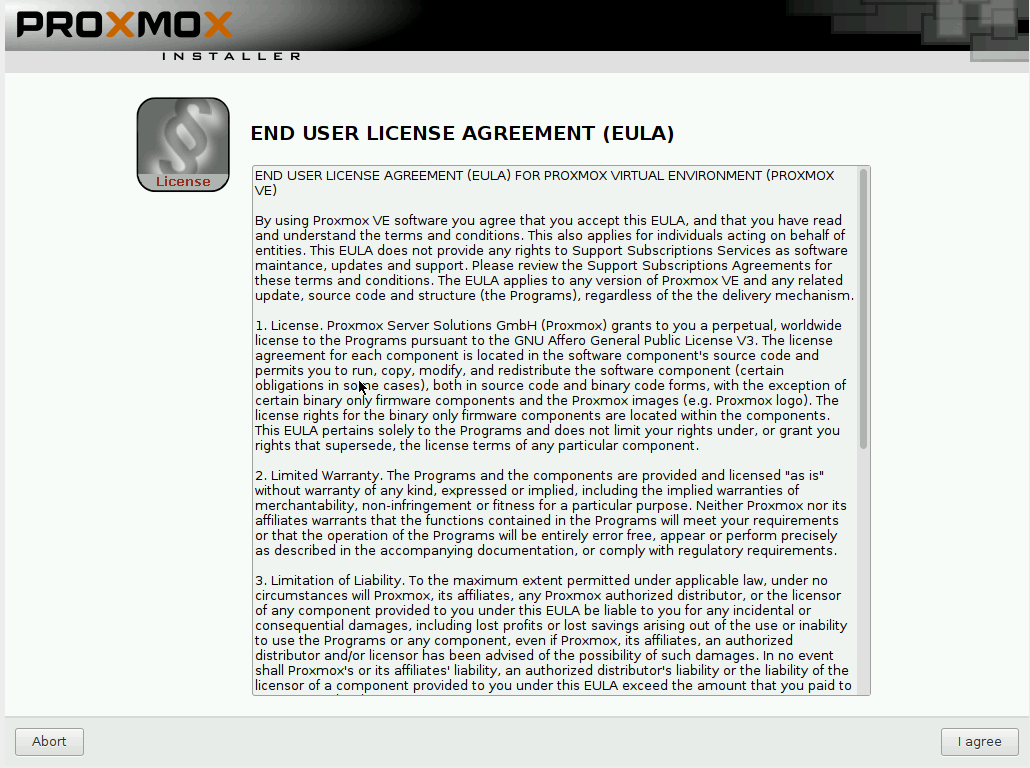
We accept the license.

Captura de pantalla de 2016-03-28 17:19:19

We select the disk where we are going to perform the installation.
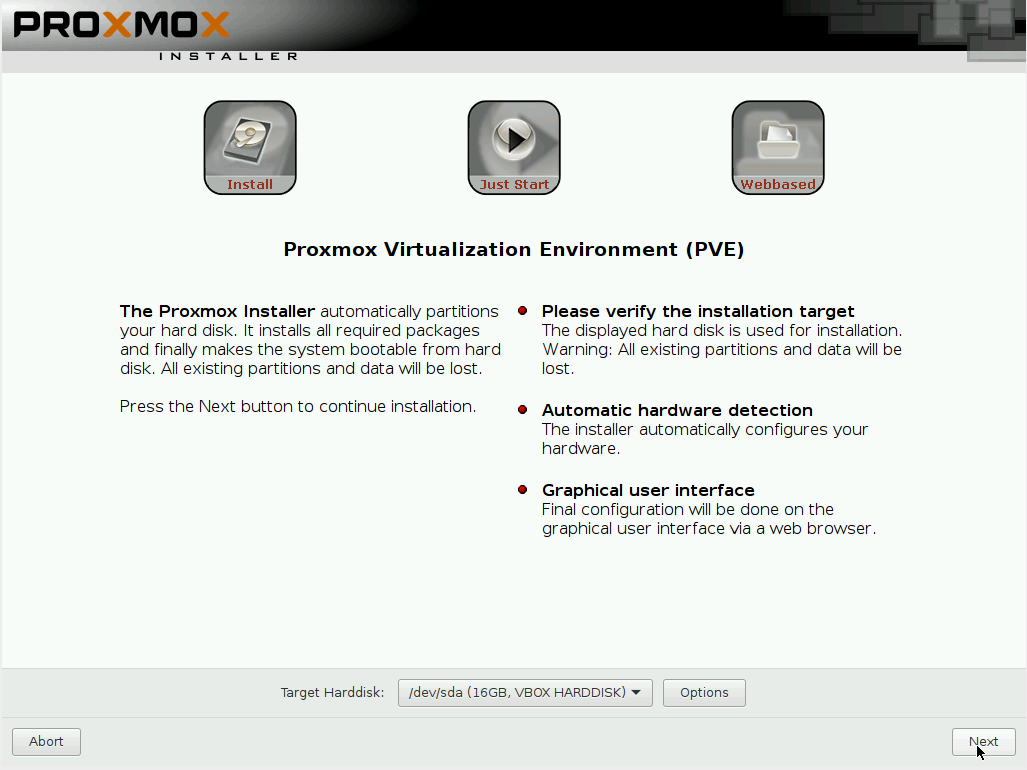
Captura de pantalla de 2016-03-28 17:19:24

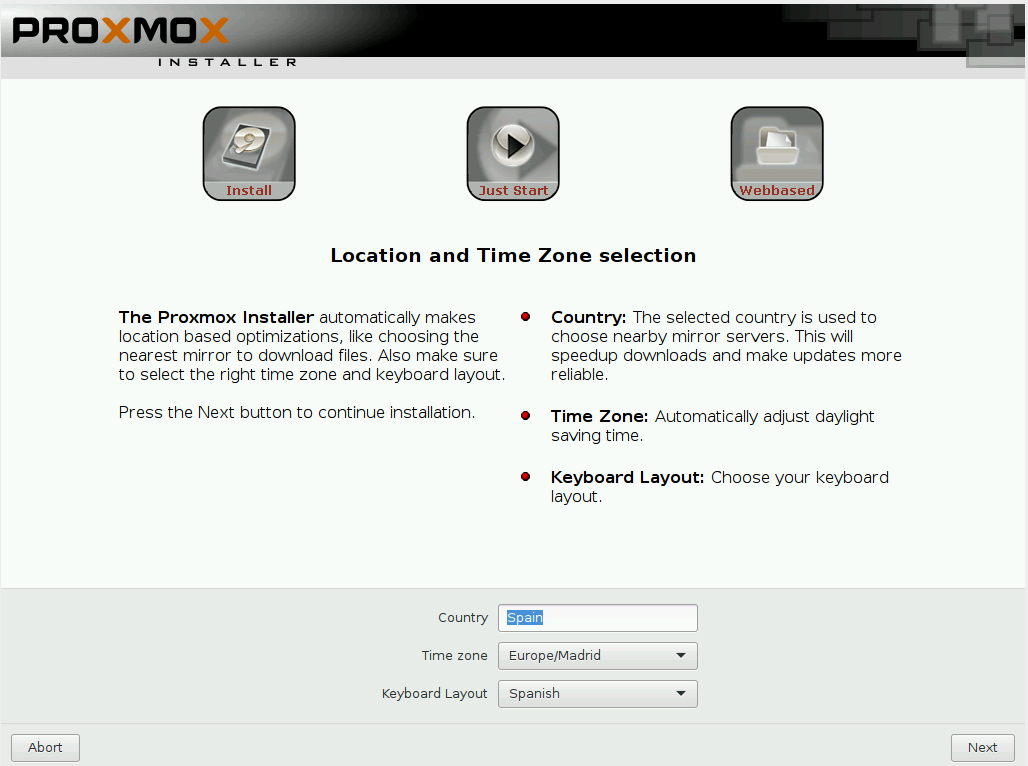
We configure the location

Captura de pantalla de 2016-03-28 17:19:47

We proceed to establish an access password and an email.
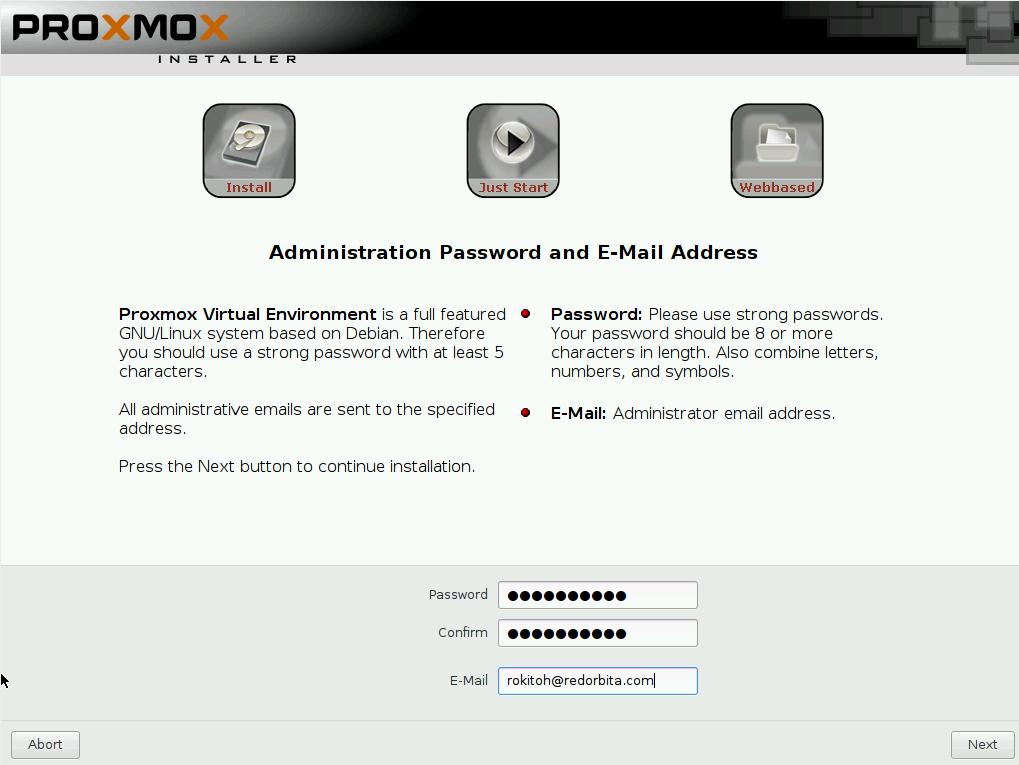
Captura de pantalla de 2016-03-28 17:22:48

We configure the hostname and IP addressing
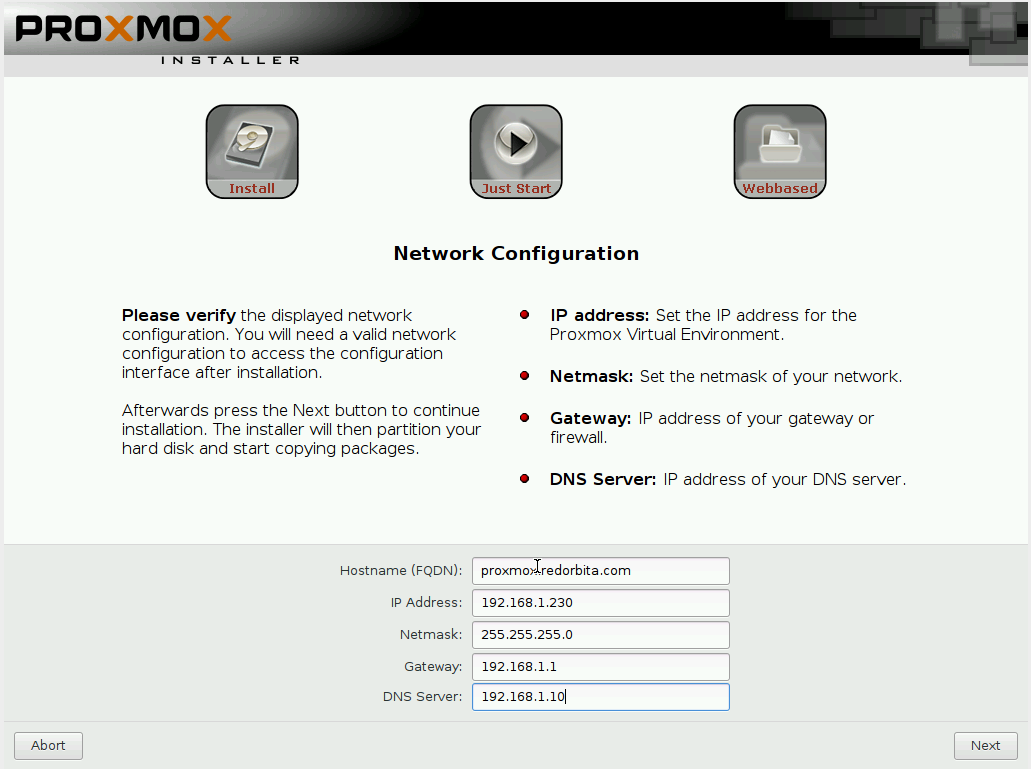
Captura de pantalla de 2016-03-28 17:28:50

Once everything is configured, the installation begins.
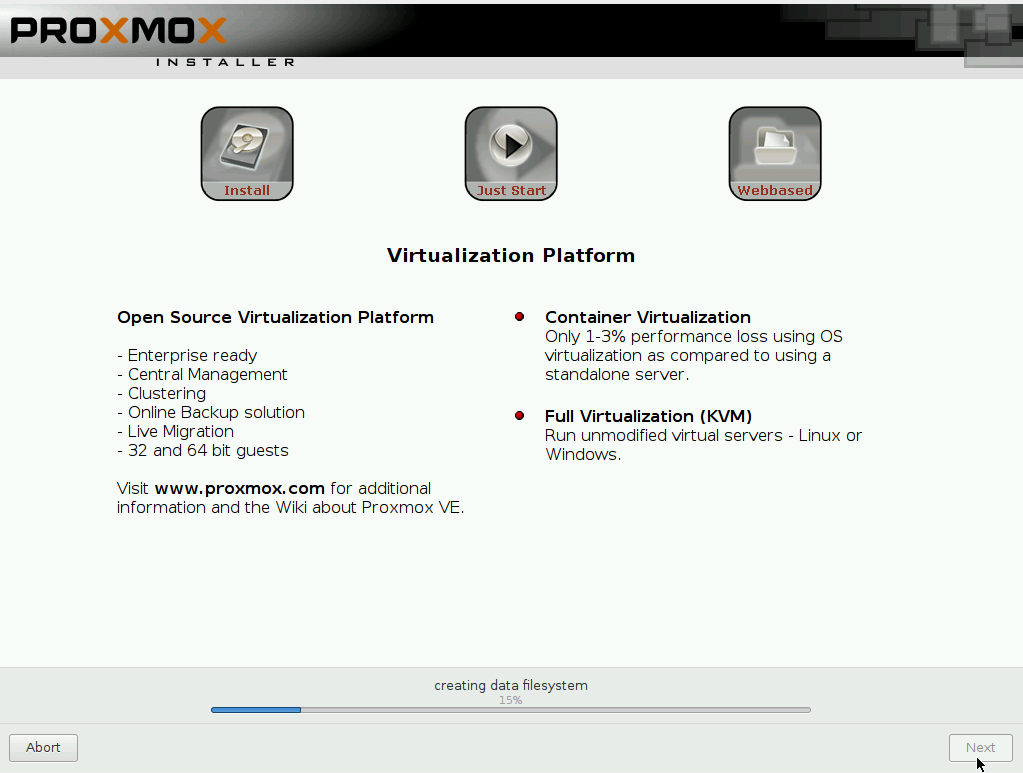
Captura de pantalla de 2016-03-28 17:28:56

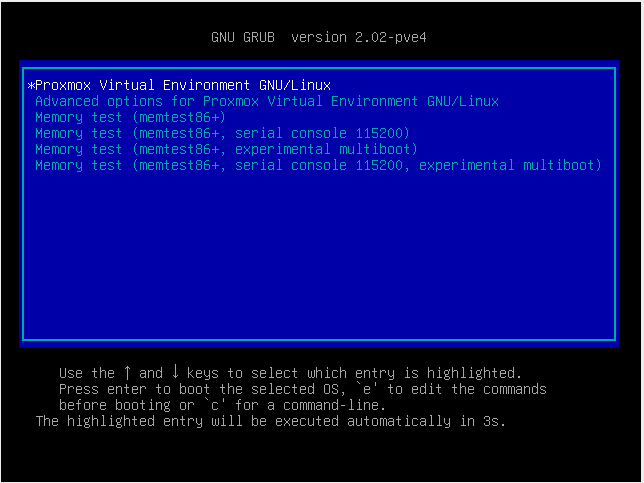
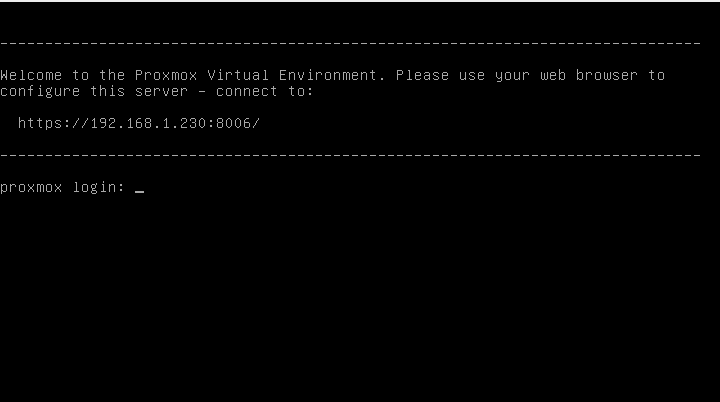
Once installed we proceed to restart the server.
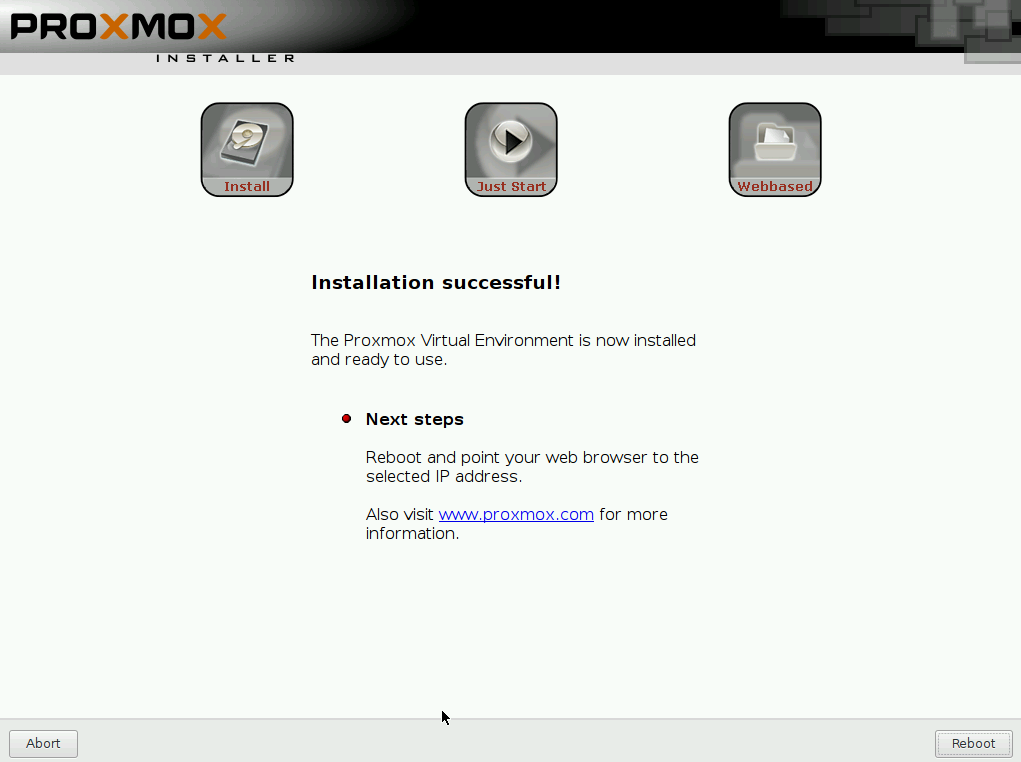
Captura de pantalla de 2016-03-28 17:31:14 Captura de pantalla de 2016-03-28 17:31:41 Captura de pantalla de 2016-03-28 17:31:59

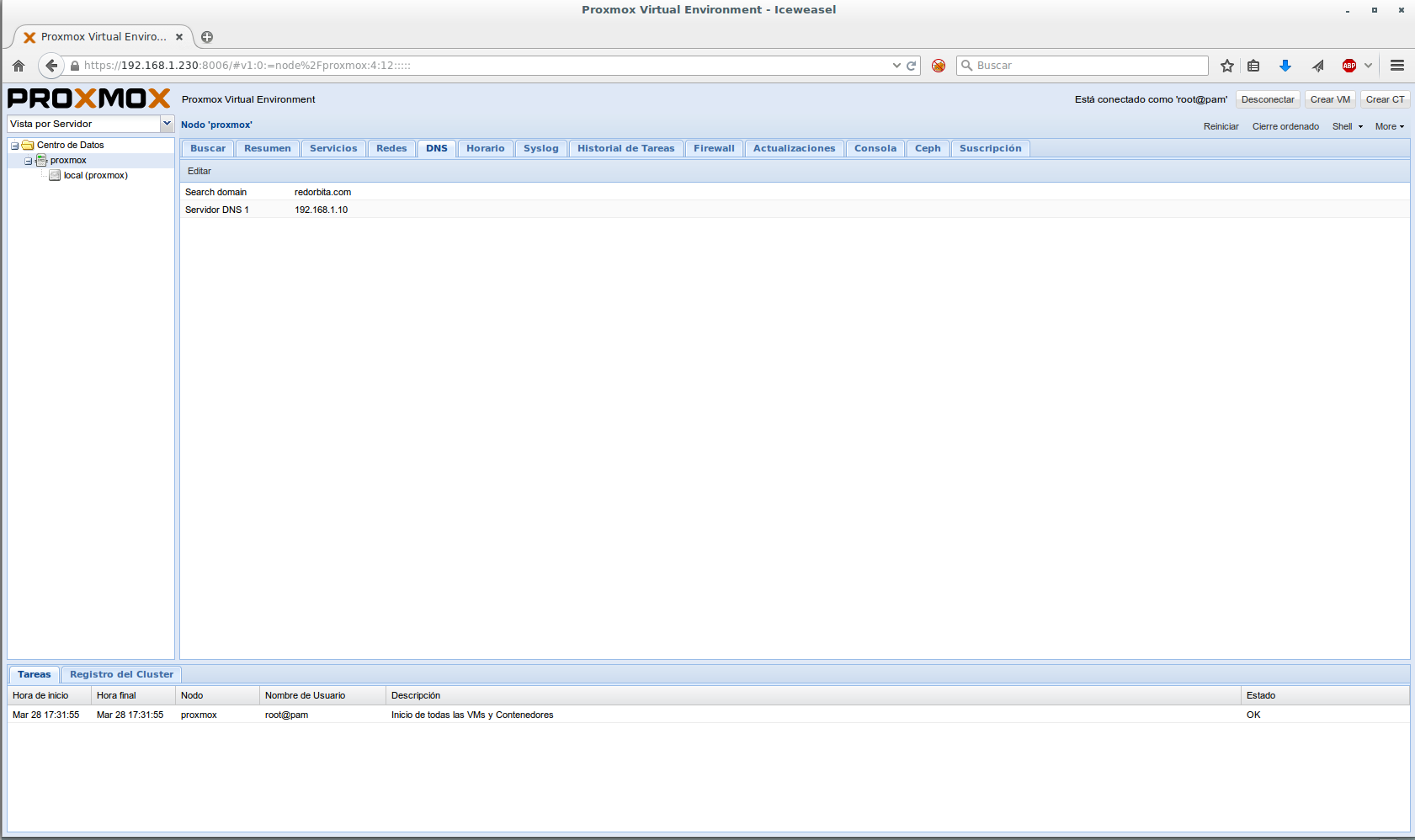
We access the administration web interface through our browser.
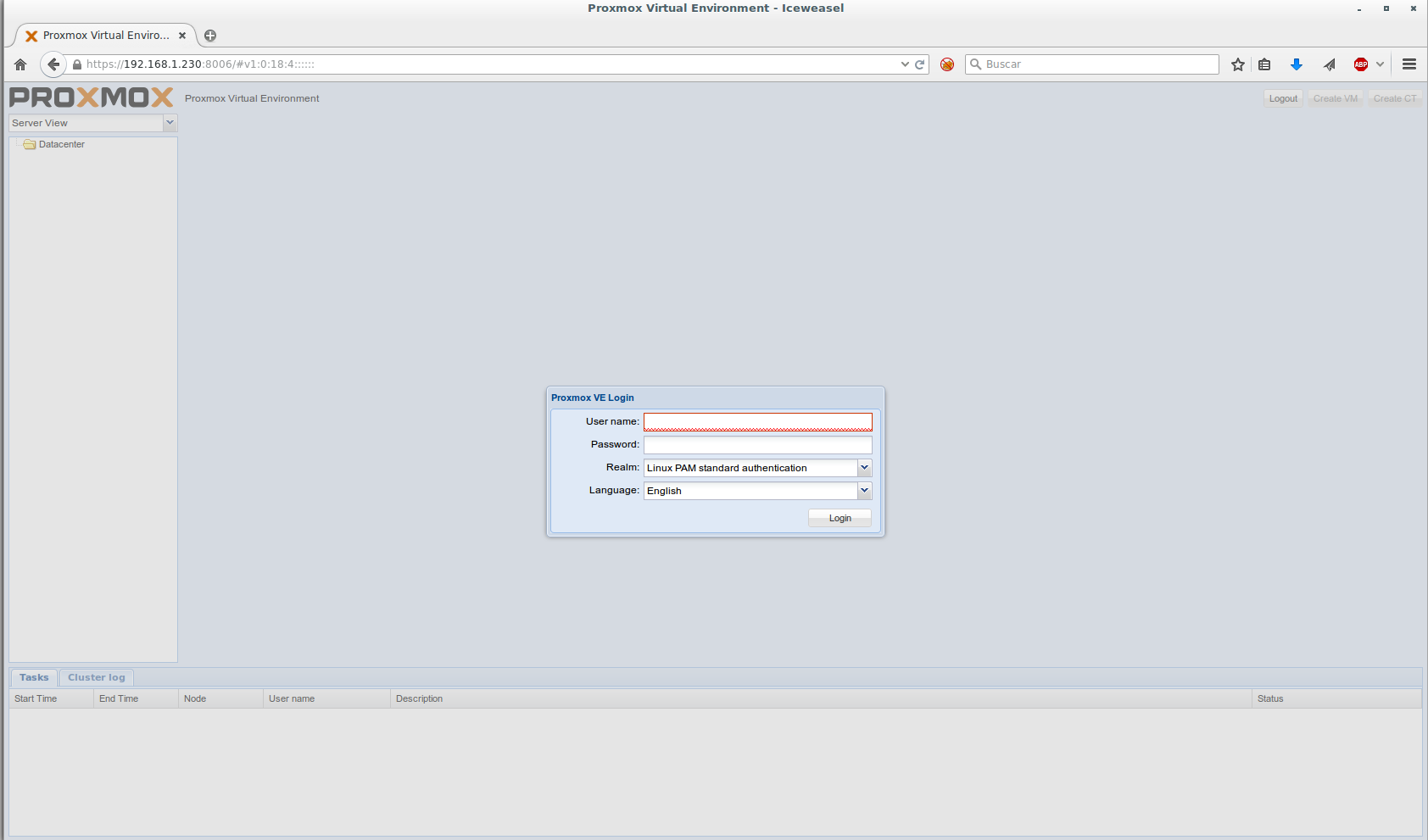
Captura de pantalla de 2016-03-28 17:40:40 Captura de pantalla de 2016-03-28 17:41:46

Comments