
What is FreeIPA?
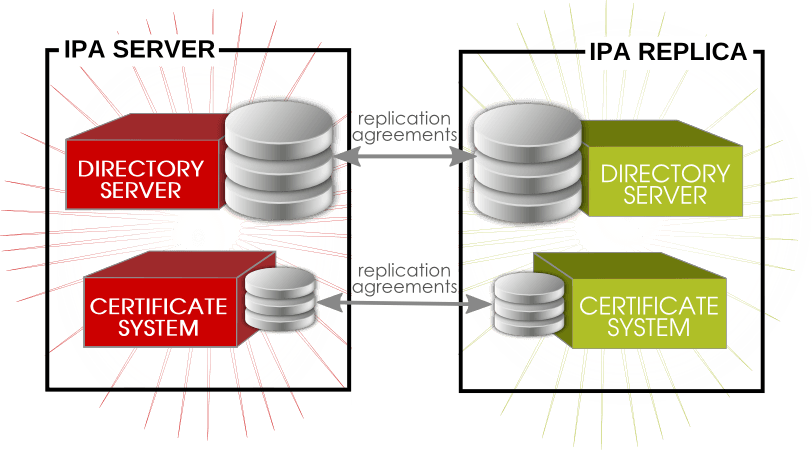 FreeIPA, is a free source software suite project maintained by the Fedora Project, sponsored by RedHat, the name means Identity|Policies|Free Audit (in English, Free Identity|Policy|Audit), aims to provide a secure and simple interface for identity management comparable to Novell Identity Manager, IBM Security Directory Suite, Redhat 389 Directory Server, Apache Directory Studio and Microsoft Active Directory, oriented mainly in network environments based on GNU/Linux and environments posix compatible.
Officially launched in 2008, the project itself refers to an installation tool and an identity and service management environment, based on the project 389 Directory Server from RedHat, and integrates multiple pre-existing projects such as1 : OpenLDAP for directory service, MIT Kerberos 5 for authentication and sessions, Apache HTTP Server and Apache Tomcat for the administration interface and web service, Python Mainly for system installation and configuration tools, NTP for time synchronization, dogtag for certificate integration AC and R.A. and a custom plugin BIND to manage the DNS; since version 3.x includes management of Samba integration with Microsoft Active Directory through Cross Forest Trusts (reliable cross forests). The greatest success of the project is to provide a web interface for identity management and the administration of integrated services.
Initially the project supported as a server fedora 19, later RedHat, Centos, OpenSuSE2 , Debian compatible3 4 . In addition to supporting clients RedHat-based distributions, and other distributions5 and posix systems, it has support for Microsoft Windows and Apple MacOS X systems.
This laboratory will have two servers:
Domain: redorbita.com
freeipa01 Master – 192.168.1.80/24
freeipa02 Replica – 192.168.1.81/24
/etc/hosts configuration
We add the FQDN to both servers (freeipa01 and freeipa02) so that they can resolve correctly by name.
192.168.1.80 freeipa01.redorbita.com freeipa01

192.168.1.81 freeipa02.redorbita.com freeipa02
We proceed to begin the installation of the master server (freeipa01)
We install the necessary packages:
yum install -y ipa-server bind bind-dyndb-ldap ipa-server-dnsWe run the installation script
[root@freeipa01 ~]# ipa-server-install
The log file for this installation can be found in /var/log/ipaserver-install.log

==============================================================================

This program will set up the IPA Server.
This includes:

* Configure a stand-alone CA (dogtag) for certificate management

* Configure the Network Time Daemon (ntpd)

* Create and configure an instance of Directory Server

* Create and configure a Kerberos Key Distribution Center (KDC)

* Configure Apache (httpd)
To accept the default shown in brackets, press the Enter key.
Do you want to configure integrated DNS (BIND)? [no]: yes
Enter the fully qualified domain name of the computer

on which you’re setting up server software. Using the form

<hostname>.<domainname>

Example: master.example.com.
Server host name [freeipa01.redorbita.com]:
Warning: skipping DNS resolution of host freeipa01.redorbita.com

The domain name has been determined based on the host name.
Please confirm the domain name [redorbita.com]:
The kerberos protocol requires a Realm name to be defined.

This is typically the domain name converted to uppercase.
Please provide a realm name [REDORBITA.COM]:

Certain directory server operations require an administrative user.

This user is referred to as the Directory Manager and has full access

to the Directory for system management tasks and will be added to the

instance of directory server created for IPA.

The password must be at least 8 characters long.
Directory Manager password:

Password (confirm):
The IPA server requires an administrative user, named ‘admin’.

This user is a regular system account used for IPA server administration.
IPA admin password:

Password (confirm):
Existing BIND configuration detected, overwrite? [no]: yes

Do you want to configure DNS forwarders? [yes]: yes

Enter an IP address for a DNS forwarder, or press Enter to skip:

No DNS forwarders configured

Do you want to configure the reverse zone? [yes]: yes

Please specify the reverse zone name [1.168.192.in-addr.arpa.]:

Using reverse zone(s) 1.168.192.in-addr.arpa.
The IPA Master Server will be configured with:

Hostname:       freeipa01.redorbita.com

IP address(es): 192.168.1.80

Domain name:    redorbita.com

Realm name:     REDORBITA.COM
BIND DNS server will be configured to serve IPA domain with:

Forwarders:    No forwarders

Reverse zone(s):  1.168.192.in-addr.arpa.
Continue to configure the system with these values? [no]: yes
The following operations may take some minutes to complete.

Please wait until the prompt is returned.
Configuring NTP daemon (ntpd)

[1/4]: stopping ntpd

[2/4]: writing configuration

[3/4]: configuring ntpd to start on boot

[4/4]: starting ntpd

Done configuring NTP daemon (ntpd).

Configuring directory server (dirsrv). Estimated time: 1 minute

[1/42]: creating directory server user

[2/42]: creating directory server instance

[3/42]: adding default schema

[4/42]: enabling memberof plugin

[5/42]: enabling winsync plugin

[6/42]: configuring replication version plugin

[7/42]: enabling IPA enrollment plugin

[8/42]: enabling ldapi

[9/42]: configuring uniqueness plugin

[10/42]: configuring uuid plugin

[11/42]: configuring modrdn plugin

[12/42]: configuring DNS plugin

[13/42]: enabling entryUSN plugin

[14/42]: configuring lockout plugin

[15/42]: creating indices

[16/42]: enabling referential integrity plugin

[17/42]: configuring certmap.conf

[18/42]: configure autobind for root

[19/42]: configure new location for managed entries

[20/42]: configure dirsrv ccache

[21/42]: enable SASL mapping fallback

[22/42]: restarting directory server

[23/42]: adding default layout

[24/42]: adding delegation layout

[25/42]: creating container for managed entries

[26/42]: configuring user private groups

[27/42]: configuring netgroups from hostgroups

[28/42]: creating default Sudo bind user

[29/42]: creating default Auto Member layout

[30/42]: adding range check plugin

[31/42]: creating default HBAC rule allow_all

[32/42]: adding entries for topology management

[33/42]: initializing group membership

[34/42]: adding master entry

[35/42]: initializing domain level

[36/42]: configuring Posix uid/gid generation

[37/42]: adding replication acis

[38/42]: enabling compatibility plugin

[39/42]: activating sidgen plugin

[40/42]: activating extdom plugin

[41/42]: tuning directory server

[42/42]: configuring directory to start on boot

Done configuring directory server (dirsrv).

Configuring certificate server (pki-tomcatd). Estimated time: 3 minutes 30 seconds

[1/28]: creating certificate server user

[2/28]: configuring certificate server instance

[3/28]: stopping certificate server instance to update CS.cfg

[4/28]: backing up CS.cfg

[5/28]: disabling nonces

[6/28]: set up CRL publishing

[7/28]: enable PKIX certificate path discovery and validation

[8/28]: starting certificate server instance

[9/28]: creating RA agent certificate database

[10/28]: importing CA chain to RA certificate database

[11/28]: fixing RA database permissions

[12/28]: setting up signing cert profile

[13/28]: setting audit signing renewal to 2 years

[14/28]: restarting certificate server

[15/28]: requesting RA certificate from CA

[16/28]: issuing RA agent certificate

[17/28]: adding RA agent as a trusted user

[18/28]: authorizing RA to modify profiles

[19/28]: configure certmonger for renewals

[20/28]: configure certificate renewals

[21/28]: configure RA certificate renewal

[22/28]: configure Server-Cert certificate renewal

[23/28]: Configure HTTP to proxy connections

[24/28]: restarting certificate server

[25/28]: migrating certificate profiles to LDAP

[26/28]: importing IPA certificate profiles

[27/28]: adding default CA ACL

[28/28]: updating IPA configuration

Done configuring certificate server (pki-tomcatd).

Configuring directory server (dirsrv). Estimated time: 10 seconds

[1/3]: configuring ssl for ds instance

[2/3]: restarting directory server

[3/3]: adding CA certificate entry

Done configuring directory server (dirsrv).

Configuring Kerberos KDC (krb5kdc). Estimated time: 30 seconds

[1/10]: adding sasl mappings to the directory

[2/10]: adding kerberos container to the directory

[3/10]: configuring KDC

[4/10]: initialize kerberos container

WARNING: Your system is running out of entropy, you may experience long delays

[5/10]: adding default ACIs

[6/10]: creating a keytab for the directory

[7/10]: creating a keytab for the machine

[8/10]: adding the password extension to the directory

[9/10]: starting the KDC

[10/10]: configuring KDC to start on boot

Done configuring Kerberos KDC (krb5kdc).

Configuring kadmin

[1/2]: starting kadmin

[2/2]: configuring kadmin to start on boot

Done configuring kadmin.

Configuring ipa_memcached

[1/2]: starting ipa_memcached

[2/2]: configuring ipa_memcached to start on boot

Done configuring ipa_memcached.

Configuring ipa-otpd

[1/2]: starting ipa-otpd

[2/2]: configuring ipa-otpd to start on boot

Done configuring ipa-otpd.

Configuring the web interface (httpd). Estimated time: 1 minute

[1/19]: setting mod_nss port to 443

[2/19]: setting mod_nss protocol list to TLSv1.0 – TLSv1.2

[3/19]: setting mod_nss password file

[4/19]: enabling mod_nss renegotiate

[5/19]: adding URL rewriting rules

[6/19]: configuring httpd

[7/19]: configure certmonger for renewals

[8/19]: setting up ssl

[9/19]: importing CA certificates from LDAP

[10/19]: setting up browser autoconfig

[11/19]: publish CA cert

[12/19]: creating a keytab for httpd

[13/19]: clean up any existing httpd ccache

[14/19]: configuring SELinux for httpd

[15/19]: create KDC proxy user

[16/19]: create KDC proxy config

[17/19]: enable KDC proxy

[18/19]: restarting httpd

[19/19]: configuring httpd to start on boot

Done configuring the web interface (httpd).

Applying LDAP updates

Upgrading IPA:

[1/9]: stopping directory server

[2/9]: saving configuration

[3/9]: disabling listeners

[4/9]: enabling DS global lock

[5/9]: starting directory server

[6/9]: upgrading server

[7/9]: stopping directory server

[8/9]: restoring configuration

[9/9]: starting directory server

Done.

Restarting the directory server

Restarting the KDC

Configuring DNS (named)

[1/12]: generating rndc key file

WARNING: Your system is running out of entropy, you may experience long delays

[2/12]: adding DNS container

[3/12]: setting up our zone

[4/12]: setting up reverse zone

[5/12]: setting up our own record

[6/12]: setting up records for other masters

[7/12]: adding NS record to the zones

[8/12]: setting up CA record

[9/12]: setting up kerberos principal

[10/12]: setting up named.conf

[11/12]: configuring named to start on boot

[12/12]: changing resolv.conf to point to ourselves

Done configuring DNS (named).

Configuring DNS key synchronization service (ipa-dnskeysyncd)

[1/7]: checking status

[2/7]: setting up bind-dyndb-ldap working directory

[3/7]: setting up kerberos principal

[4/7]: setting up SoftHSM

[5/7]: adding DNSSEC containers

[6/7]: creating replica keys

[7/7]: configuring ipa-dnskeysyncd to start on boot

Done configuring DNS key synchronization service (ipa-dnskeysyncd).

Restarting ipa-dnskeysyncd

Restarting named

Restarting the web server

==============================================================================

Setup complete
Next steps:

1. You must make sure these network ports are open:

TCP Ports:

* 80, 443: HTTP/HTTPS

* 389, 636: LDAP/LDAPS

* 88, 464: kerberos

* 53: bind

UDP Ports:

* 88, 464: kerberos

* 53: bind

* 123: ntp
2. You can now obtain a kerberos ticket using the command: ‘kinit admin’

This ticket will allow you to use the IPA tools (e.g., ipa user-add)

and the web user interface.
Be sure to back up the CA certificates stored in /root/cacert.p12

These files are required to create replicas. The password for these

files is the Directory Manager password
We configure the rules in the firewall on both servers (freeipa01 and freeipa02).
[root@freeipa01 ~]# firewall-cmd –permanent –add-service={ntp,http,https,ldap,ldaps,kerberos,kpasswd,dns}

success

[root@freeipa01 ~]# firewall-cmd –reload

success
Now we are going to proceed to configure the replica.
We install the necessary packages
yum install -y ipa-server bind bind-utils bind-dyndb-ldap ipa-server-dnsWe log in as admin in freeipa01
[root@freeipa01 ~]# kinit admin

Password for admin@REDORBITA.COM:
We create a type A (host) record in the DNS:
[root@freeipa01 ~]# ipa dnsrecord-add redorbita.com freeipa02 –a-rec 192.168.1.81

Nombre de registro: freeipa02

A registro: 192.168.1.81
We create the inverse zone
[root@freeipa01 ~]# ipa dnsrecord-add 1.168.192.in-addr.arpa. 81 –ptr-rec freeipa02.redorbita.com.

Nombre de registro: 81

PTR registro: freeipa02.redorbita.com.
We establish the replica
[root@freeipa01 ~]# ipa-replica-prepare freeipa02.redorbita.com

Directory Manager (existing master) password:
Preparing replica for freeipa02.redorbita.com from freeipa01.redorbita.com

Creating SSL certificate for the Directory Server

Creating SSL certificate for the dogtag Directory Server

Saving dogtag Directory Server port

Creating SSL certificate for the Web Server

Exporting RA certificate

Copying additional files

Finalizing configuration

Packaging replica information into /var/lib/ipa/replica-info-freeipa02.redorbita.com.gpg

The ipa-replica-prepare command was successful
We transfer the created key from freeipa01 to freeipa02
scp /var/lib/ipa/replica-info-freeipa02.redorbita.com.gpg root@freeipa02.redorbita.com:/var/lib/ipaWe promote freeipa02 as a replica:
[root@freeipa02 ~]# ipa-replica-install –setup-dns –setup-ca –no-forwarders /var/lib/ipa/replica-info-freeipa02.redorbita.com.gpg

Directory Manager (existing master) password:
Existing BIND configuration detected, overwrite? [no]: yes

Using reverse zone(s) 1.168.192.in-addr.arpa.

Run connection check to master

Check connection from replica to remote master ‘freeipa01.redorbita.com’:

Directory Service: Unsecure port (389): OK

Directory Service: Secure port (636): OK

Kerberos KDC: TCP (88): OK

Kerberos Kpasswd: TCP (464): OK

HTTP Server: Unsecure port (80): OK

HTTP Server: Secure port (443): OK
The following list of ports use UDP protocol and would need to be

checked manually:

Kerberos KDC: UDP (88): SKIPPED

Kerberos Kpasswd: UDP (464): SKIPPED
Connection from replica to master is OK.

Start listening on required ports for remote master check

Get credentials to log in to remote master

admin@REDORBITA.COM password:
Check SSH connection to remote master

Execute check on remote master

Check connection from master to remote replica ‘freeipa02.redorbita.com’:

Directory Service: Unsecure port (389): OK

Directory Service: Secure port (636): OK

Kerberos KDC: TCP (88): OK

Kerberos KDC: UDP (88): OK

Kerberos Kpasswd: TCP (464): OK

Kerberos Kpasswd: UDP (464): OK

HTTP Server: Unsecure port (80): OK

HTTP Server: Secure port (443): OK
Connection from master to replica is OK.
Connection check OK

Configuring NTP daemon (ntpd)

[1/4]: stopping ntpd

[2/4]: writing configuration

[3/4]: configuring ntpd to start on boot

[4/4]: starting ntpd

Done configuring NTP daemon (ntpd).

Configuring directory server (dirsrv). Estimated time: 1 minute

[1/38]: creating directory server user

[2/38]: creating directory server instance

[3/38]: adding default schema

[4/38]: enabling memberof plugin

[5/38]: enabling winsync plugin

[6/38]: configuring replication version plugin

[7/38]: enabling IPA enrollment plugin

[8/38]: enabling ldapi

[9/38]: configuring uniqueness plugin

[10/38]: configuring uuid plugin

[11/38]: configuring modrdn plugin

[12/38]: configuring DNS plugin

[13/38]: enabling entryUSN plugin

[14/38]: configuring lockout plugin

[15/38]: creating indices

[16/38]: enabling referential integrity plugin

[17/38]: configuring ssl for ds instance

[18/38]: configuring certmap.conf

[19/38]: configure autobind for root

[20/38]: configure new location for managed entries

[21/38]: configure dirsrv ccache

[22/38]: enable SASL mapping fallback

[23/38]: restarting directory server

[24/38]: setting up initial replication

Starting replication, please wait until this has completed.

Update in progress, 4 seconds elapsed

Update succeeded
[25/38]: updating schema

[26/38]: setting Auto Member configuration

[27/38]: enabling S4U2Proxy delegation

[28/38]: importing CA certificates from LDAP

[29/38]: initializing group membership

[30/38]: adding master entry

[31/38]: initializing domain level

[32/38]: configuring Posix uid/gid generation

[33/38]: adding replication acis

[34/38]: enabling compatibility plugin

[35/38]: activating sidgen plugin

[36/38]: activating extdom plugin

[37/38]: tuning directory server

[38/38]: configuring directory to start on boot

Done configuring directory server (dirsrv).

Configuring certificate server (pki-tomcatd). Estimated time: 3 minutes 30 seconds

[1/24]: creating certificate server user

[2/24]: configuring certificate server instance

[3/24]: stopping certificate server instance to update CS.cfg

[4/24]: backing up CS.cfg

[5/24]: disabling nonces

[6/24]: set up CRL publishing

[7/24]: enable PKIX certificate path discovery and validation

[8/24]: starting certificate server instance

[9/24]: creating RA agent certificate database

[10/24]: importing CA chain to RA certificate database

[11/24]: fixing RA database permissions

[12/24]: setting up signing cert profile

[13/24]: setting audit signing renewal to 2 years

[14/24]: importing RA certificate from PKCS #12 file

[15/24]: authorizing RA to modify profiles

[16/24]: configure certmonger for renewals

[17/24]: configure certificate renewals

[18/24]: configure Server-Cert certificate renewal

[19/24]: Configure HTTP to proxy connections

[20/24]: restarting certificate server

[21/24]: migrating certificate profiles to LDAP

[22/24]: importing IPA certificate profiles

[23/24]: adding default CA ACL

[24/24]: updating IPA configuration

Done configuring certificate server (pki-tomcatd).

Restarting the directory and certificate servers

Configuring Kerberos KDC (krb5kdc). Estimated time: 30 seconds

[1/8]: adding sasl mappings to the directory

[2/8]: configuring KDC

[3/8]: creating a keytab for the directory

[4/8]: creating a keytab for the machine

[5/8]: adding the password extension to the directory

[6/8]: enable GSSAPI for replication

[7/8]: starting the KDC

[8/8]: configuring KDC to start on boot

Done configuring Kerberos KDC (krb5kdc).

Configuring kadmin

[1/2]: starting kadmin

[2/2]: configuring kadmin to start on boot

Done configuring kadmin.

Configuring ipa_memcached

[1/2]: starting ipa_memcached

[2/2]: configuring ipa_memcached to start on boot

Done configuring ipa_memcached.

Configuring the web interface (httpd). Estimated time: 1 minute

[1/18]: setting mod_nss port to 443

[2/18]: setting mod_nss protocol list to TLSv1.0 – TLSv1.2

[3/18]: setting mod_nss password file

[4/18]: enabling mod_nss renegotiate

[5/18]: adding URL rewriting rules

[6/18]: configuring httpd

[7/18]: configure certmonger for renewals

[8/18]: setting up ssl

[9/18]: importing CA certificates from LDAP

[10/18]: publish CA cert

[11/18]: creating a keytab for httpd

[12/18]: clean up any existing httpd ccache

[13/18]: configuring SELinux for httpd

[14/18]: create KDC proxy user

[15/18]: create KDC proxy config

[16/18]: enable KDC proxy

[17/18]: restarting httpd

[18/18]: configuring httpd to start on boot

Done configuring the web interface (httpd).

Configuring ipa-otpd

[1/2]: starting ipa-otpd

[2/2]: configuring ipa-otpd to start on boot

Done configuring ipa-otpd.

Applying LDAP updates

Upgrading IPA:

[1/9]: stopping directory server

[2/9]: saving configuration

[3/9]: disabling listeners

[4/9]: enabling DS global lock

[5/9]: starting directory server

[6/9]: upgrading server

[7/9]: stopping directory server

[8/9]: restoring configuration

[9/9]: starting directory server

Done.

Restarting the directory server

Restarting the KDC

Configuring DNS (named)

[1/9]: generating rndc key file

WARNING: Your system is running out of entropy, you may experience long delays

[2/9]: setting up reverse zone

[3/9]: setting up our own record

[4/9]: adding NS record to the zones

[5/9]: setting up CA record

[6/9]: setting up kerberos principal

[7/9]: setting up named.conf

[8/9]: configuring named to start on boot

[9/9]: changing resolv.conf to point to ourselves

Done configuring DNS (named).

Configuring DNS key synchronization service (ipa-dnskeysyncd)

[1/7]: checking status

[2/7]: setting up bind-dyndb-ldap working directory

[3/7]: setting up kerberos principal

[4/7]: setting up SoftHSM

[5/7]: adding DNSSEC containers

[6/7]: creating replica keys

[7/7]: configuring ipa-dnskeysyncd to start on boot

Done configuring DNS key synchronization service (ipa-dnskeysyncd).

Restarting ipa-dnskeysyncd

Restarting named
Global DNS configuration in LDAP server is empty

You can use ‘dnsconfig-mod’ command to set global DNS options that

would override settings in local named.conf files
Restarting the web server
We check that the replica has been added correctly:
[root@freeipa02 ~]# ipa-replica-manage list

Directory Manager password:
freeipa01.redorbita.com: master

freeipa02.redorbita.com: master
Once everything is configured we can access it through our web browser https://freeipa01.redorbita.com and manage our active directory from there.
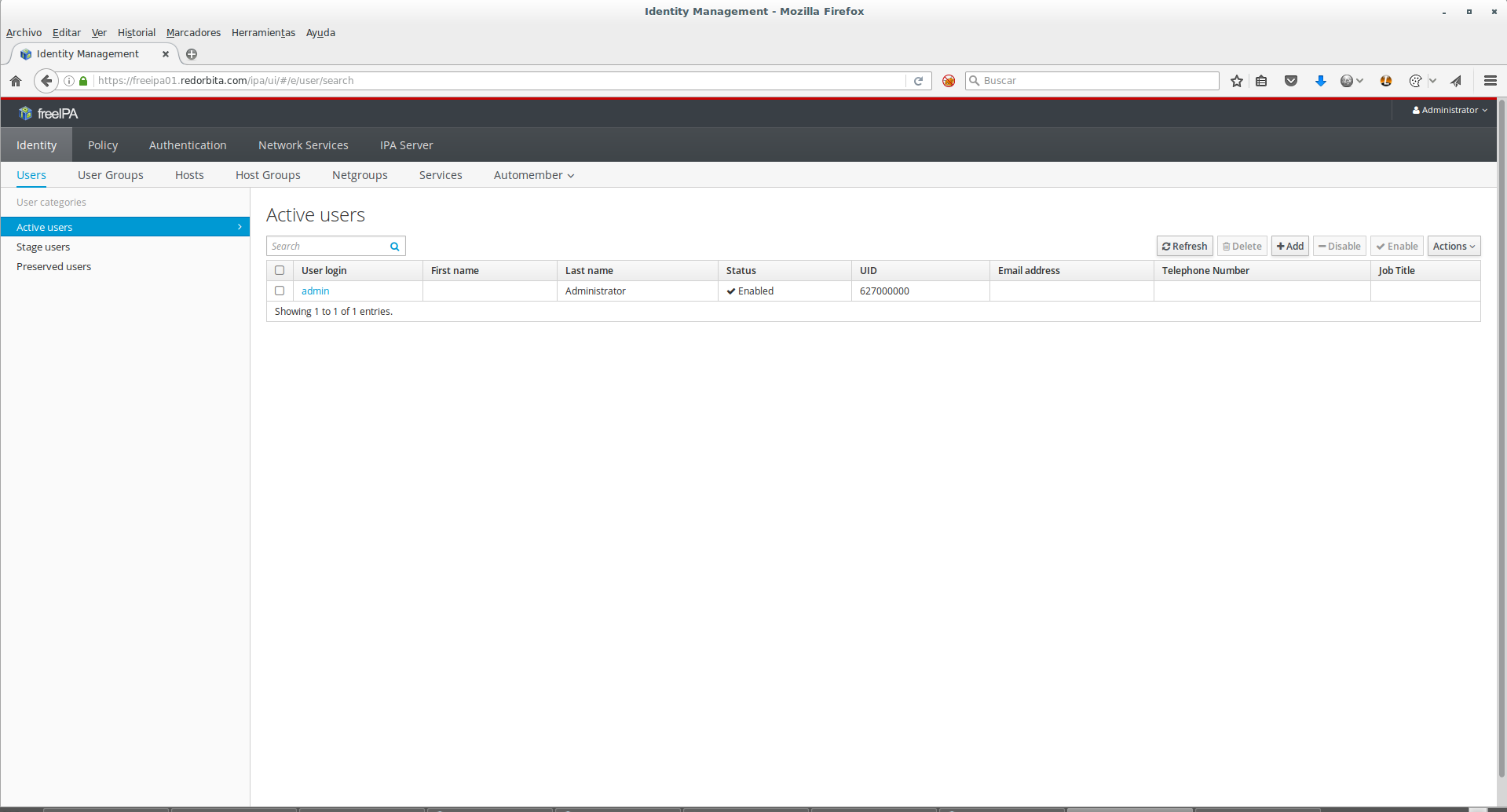
In future tutorials we will go into its configuration in more depth.
All the best.
Comments