
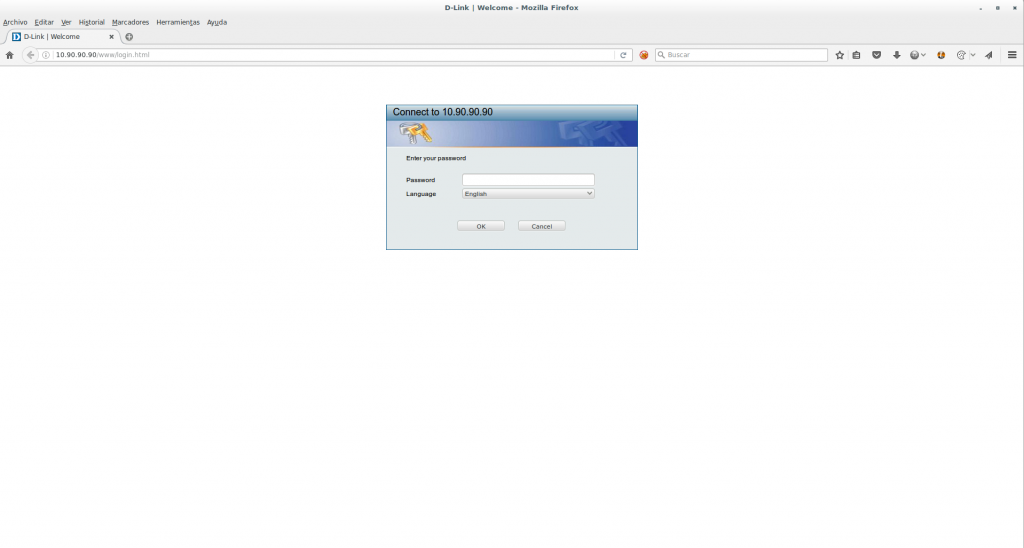
When we configure the D-link DGS-1210 Switch for the first time we have to take into account that it is configured by default using a fixed IP, so we have to directly connect the Switch to our equipment. We also have to have it connected to our router.
Once we have the entire switch connected, it starts with the IP address: 10.90.90.90/24, therefore we must set an IP address in that range.
We configure a virtual interface:
ifconfig eth0:0 10.90.90.91/24 upWe check that we have reached the Switch
root@redorbita:~# ping 10.90.90.90

PING 10.90.90.90 (10.90.90.90) 56(84) bytes of data.

64 bytes from 10.90.90.90: icmp_seq=1 ttl=255 time=3.28 ms

64 bytes from 10.90.90.90: icmp_seq=2 ttl=255 time=2.97 ms

64 bytes from 10.90.90.90: icmp_seq=3 ttl=255 time=2.54 ms

64 bytes from 10.90.90.90: icmp_seq=4 ttl=255 time=2.92 ms

64 bytes from 10.90.90.90: icmp_seq=5 ttl=255 time=2.55 ms

— 10.90.90.90 ping statistics —

5 packets transmitted, 5 received, 0% packet loss, time 4006ms

rtt min/avg/max/mdev = 2.549/2.857/3.286/0.284 ms
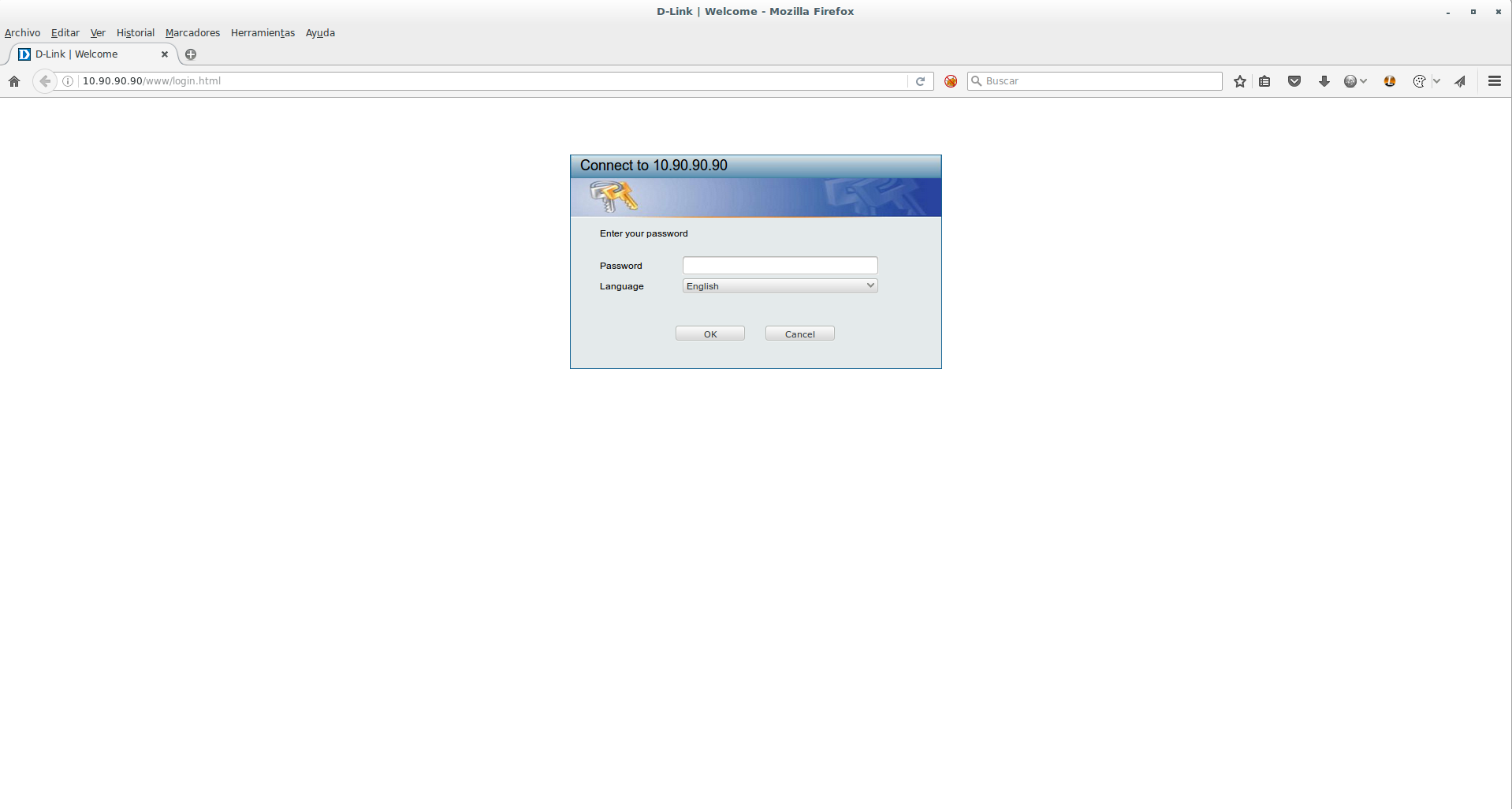
We access through our web browser, the default password is admin
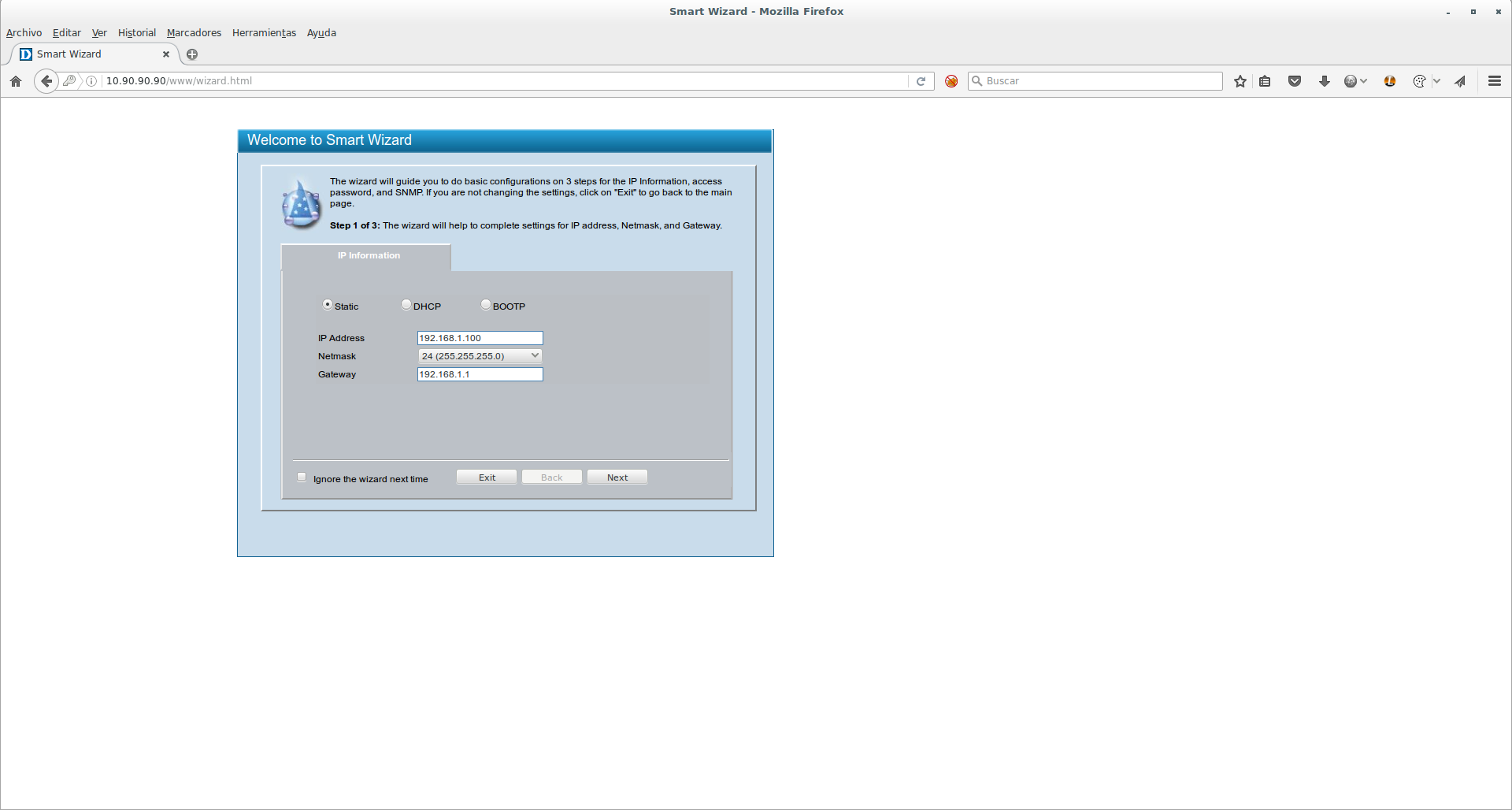
The first thing we have to configure is the IP addressing:
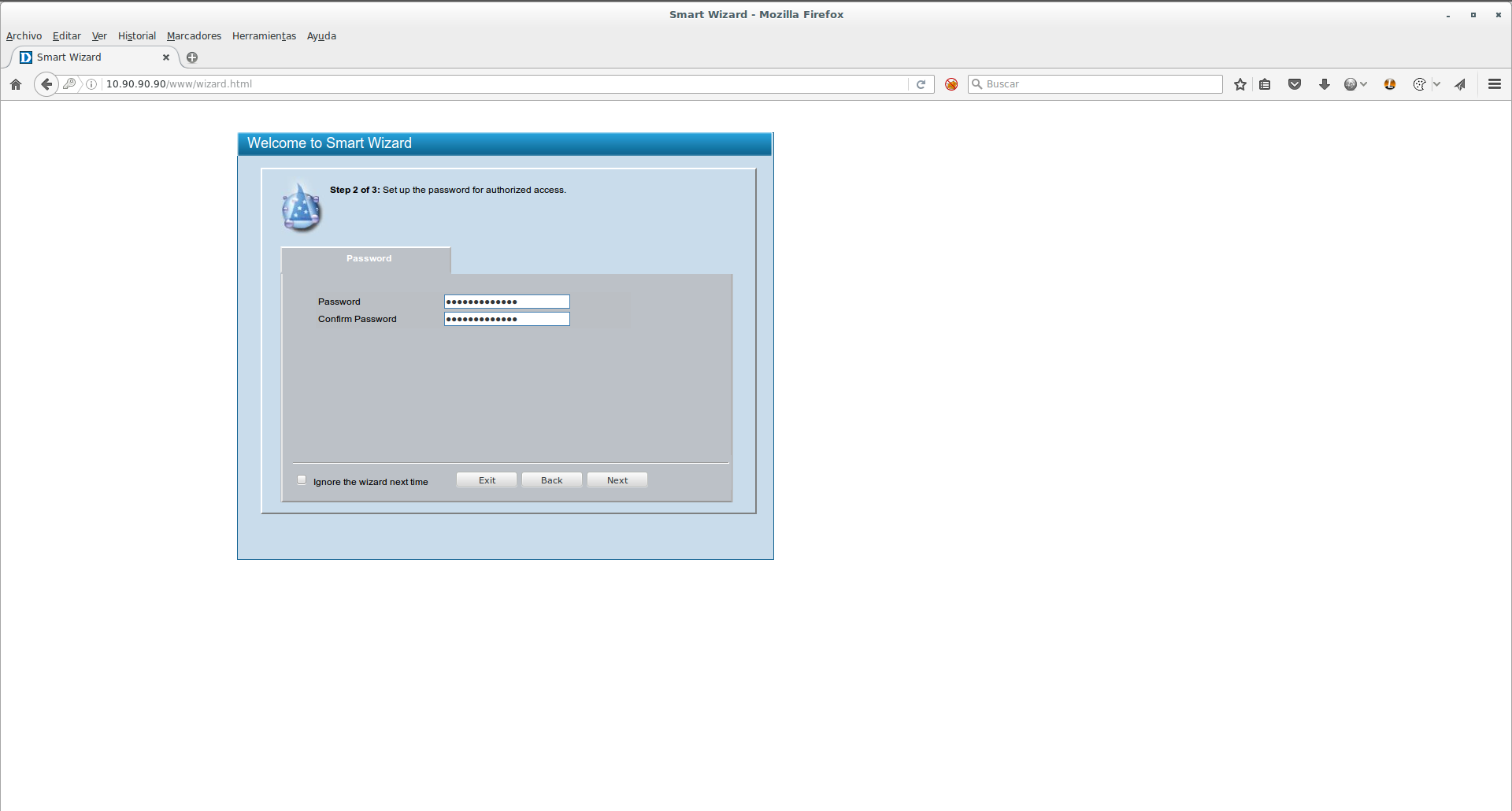
We change the access password.
Finally, it gives us the option to activate SNMP
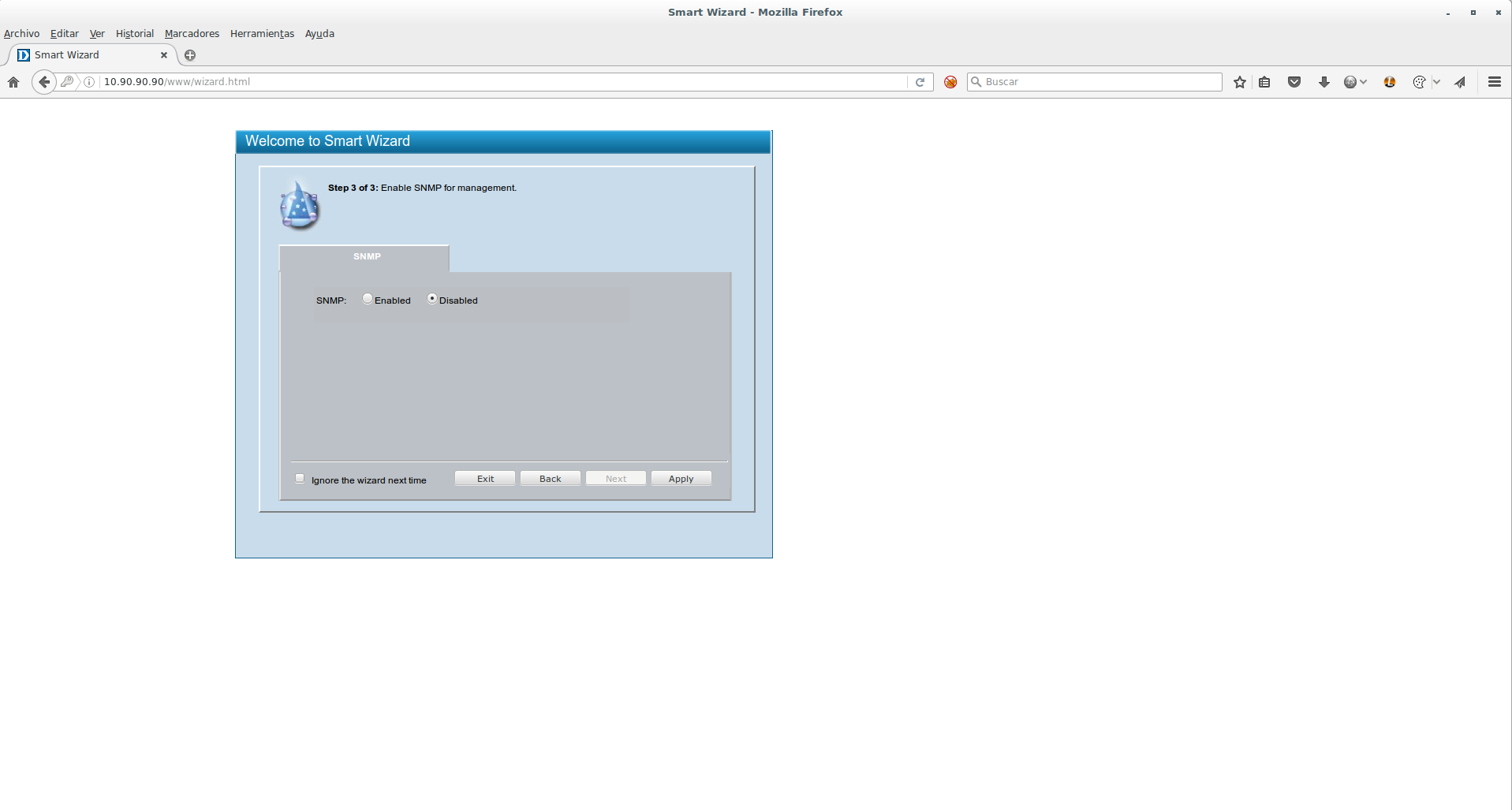
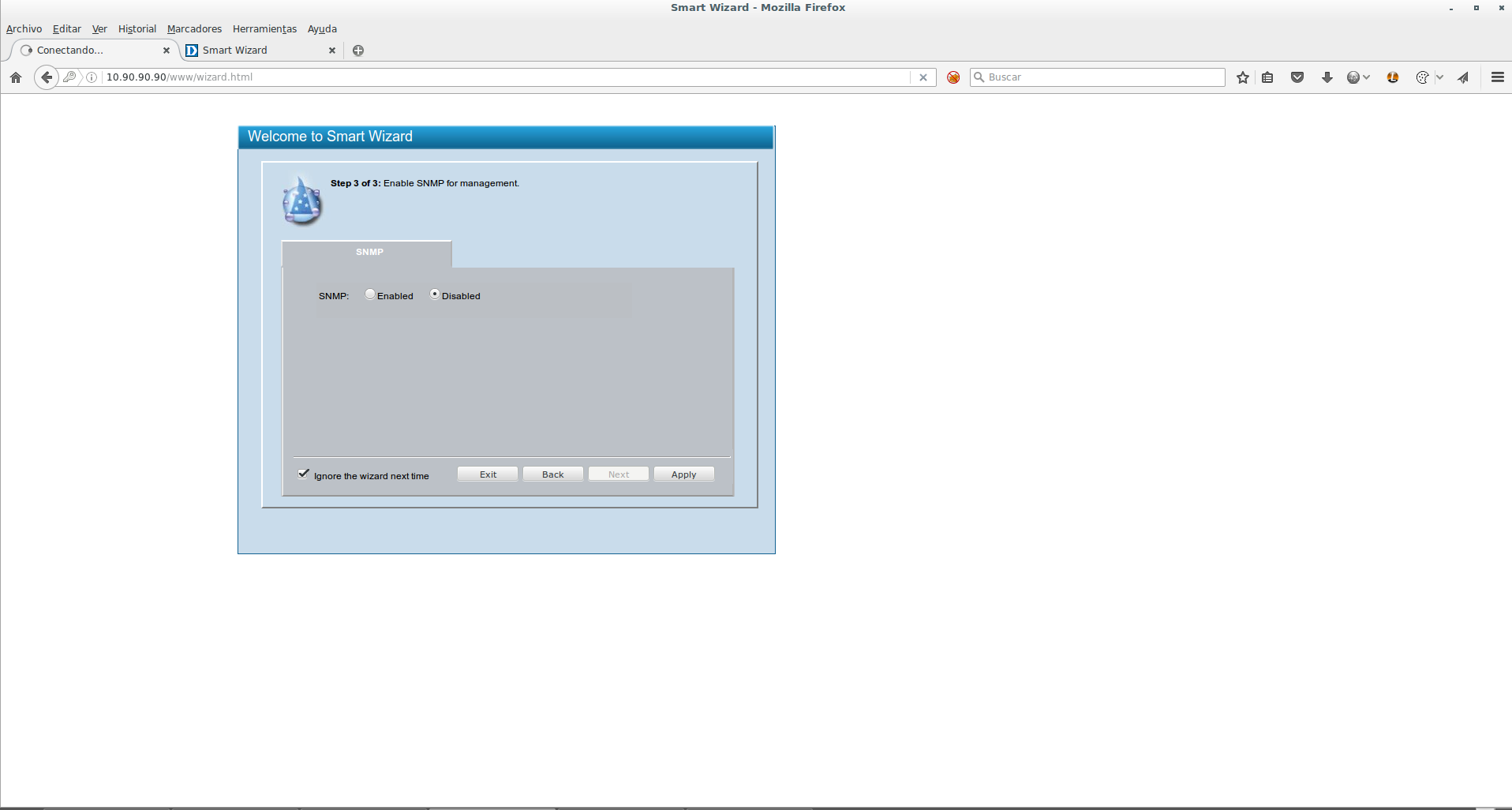
Once the server has restarted we will be able to access it again. We log in with the password that we have previously configured and we will skip the configuration wizard, in which we have to select the option Ignore the wizard next time
:wq!
Comments