
Introduction
This manual explains how to simplify certificate management for IIS servers (On-Premises) using Azure Arc and Azure Key Vault, providing a secure and automated solution. By integrating on-premises servers with Azure Arc and Azure Key Vault, we can centralize certificate management, improve security, and reduce costs associated with manual certificate management.
Prerequisites
- Azure Arc enabled on IIS server.
- Access to Azure Key Vault and necessary permits.
- Install the PowerShell module
Azto manage Azure resources.
Implementation Steps
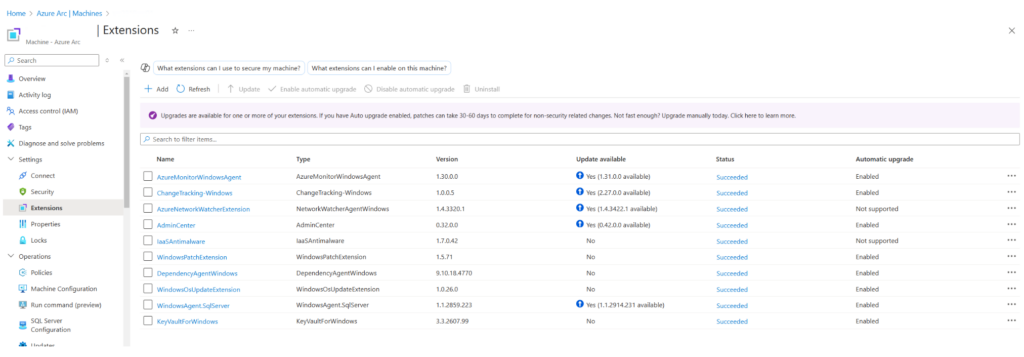
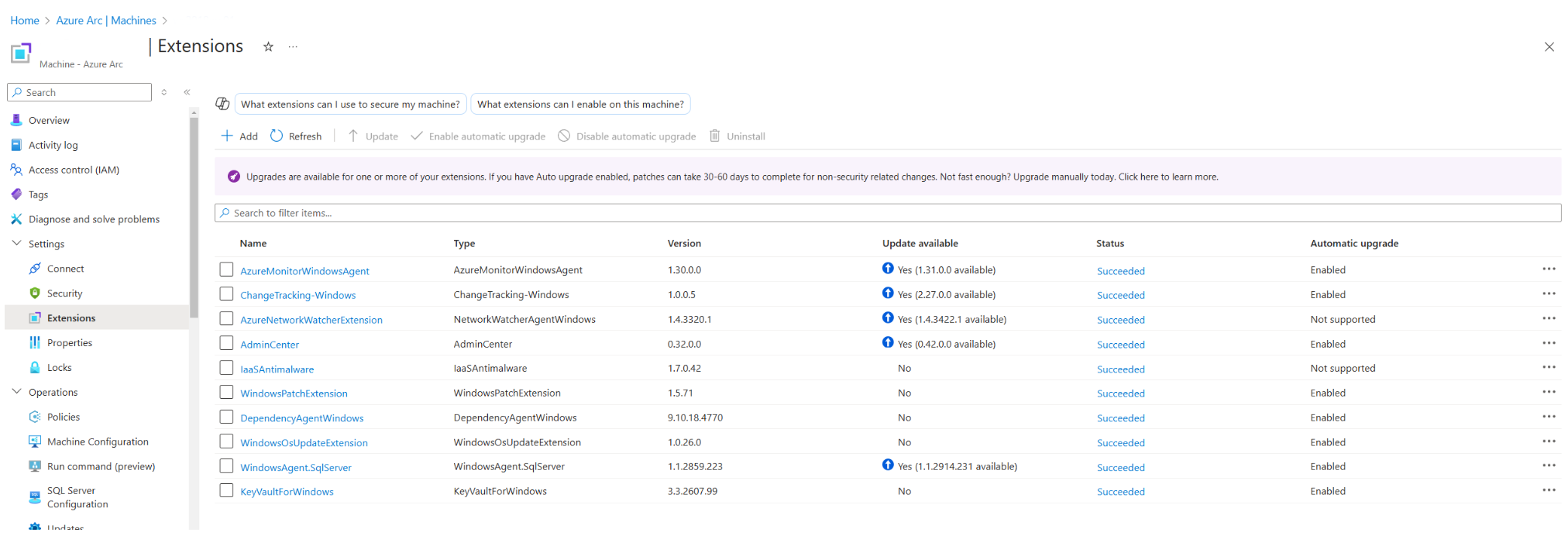
Install the KeyVaultForWindows Extension First, you need to install the Key Vault extension on the Azure Arc-enabled server.
Create and Upload the Certificate to Azure Key Vault
Access Azure Key Vault and create a new certificate or upload an existing one. Certificates must be configured to be observed by the Azure Arc-enabled server.
Steps:
- In Azure Key Vault, navigate to the section Certificates.
- Create a new certificate or upload an existing one.
- Make sure to copy the URL of the certificate, as you will need it to configure it in the PowerShell script (like in the example above).
Assigning Permissions in Azure Key Vault
To allow the Azure Arc-enabled server to access the certificate in Azure Key Vault, you must configure the appropriate permissions on the Access Control and in the Access Policy from Key Vault.
Necessary permissions:
- RBAC (Role-Based Access Control):
- reader (Read) to access the secrets.
- Key Vault Secrets User (Key Vault Secrets User) to enable secret management.
- Access Policy:
- Make sure the Azure Arc-enabled server has permissions to get and list the secrets in Azure Key Vault.
Steps to configure permissions in Key Vault:
- Navigate to Access Policies in your Key Vault.
- Click + Add Access Policy and select the operations your server will need (for example, Get, List).
- Assigns access to Managed Identity Azure Arc-enabled server.
Configure PowerShell Script to Integrate Key Vault with Azure Arc
First, we need to install the Az PowerShell module to manage resources in Azure. To do this, run the following command:
Install-Module -Name Az -Repository PSGallery -Force
We establish the connection using the following command:
Connect-AzAccount -TenantId "XXXXXXXX-XXXX-XXXX-XXXX-XXXXXXXXXXXX"The following script configures the Key Vault extension on the Azure Arc-enabled IIS server. This script tells the extension how to manage certificates from Azure Key Vault.
$Settings = @{
  secretsManagementSettings = @{
    observedCertificates = @(
      "https://kv-redorbita-azurearc-lab02.vault.azure.net/secrets/certificatename"
      # Add more here in a comma separated list
    )
    certificateStoreLocation = "LocalMachine"
    certificateStoreName = "My"
    pollingIntervalInS = "3600" # every hour
  }
  authenticationSettings = @{
    msiEndpoint = "http://localhost:40342/metadata/identity"
  }
}

$ResourceGroup = "XXXXXXX"
$ArcMachineName = "XXXXXXX"
$Location = "West Europe"

New-AzConnectedMachineExtension -ResourceGroupName $ResourceGroup -MachineName $ArcMachineName -Name "KeyVaultForWindows" -Location $Location -Publisher "Microsoft.Azure.KeyVault" -ExtensionType "KeyVaultForWindows" -Setting $Settings
Script explanation:
Parameter settings (
$Settings):- observedCertificates: List of certificates in Key Vault to monitor.
- certificateStoreLocation: Defines the storage of certificates on the machine (
LocalMachine). - certificateStoreName: Specifies the certificate store (
My). - pollingIntervalInS: Change verification interval (hourly).
Additional parameters:
- Defines the resource group (
$ResourceGroup), machine name ($ArcMachineName) and location ($Location).
- Defines the resource group (
Installing the extension:
- The cmdlet is used
New-AzConnectedMachineExtensionto install the extension KeyVaultForWindows on the specified machine.
- The cmdlet is used
Configuring Rebind in IIS
Once the Key Vault extension and server are configured, the last part is to ensure that the IIS server rebinds the certificates automatically when they are renewed in Azure Key Vault.
Steps to enable rebind in IIS:
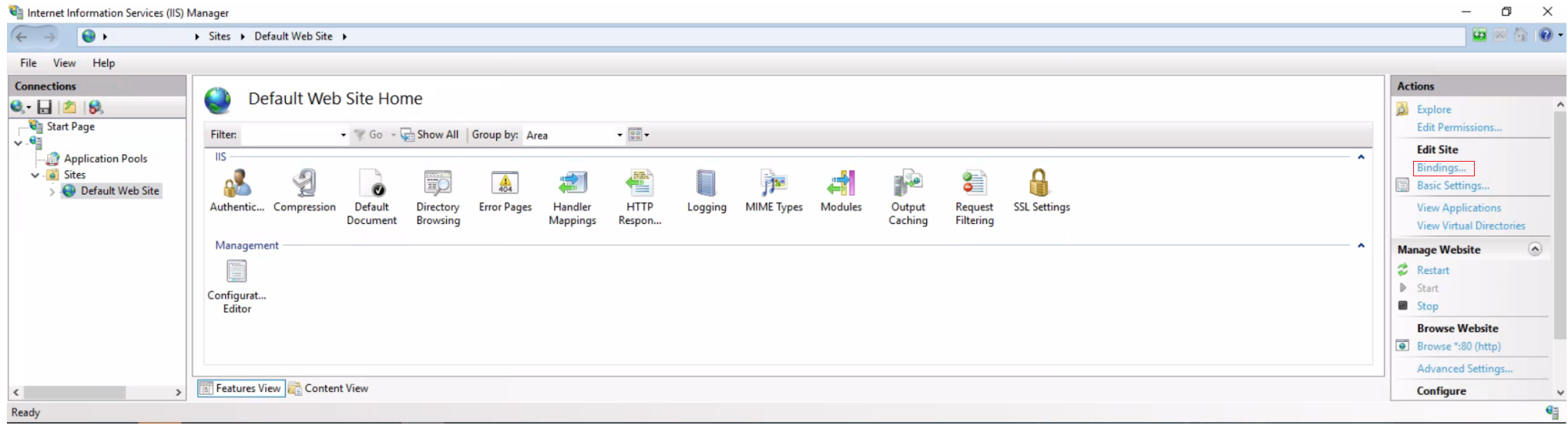
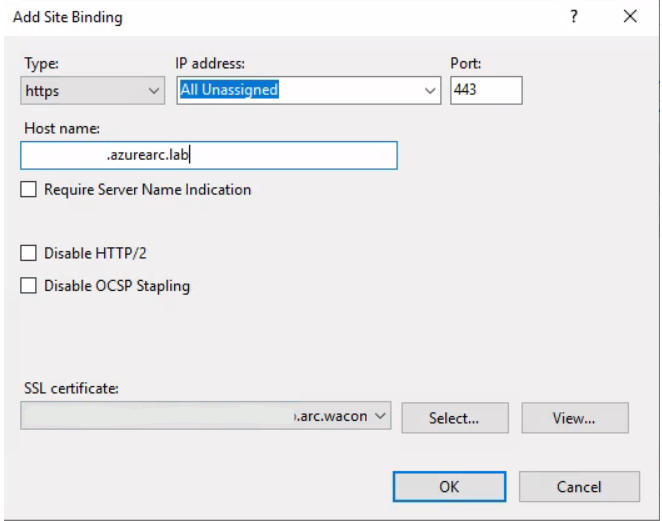
- In IIS Manager, we select the website on which we want to enable certificate rebind.
- In the actions panel on the right, we click Bindings (Links).
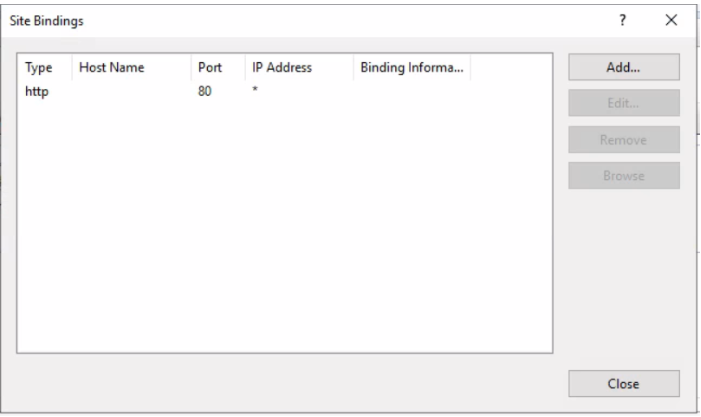
- In the window of Site Bindings, we select the HTTPS link that uses the certificate we want to configure for rebind.
- We click Edit (Edit) or Add.
- In the section of SSL certificate, we select the appropriate certificate to use. Make sure it is linked to the Key Vault.
- To enable the rebind Automatically, we use the certificate renewal and binding process through the Key Vault extension to ensure that the certificate is updated and rebinded without manual intervention.
- We access the site and verify that the certificate of the Key Vault has been obtained correctly.

:wq!
Comments