
1. Introduction
He Single User Mode (also known as Maintenance Mode or Rescue Mode) is an essential tool for system administration and recovery in Linux. This mode allows you to access the system as the root user without the need for a password, which is essential to perform critical tasks such as:
Reset user passwords.
Repair corrupted file systems.
Troubleshoot boot or operating system configuration issues.
2. Procedure to Access Rescue Mode
To boot the system in rescue mode, you must temporarily modify the GRUB boot configuration.
2.1. Access the GRUB menu
-
Reboot your system.
-
Right when the machine is booting, press a key to access the GRUB menu. Generally it is the key
EsceitherShift. -
Use the arrow keys on your keyboard to select the kernel entry you want to boot (usually the first option).
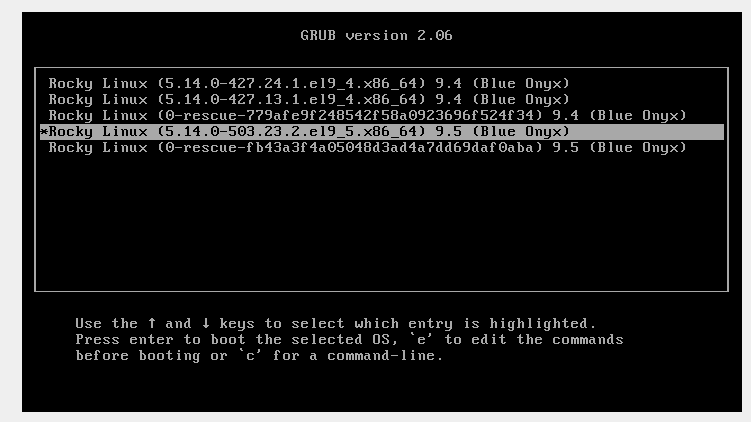
2.2. Edit kernel boot entry
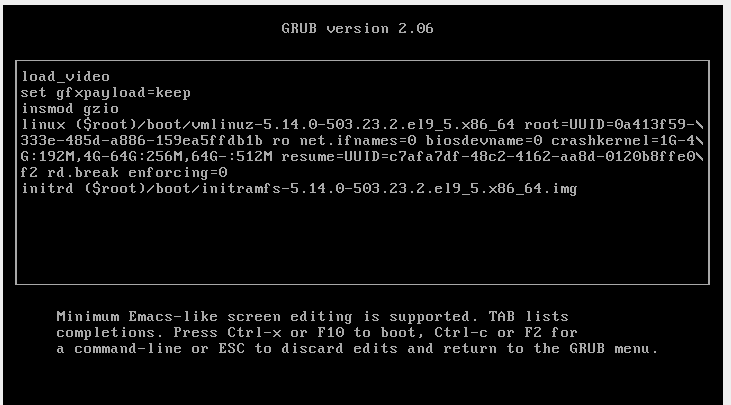
- With the kernel entry selected, press the key
eto edit it. - Find the line that starts with
linuxeitherlinux16(depending on GRUB version). This is the line that loads the kernel. - Go to the end of that line and add one of the following options:
rd.break enforcing=0Alternatively:
single-
rd.break: This is the option recommended for systems that usesystemd(like Rocky and AlmaLinux). It stops you just before control is passed tosystemd, leaving you in a rescue shell. -
single: An alternative option, less common in modern systems, but in some cases it can work.
3. Start the System in Rescue Mode
-
Once you have added the chosen option, press
Ctrl + XeitherF10to boot the system with the modified configuration. -
The system will boot into an emergency shell environment, where you will see a
promptofsh
4. Prepare the File System
In this environment, the main file system (/sysroot) is usually mounted in read-only mode to prevent corruption. You must remount it in read/write mode to make changes.
Run the following command to remount the file system:
mount -o remount,rw /sysrootchroot /sysroot
Now, change the root environment (chroot) to make the shell work with your operating system files:
chroot /sysroot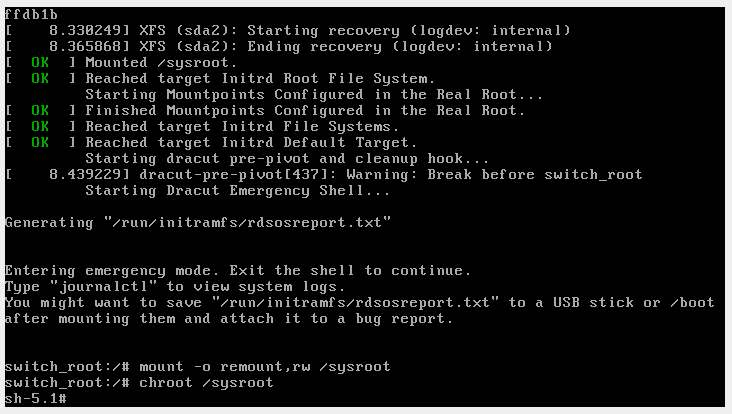
You can now execute administration commands, such as changing the user's password root:
passwd root5. Security Considerations (SELinux)
If your system uses SELinux (which is most common), it is crucial to relabel files to ensure that new changes, such as the password, work correctly after the reboot.
Create a file called .autorelabel at the root of the system. This tells SELinux to retag everything on the next boot.
touch /.autorelabelDespués de reiniciar, SELinux detectará este archivo y comenzará el proceso de reetiquetado, lo que puede tardar varios minutos.6. End Session and Restart
Once you have completed your tasks, exit the environment chroot with the command exit:
exitFinally, reboot the system so that all changes are applied correctly:
reboot:wq!
Comments