
Context
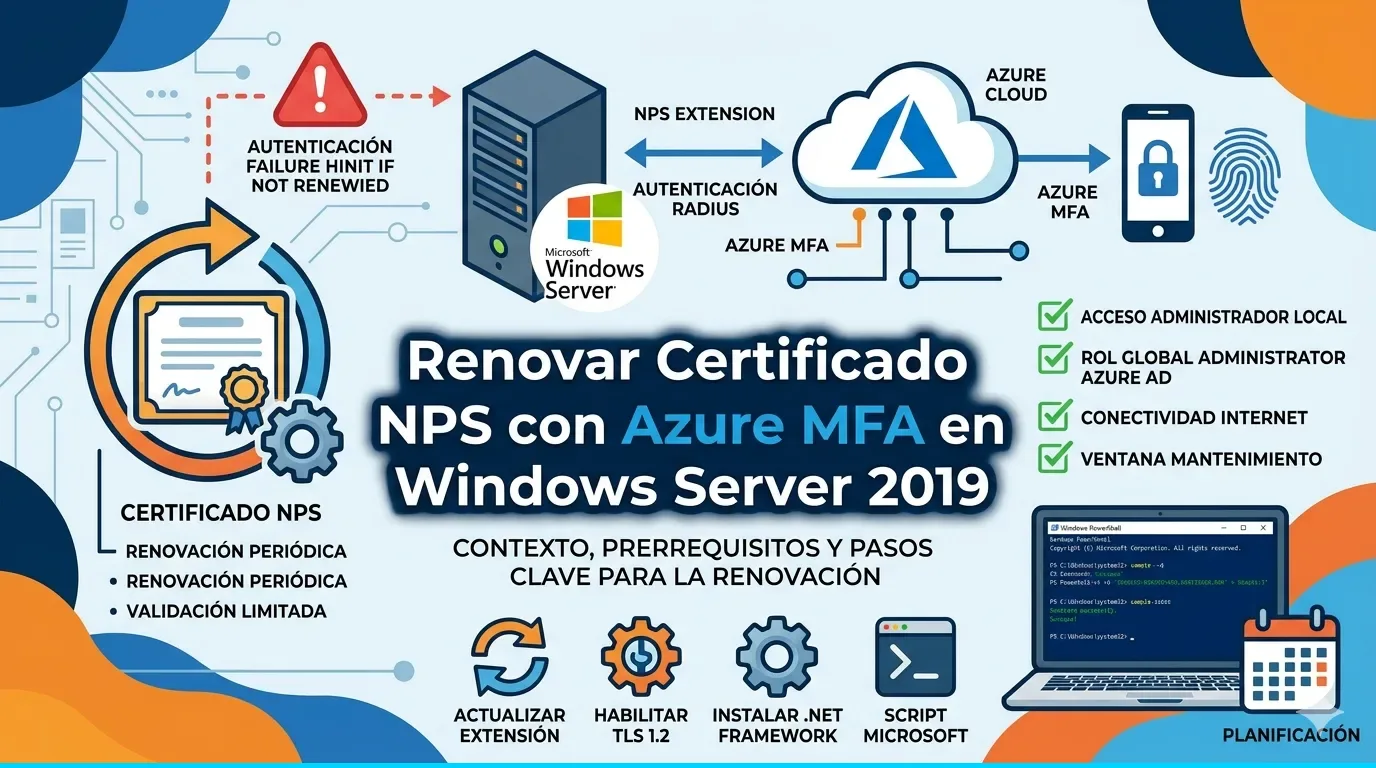
The Azure MFA NPS (Network Policy Server) extension uses a self-signed certificate to authenticate against Azure AD. This certificate has a limited validity and must be renewed periodically to prevent RADIUS authentication with MFA from stopping working.
The process is not a simple "renew certificate" — it requires updating the extension, enabling TLS 1.2 at the system level (required from 2024), installing the updated .NET Framework, and regenerating the certificate with the official Microsoft script.
Apply to: Windows Server 2019 with NPS + Azure MFA Extension.
Prerequisites
- Access local administrator to NPS server
- Has a role Global Administrator in Azure AD (for certificate registration)
- Internet connectivity from the server
- Maintenance window (requires NPS service and server restart)
Step by step procedure
Step 1: Download the updated software
Download the latest version of the Azure MFA NPS extension from the Microsoft portal and copy it to C:\temp on the server.
# Verificar la version actual instalada
Get-ItemProperty "HKLM:\SOFTWARE\Microsoft\AzureMfa" | Select-Object -Property *
Step 2: Install the updated extension
Run the downloaded installer on C:\temp:
# Instalar la extension (GUI o silencioso)
Start-Process "C:\temp\NpsExtnForAzureMfaInstaller.exe" -WaitNote: If you have a previous version, the installer will update it automatically.
Step 3: Enable TLS 1.2 on the server
Azure AD requires TLS 1.2 for all communications. In Windows Server 2019 it may not be enabled by default in all layers. This script configures TLS 1.2 on WinHTTP, Schannel and .NET Framework:
# =============================================================================
# Enable-TLS12.ps1 - Habilitar TLS 1.2 en todas las capas del sistema
# Ejecutar como Administrador
# =============================================================================

# --- WinHTTP ---
# Necesario para que las llamadas HTTP del sistema usen TLS 1.2
# Valor 0x800 = TLS 1.2
New-ItemProperty -Path 'HKLM:\SOFTWARE\Microsoft\Windows\CurrentVersion\Internet Settings\WinHttp' `
    -Name 'DefaultSecureProtocols' -Value 0x800 -PropertyType 'DWord' -Force | Out-Null

# Para aplicaciones 32-bit en SO 64-bit (descomentar si aplica):
# New-ItemProperty -Path 'HKLM:\SOFTWARE\Wow6432Node\Microsoft\Windows\CurrentVersion\Internet Settings\WinHttp' `
#     -Name 'DefaultSecureProtocols' -Value 0x800 -PropertyType 'DWord' -Force | Out-Null

Write-Host "[OK] WinHTTP configurado para TLS 1.2" -ForegroundColor Green

# --- Schannel (Server + Client) ---
# Habilita TLS 1.2 tanto para conexiones entrantes (Server) como salientes (Client)
$basePath = 'HKLM:\SYSTEM\CurrentControlSet\Control\SecurityProviders\SCHANNEL\Protocols\TLS 1.2'

# Server
New-Item "$basePath\Server" -Force | Out-Null
New-ItemProperty -Path "$basePath\Server" -Name 'Enabled' -Value 1 -PropertyType 'DWord' -Force | Out-Null
New-ItemProperty -Path "$basePath\Server" -Name 'DisabledByDefault' -Value 0 -PropertyType 'DWord' -Force | Out-Null

# Client
New-Item "$basePath\Client" -Force | Out-Null
New-ItemProperty -Path "$basePath\Client" -Name 'Enabled' -Value 1 -PropertyType 'DWord' -Force | Out-Null
New-ItemProperty -Path "$basePath\Client" -Name 'DisabledByDefault' -Value 0 -PropertyType 'DWord' -Force | Out-Null

Write-Host "[OK] Schannel TLS 1.2 habilitado (Server + Client)" -ForegroundColor Green

# --- .NET Framework ---
# Fuerza a .NET a usar el protocolo mas fuerte disponible (TLS 1.2)
New-ItemProperty -Path 'HKLM:\SOFTWARE\Microsoft\.NetFramework\v4.0.30319' `
    -Name 'SchUseStrongCrypto' -Value 1 -PropertyType 'DWord' -Force | Out-Null
New-ItemProperty -Path 'HKLM:\SOFTWARE\Microsoft\.NetFramework\v2.0.50727' `
    -Name 'SchUseStrongCrypto' -Value 1 -PropertyType 'DWord' -Force | Out-Null

# Para aplicaciones 32-bit en SO 64-bit (descomentar si aplica):
# New-ItemProperty -Path 'HKLM:\SOFTWARE\Wow6432Node\Microsoft\.NetFramework\v4.0.30319' `
#     -Name 'SchUseStrongCrypto' -Value 1 -PropertyType 'DWord' -Force | Out-Null
# New-ItemProperty -Path 'HKLM:\SOFTWARE\Wow6432Node\Microsoft\.NetFramework\v2.0.50727' `
#     -Name 'SchUseStrongCrypto' -Value 1 -PropertyType 'DWord' -Force | Out-Null

Write-Host "[OK] .NET Framework configurado para Strong Crypto" -ForegroundColor Green
Write-Host ""
Write-Host "[!] REINICIO REQUERIDO para aplicar cambios de Schannel" -ForegroundColor Yellow
Step 4: Install .NET Framework 8.0
The updated extension requires .NET Framework 8.0 (or the corresponding runtime):
# Descargar e instalar .NET 8.0 Runtime (si no esta ya)
# https://dotnet.microsoft.com/en-us/download/dotnet/8.0
Start-Process "C:\temp\dotnet-runtime-8.0.x-win-x64.exe" -ArgumentList "/install /quiet /norestart" -Wait
Step 5: Restart the server
# Reinicio obligatorio para que apliquen los cambios de TLS en Schannel
Restart-Computer -ForceImportant- Without a reboot, Schannel registration keys have no effect and the NPS extension will not be able to communicate with Azure AD.
Step 6: Regenerate the certificate with the official script
After the reboot, run the Microsoft setup script that generates a new self-signed certificate and registers it in Azure AD:
# Ejecutar como Administrador
& "C:\Program Files\Microsoft\AzureMfa\Config\AzureMfaNpsExtnConfigSetup.ps1"
The script will perform the following actions automatically:
- Will install the module
Microsoft.Graphif not present - I will ask you Authentication with Global Admin (Microsoft login window)
- It will generate a new self-signed certificate
- It will register the certificate in the Azure MFA Service Principal (
981f26a1-7f43-403b-a875-f8b09b8cd720) - It will update the registry with the thumbprint of the new certificate
- It will grant reading permissions for the private key to
NETWORK SERVICE - Restart the IAS service (NPS)
Step 7: Delete obsolete certificates
Once you have confirmed that MFA authentication works with the new certificate, delete the old ones:
# Listar certificados de Azure MFA
Get-ChildItem Cert:\LocalMachine\My | Where-Object {
    $_.Subject -like "*Azure*MFA*" -or $_.Subject -like "*tenant*"
} | Format-Table Subject, NotAfter, Thumbprint -AutoSize

# Eliminar los expirados (verificar thumbprint antes)
$oldCerts = Get-ChildItem Cert:\LocalMachine\My | Where-Object {
    ($_.Subject -like "*Azure*MFA*" -or $_.Subject -like "*tenant*") -and
    $_.NotAfter -lt (Get-Date)
}

foreach ($cert in $oldCerts) {
    Write-Host "Eliminando: $($cert.Subject) (expiro: $($cert.NotAfter))" -ForegroundColor Yellow
    Remove-Item "Cert:\LocalMachine\My\$($cert.Thumbprint)" -Force
}

Write-Host "[OK] Certificados obsoletos eliminados" -ForegroundColor Green
Step 8: Check operation
# Verificar que el servicio NPS esta corriendo
Get-Service ias | Select-Object Status, DisplayName

# Verificar el certificado activo
$certId = Get-ItemProperty "HKLM:\SOFTWARE\Microsoft\AzureMfa" -Name "CLIENT_CERT_IDENTIFIER"
Write-Host "Certificado activo: $($certId.CLIENT_CERT_IDENTIFIER)"

# Verificar conectividad con Azure (debe devolver 200 o redirect)
Invoke-WebRequest -Uri "https://adnotifications.windowsazure.com" -UseBasicParsing -TimeoutSec 10 | Select-Object StatusCode
Test a real RADIUS authentication from a client (VPN, WiFi, etc.) to confirm that MFA works end-to-end.
Troubleshooting
| Problem | probable cause | Solution |
|---|---|---|
Connect-MgGraph failure | TLS 1.2 not active or module missing | Verify post-TLS reset, execute Install-Module Microsoft.Graph |
| "tenant not found" error | Incorrect Tenant ID on registration | Verify HKLM:\SOFTWARE\Microsoft\AzureMfa\TENANT_ID |
| MFA does not respond after renewal | Certificate not registered in Azure | Re-run the configuration script |
| IAS service does not start | .NET Framework not installed | Install .NET 8.0 runtime |
| RADIUS authentication timeout | Firewall blocking egress to Azure | Allow outgoing HTTPS to *.windowsazure.com, login.microsoftonline.com |
Quick reference (command summary)
# 1. Instalar extension actualizada
Start-Process "C:\temp\NpsExtnForAzureMfaInstaller.exe" -Wait

# 2. Habilitar TLS 1.2 (ejecutar script Enable-TLS12.ps1 de arriba)

# 3. Instalar .NET 8.0
Start-Process "C:\temp\dotnet-runtime-8.0.x-win-x64.exe" -ArgumentList "/install /quiet /norestart" -Wait

# 4. Reiniciar
Restart-Computer -Force

# 5. Regenerar certificado (post-reinicio)
& "C:\Program Files\Microsoft\AzureMfa\Config\AzureMfaNpsExtnConfigSetup.ps1"

# 6. Limpiar certificados viejos
Get-ChildItem Cert:\LocalMachine\My | Where-Object { $_.Subject -like "*tenant*" -and $_.NotAfter -lt (Get-Date) } | Remove-Item
Grades
- The generated self-signed certificate is valid for 2 years default
- Set a reminder to renew before it expires
- The official Microsoft script (
AzureMfaNpsExtnConfigSetup.ps1) was updated to useMicrosoft.Graphinstead of the deprecatedAzureADmodule - In environments with multiple NPS servers, repeat this process on each one
Comments