
What is remote assistance
Sometimes the best way to solve a problem is to have someone show you how to do it. Windows Remote Assistance is a way for someone you trust, such as a friend or tech support person, to connect to your computer and offer a solution, even if they're not nearby. To help you ensure that only people you invite can connect to your computer using Windows Remote Assistance, all sessions are encrypted and password-protected.
Active Directory remote assistance support.
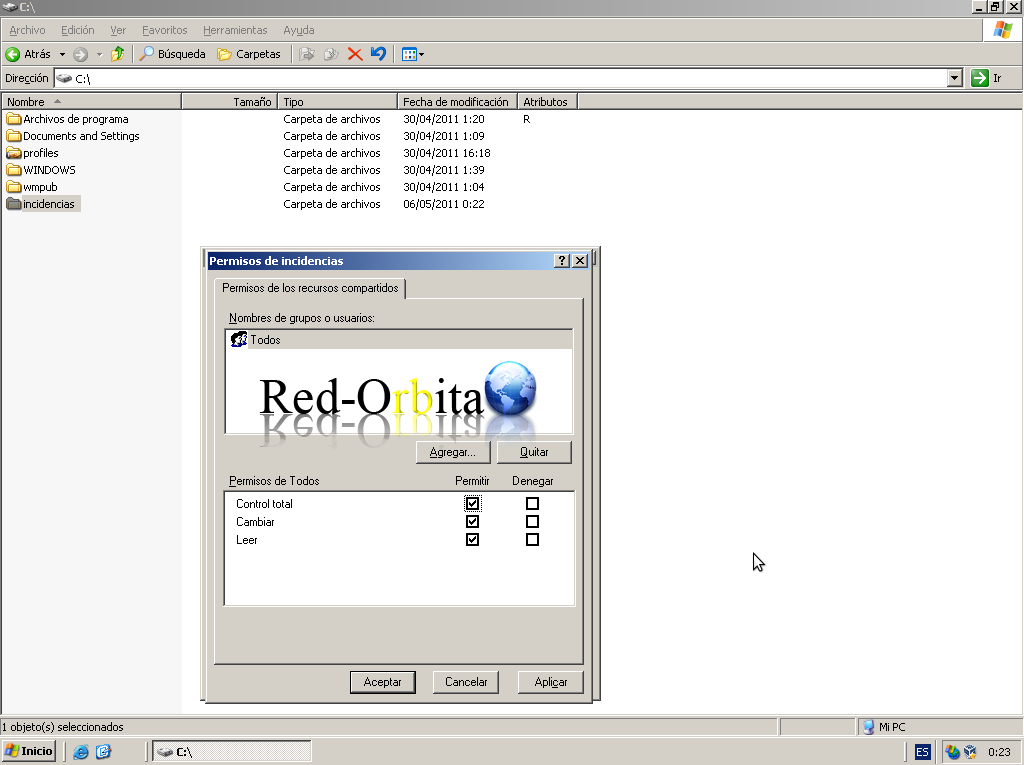
First, let's create a share that we will call «Incidents» for example within c:
We press the right button on the directory «Incidents» > Properties
Once the properties window appears we go to the tab: Share
and we press the option Share this folder
We click on Permissions and assign: Full control
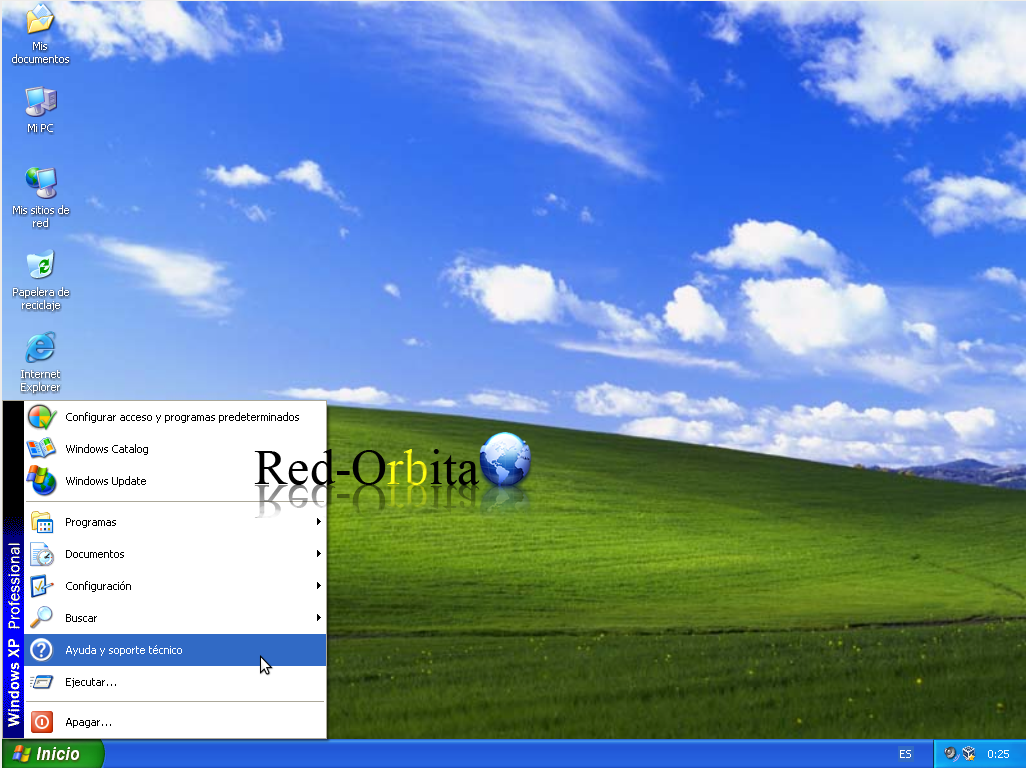
We go to our client. Home > Help and Support
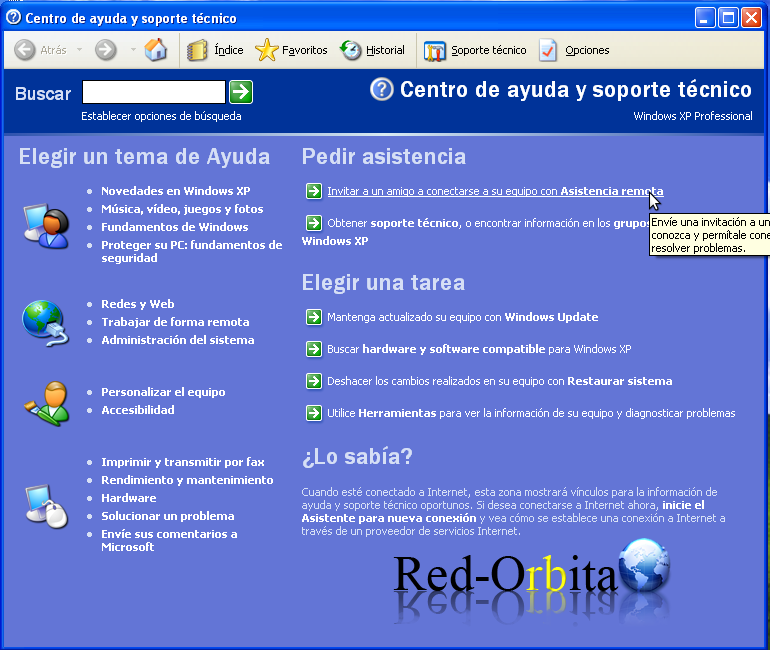
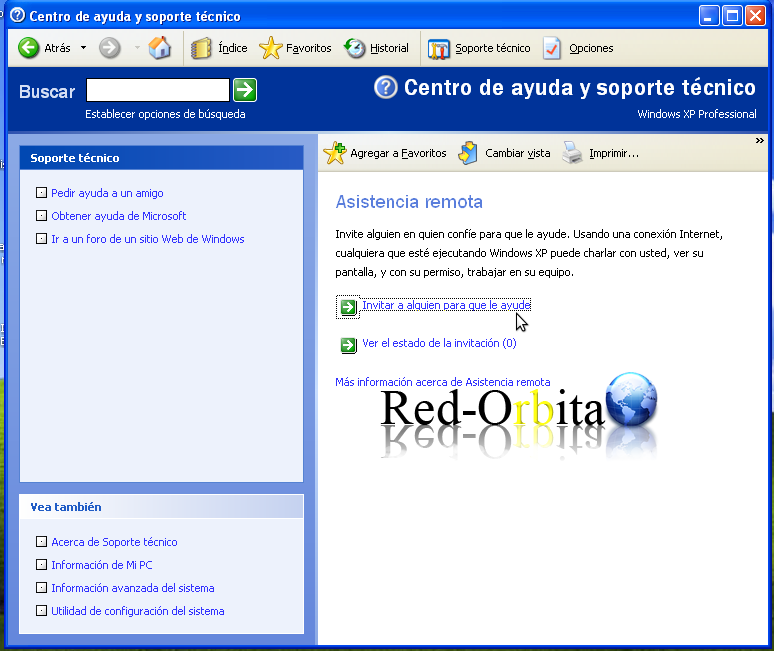
The help and technical support center opens, we have to select the option:
Invite a friend to connect to your team with Remote Assistance
Invite someone to help you
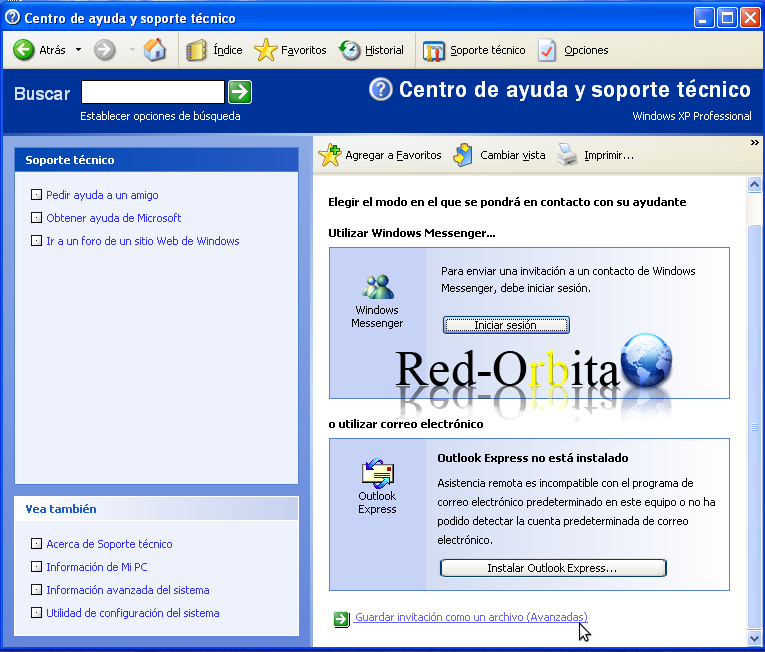
We press the option at the bottom: Save invitation as a file.
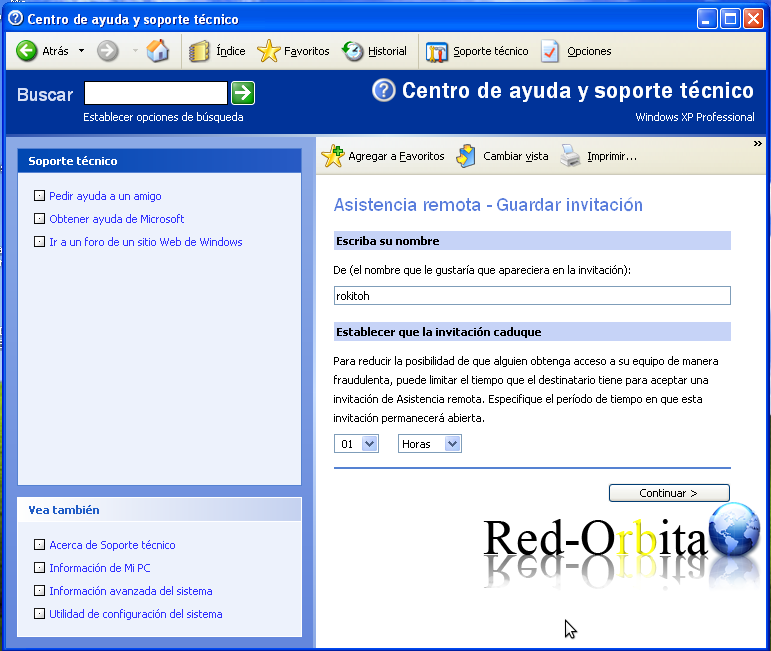
We configure user and time
Password
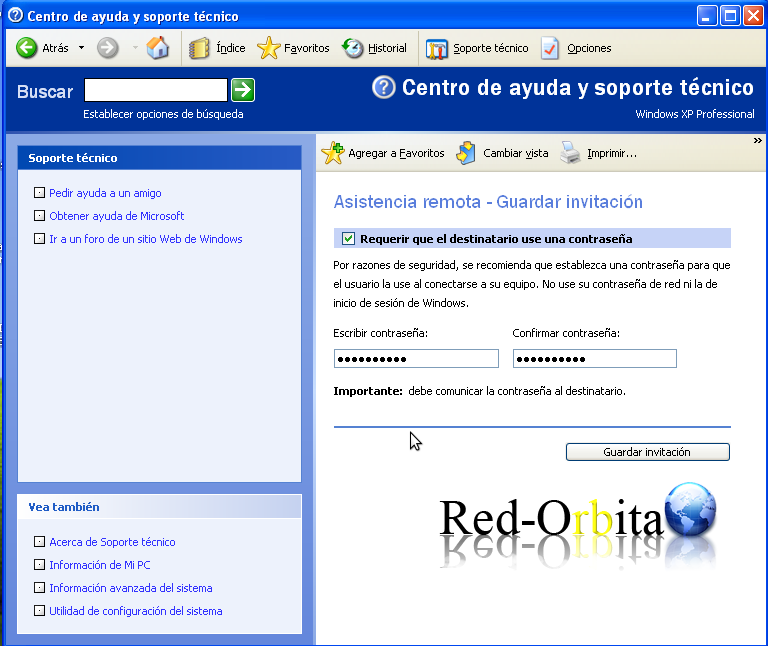
And we save the invitation in the folder «Incidents» that we believe in ourro CD
Microsoft Windows Network > Orbit-Network > Pdc > Incidents
We go to our Domain Controller, to the folder «Incidents» and we check that the created file is there.
We press the file, we can enter the password to access it.
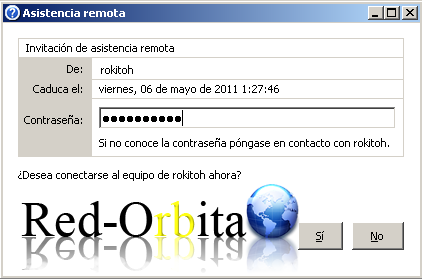
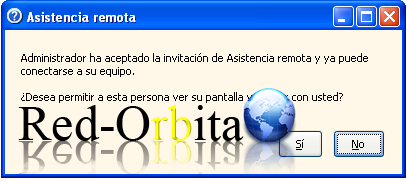
The client will receive a notice to allow access
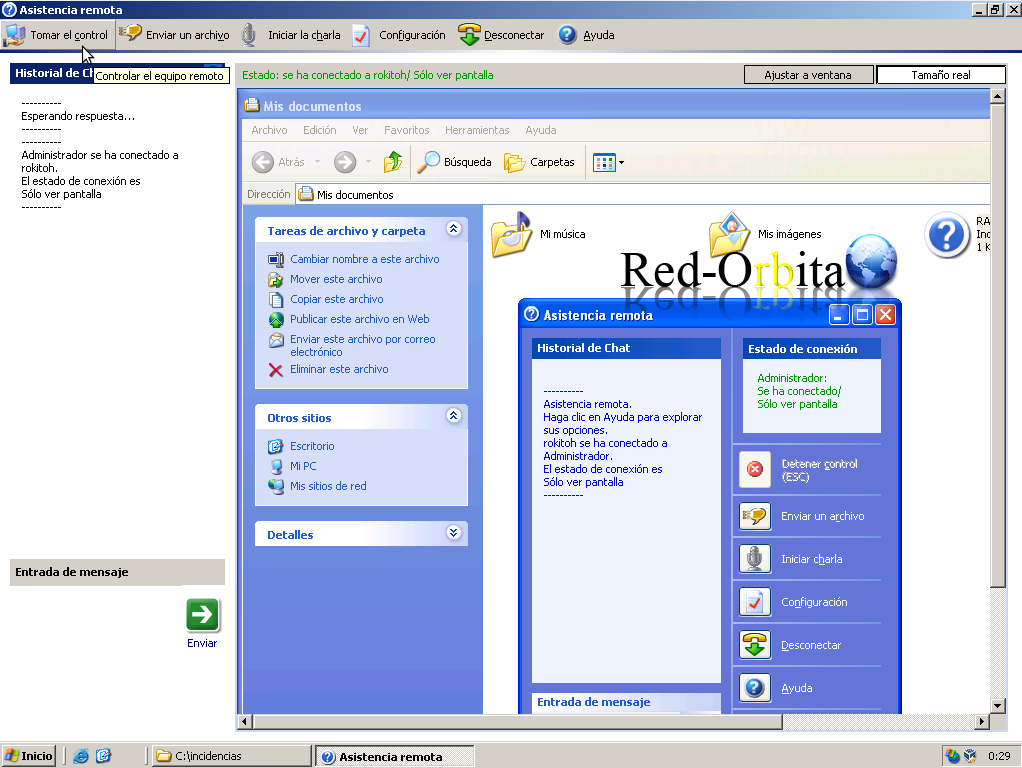
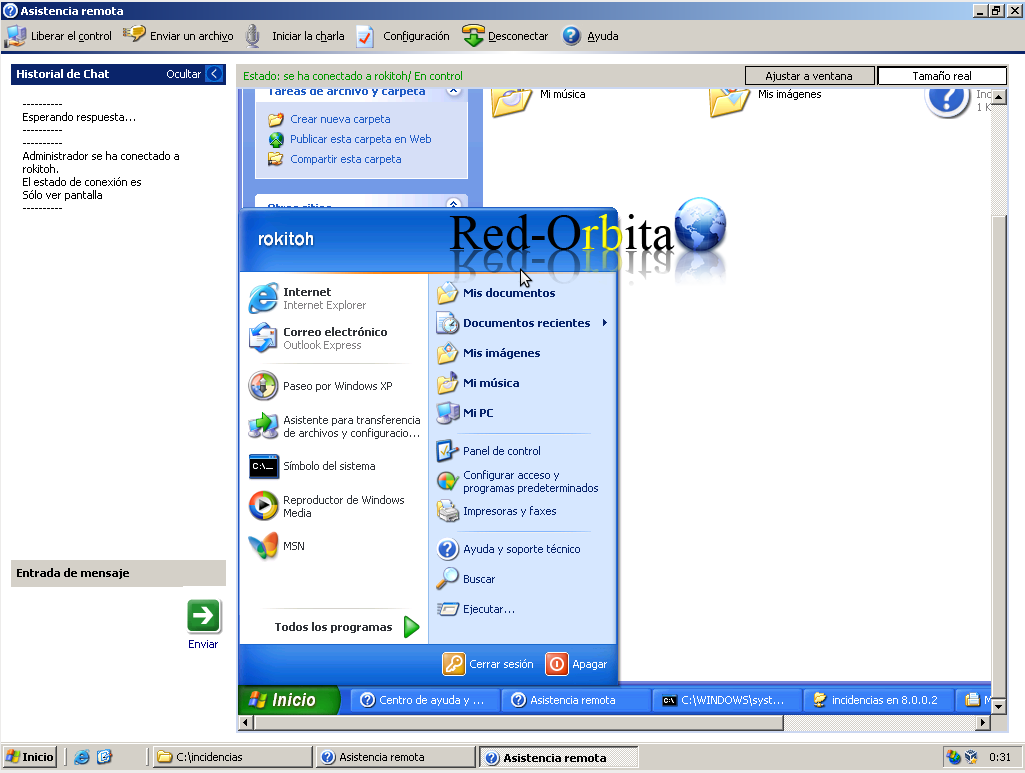
We return again to the Domain Controller, and at the top left there is an option that says: Take control, we press it
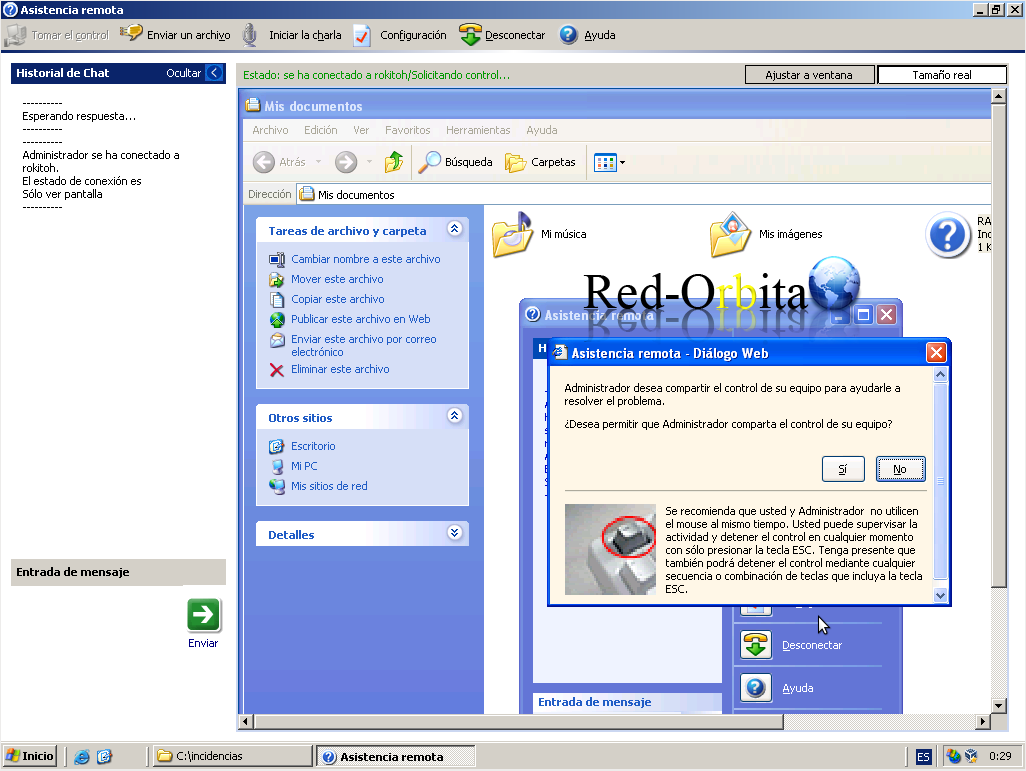
The client receives another notice again, that we want to take control of their machine, they accept and we now have access and control over it.
And the administrator already has access to the system to repair whatever...
Well, that's it for the manual, I hope it helps you implement a technical service on your network for customers.
Regards, rokitoh
Comments