

What is Active directory?: It is a hierarchical database that allows maintaining a series of objects related to a network, such as users, user groups, permissions and resource allocation, and access policies.
What's new in Active Directory 2008:
If you want to see the improvements in Active Directory 2008 you can find them in the following links:
http://www.cabai.com.ar/2009/03/que-hay-de-nuevo-en-windows-server-2008-r2.html
http://technet.microsoft.com/es-es/library/dd378796(WS.10).aspx
Let's start the installation:
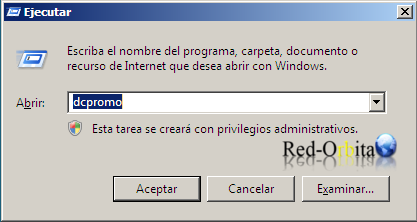
we're leaving start/run and we write DCPROMO to start the installation wizard.
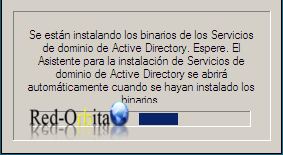
The binaries are installed.
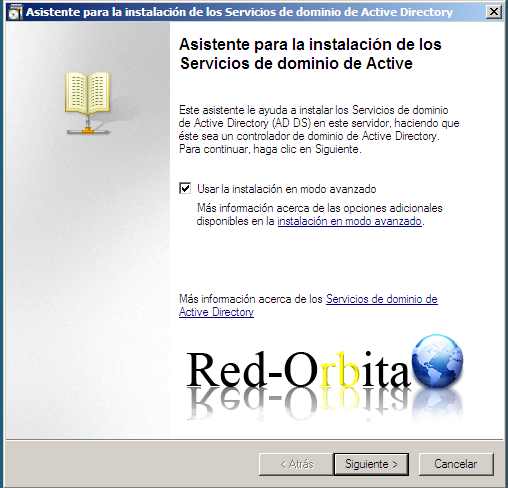
The Active Directory installation wizard starts
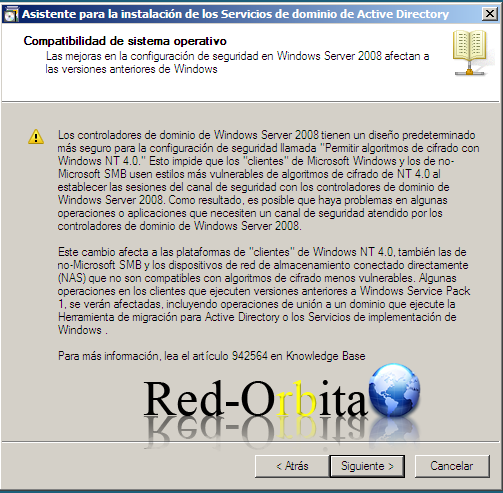
It shows us a nice text about Microsoft Windows compatibility…
We choose the option to create a new domain in a new forest.
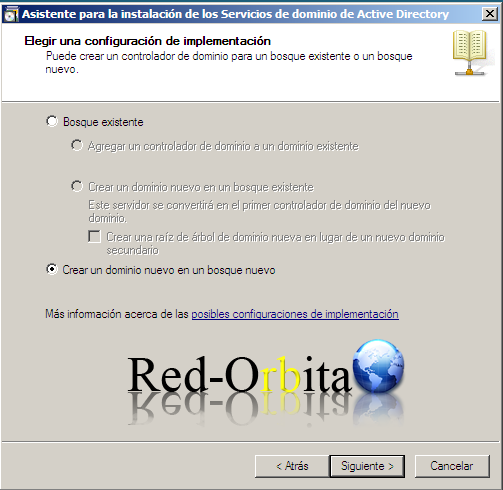
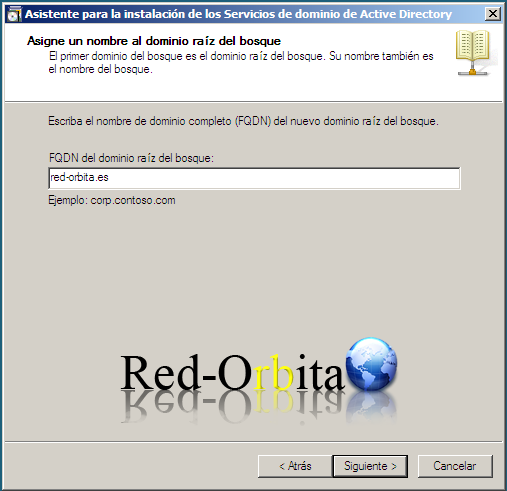
We enter the full domain name.

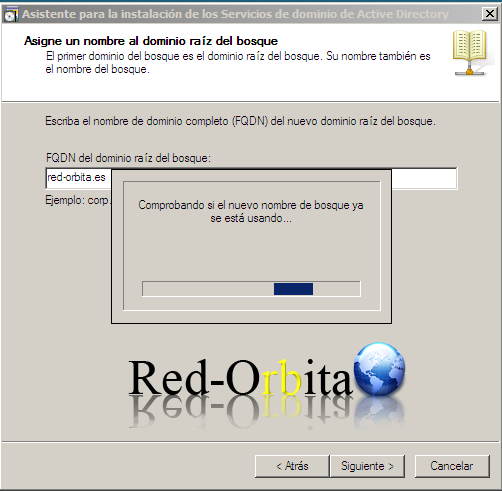
Check that that domain name is not already in use…
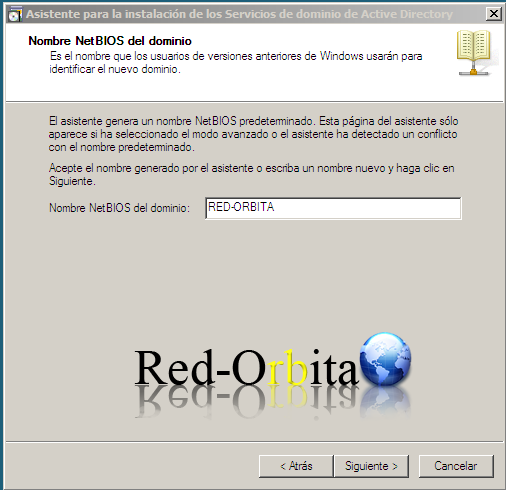
The domain name for NetBios.
Forest functional level, here we can select: NT, Windows Server 2003 or Windows Server 2008
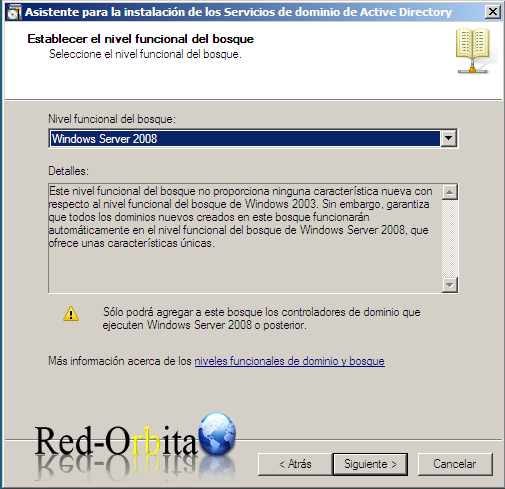
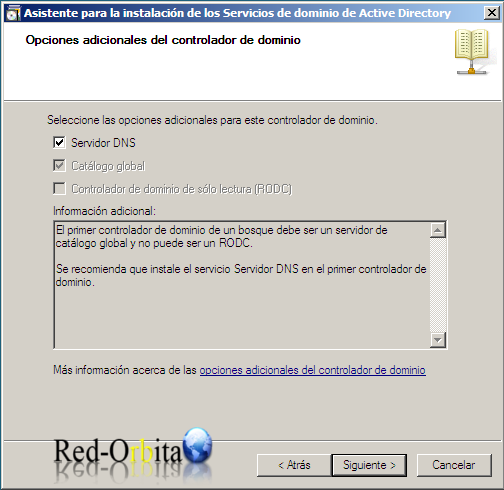
We select it to act as a DNS server
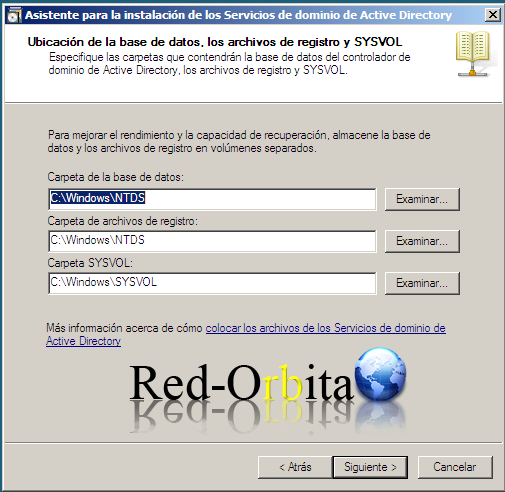
We leave it by default, it is where the Active Directory database and logs are stored.
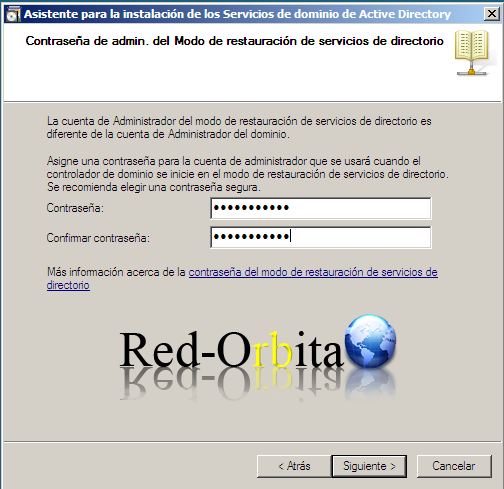
Administrator password for directory services restore mode.
Shows us a brief summary of the configuration
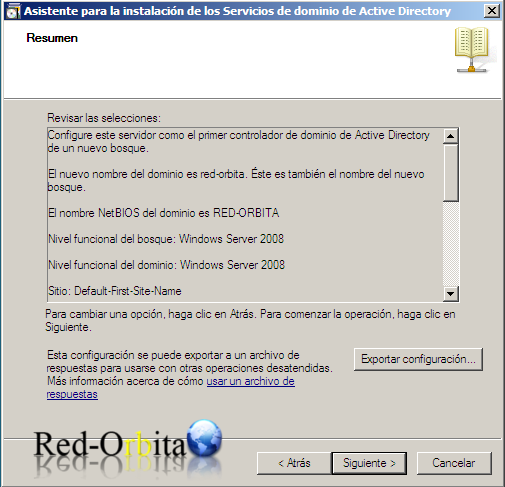
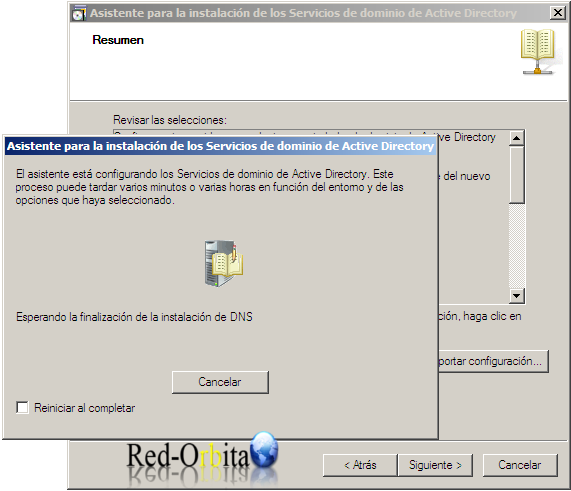
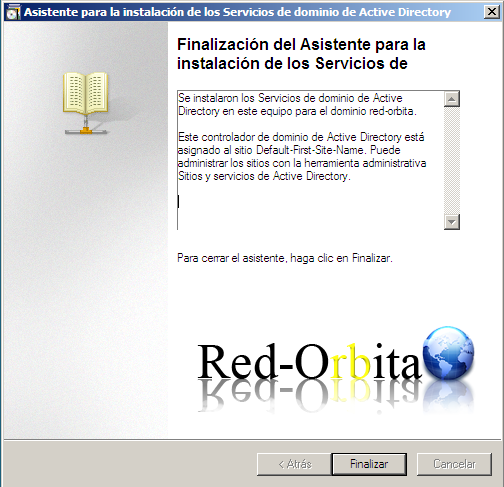
Start installing and configuring everything... We wait a little and the installation completion window appears.
Finish the installation.
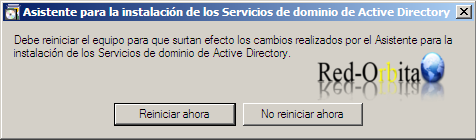
We reboot to make the changes.
Greetings, rokitoh!!
Comments