

vmware It is a software virtualization system. A software virtual system is a program that simulates a physical system (a computer, hardware) with certain hardware characteristics. When the program is run (simulator), provides aexecution environment similar in all respects to a physical computer (except in the pure physical access to the simulated hardware), with CPU (it can be more than one), BIOS, graphics card, RAM, network card, sound system, USB connection, hard drive (it can be more than one), etc.
A software virtualizer allows you to run (simulate) several computers (operating systems) within the same computer. hardware simultaneously, thus allowing the greatest use of resources. However, and being an intermediate layer between the physical system and the operating system that runs on the emulated hardware, the execution speed of the latter is lower, but in most cases sufficient to be used in production environments.
We enter the vmware website and go to Products > VMware Workstation
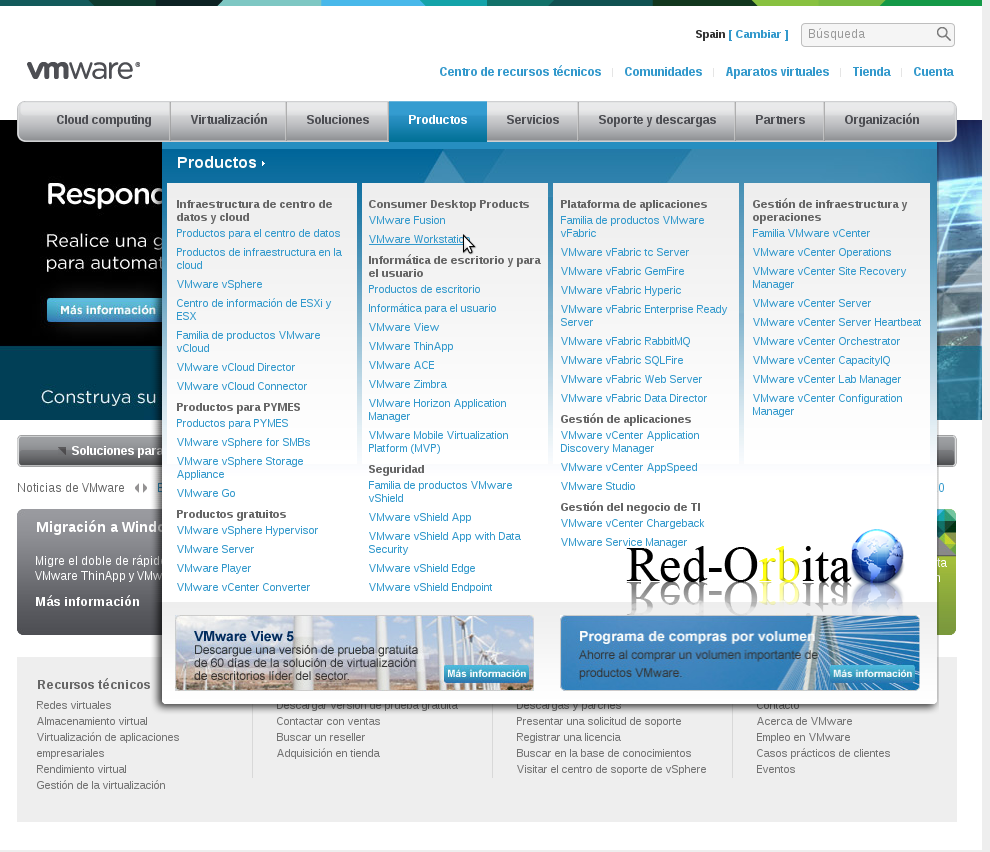
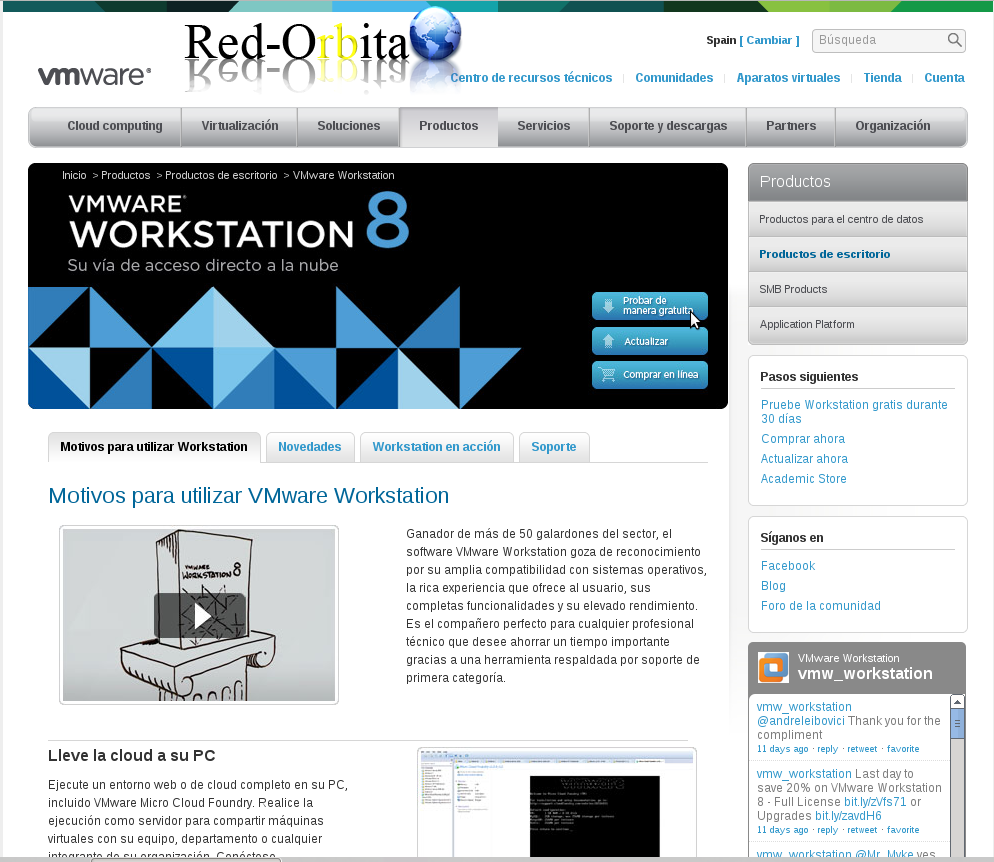
Here, depending on each one... I am going to choose the trial version... but if you want to buy it
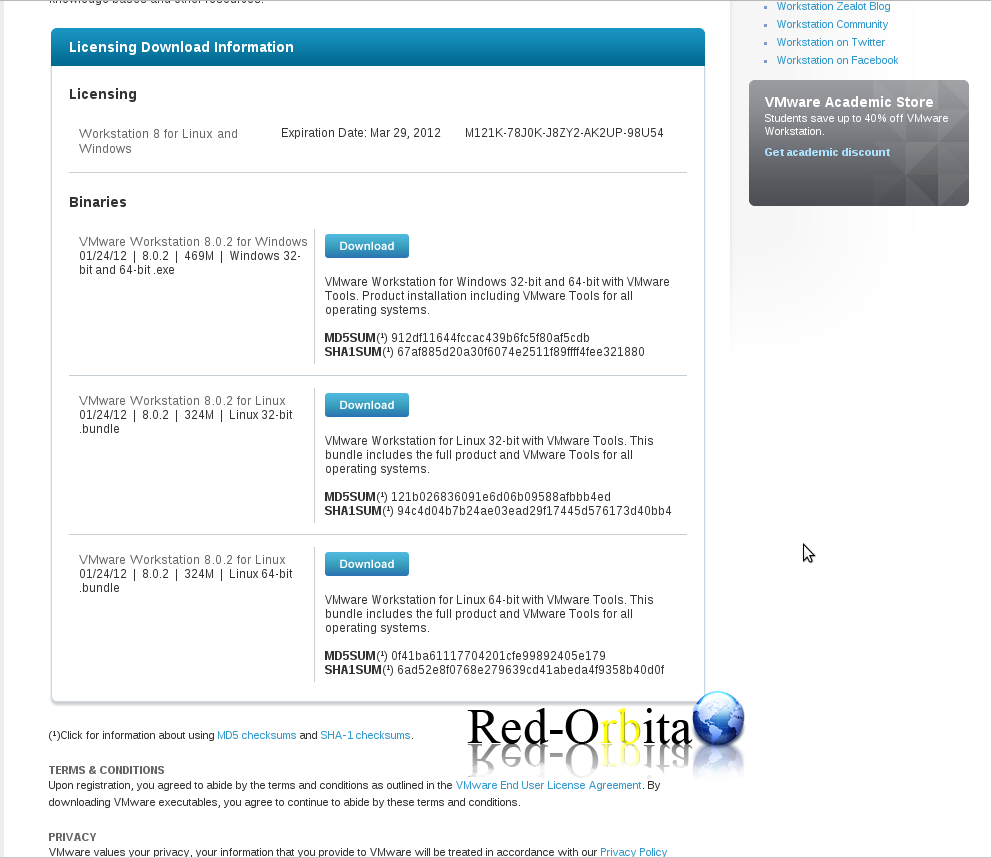
And we download the binary depending on our architecture.
Once downloaded we execute:
rokitoh@red-orbita:~$ sudo bash VMware-Workstation-Full-8.0.2-591240.i386.txt

Extracting VMware Installer…done.
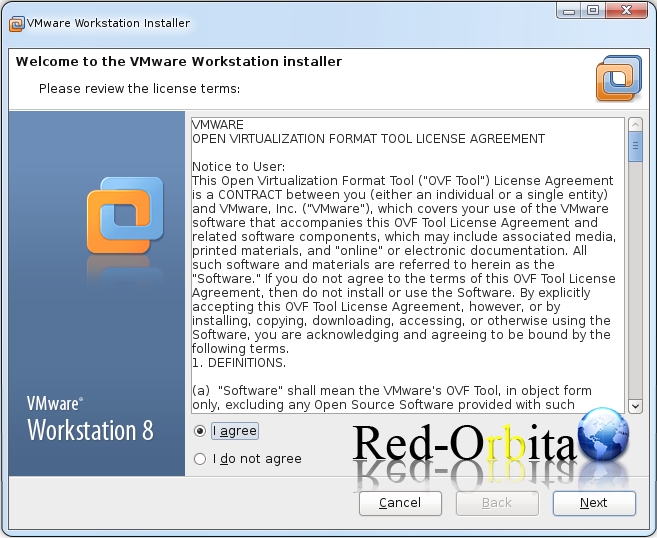
And it shows us an installation wizard, we accept the license and continue!
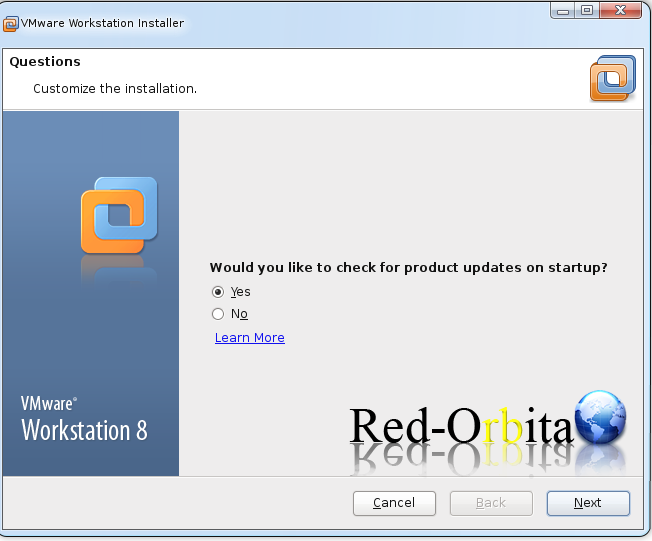
It asks us if after the installation we want to check if there is any update... we say Yes... let it update...
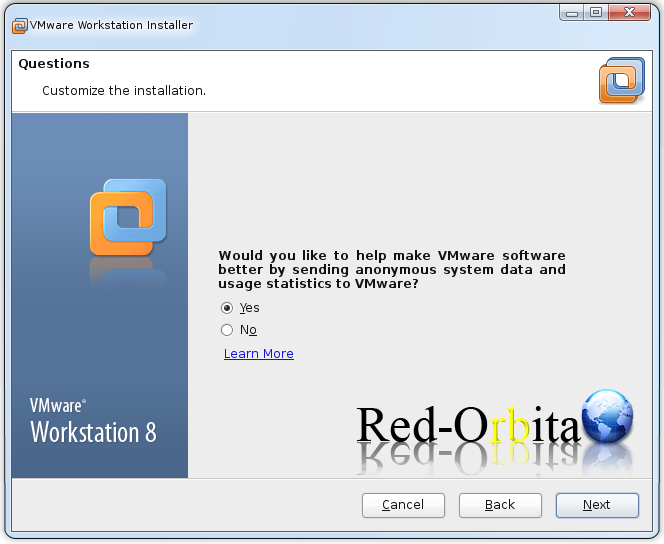
It asks us... if we want to help VMware improve its software by sending anonymous system data and VMware usage statistics... ummm... haha, each one gives the option they want...
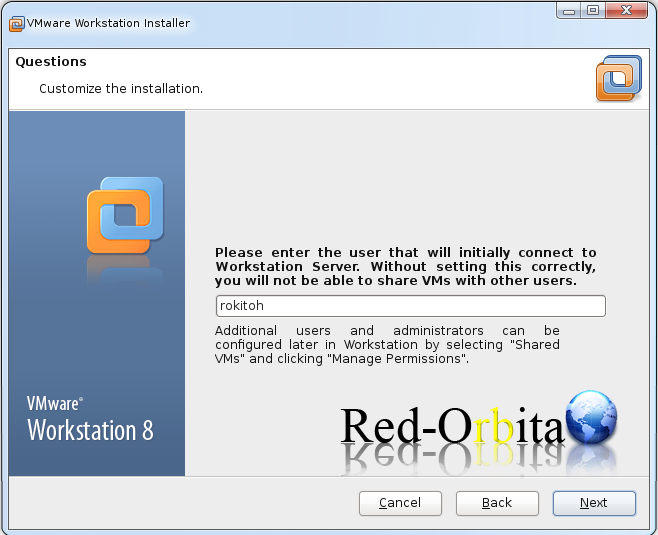
We add the user that will connect to the server…
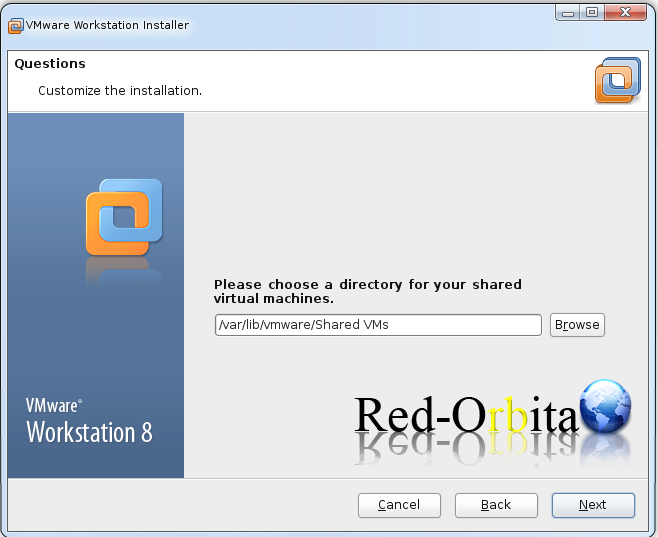
Directory where the virtual machines will be saved.
We enter the port through which we want to connect to the server using HTTPS. I leave it by default.
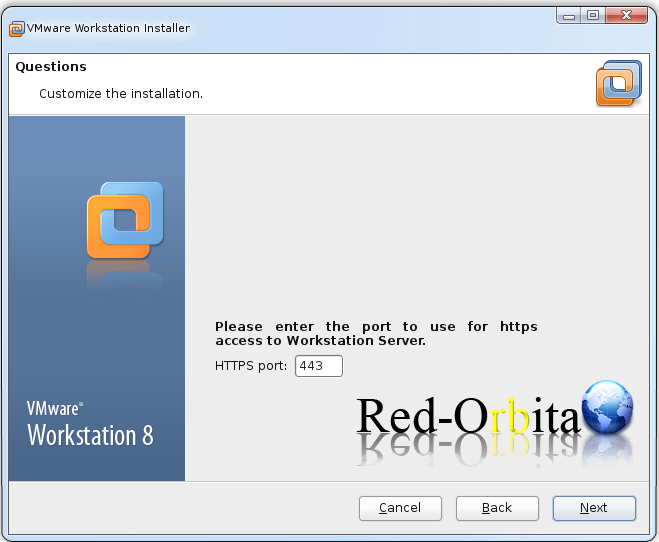
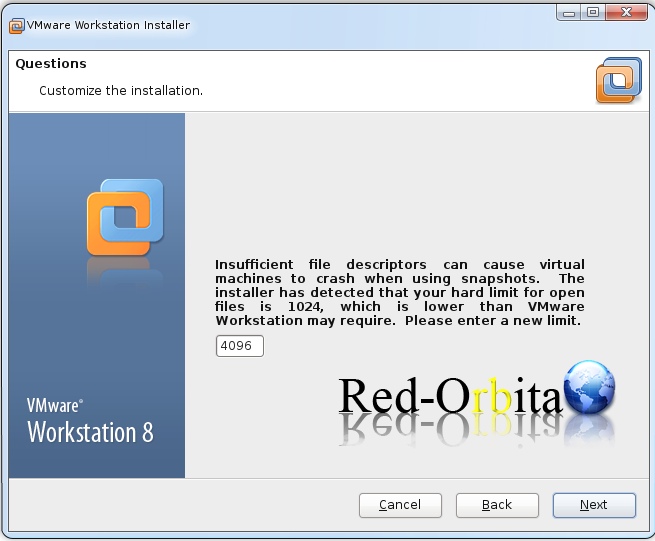
We indicate the limit for when we carry out the shaphots. We leave it by default...
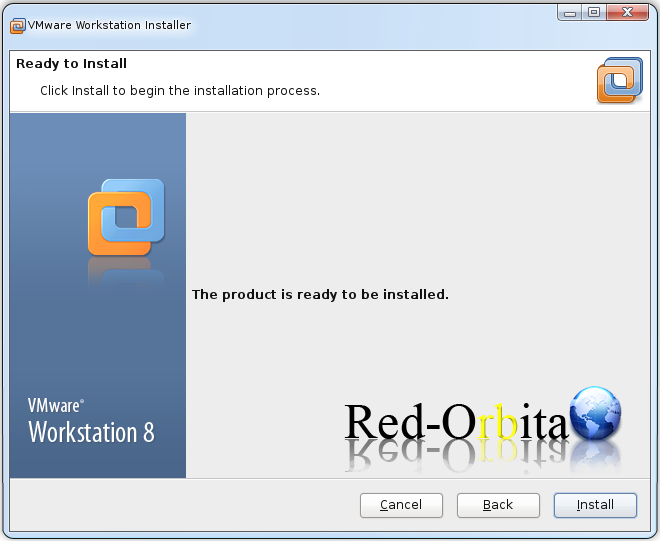
We start the installation…
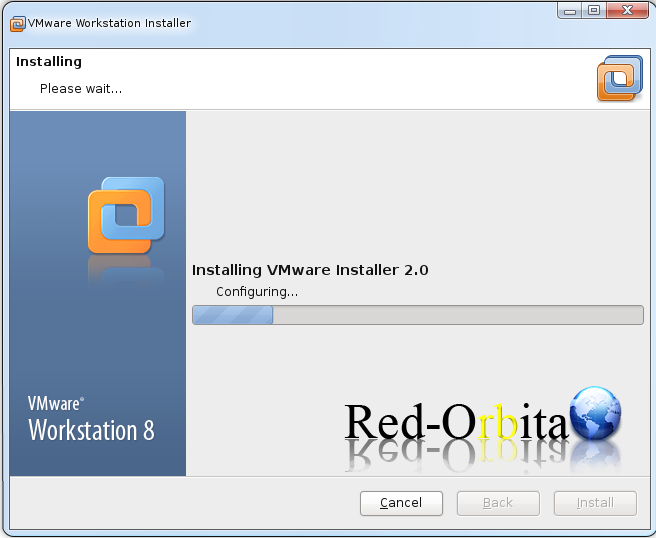
We wait for it to finish doing everything it wants it to do...since not having the source code we have no idea...(a negative point because I don't usually use this VM)
We close the wizard
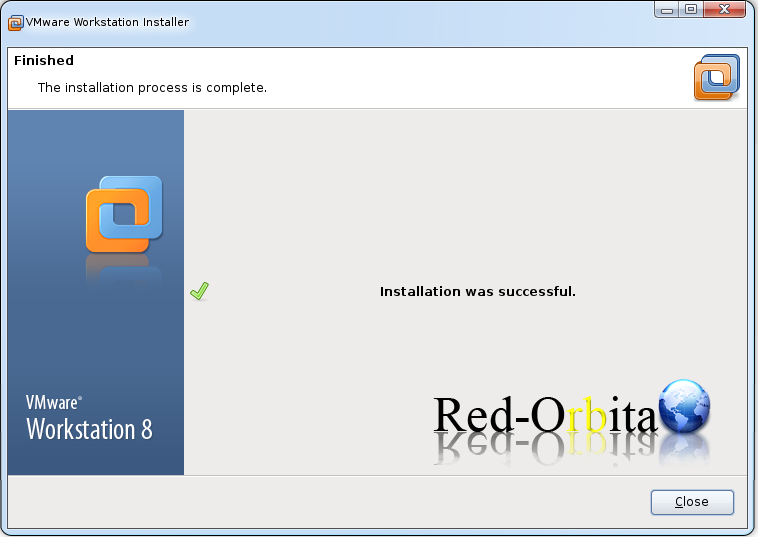
If we go to > Applications > System Tools there are VMware Workstation and VMware Player.
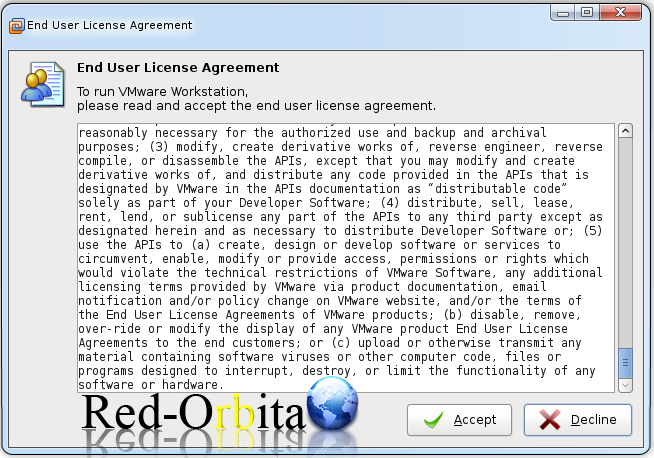
The first time we open both we get a panel to accept the license...
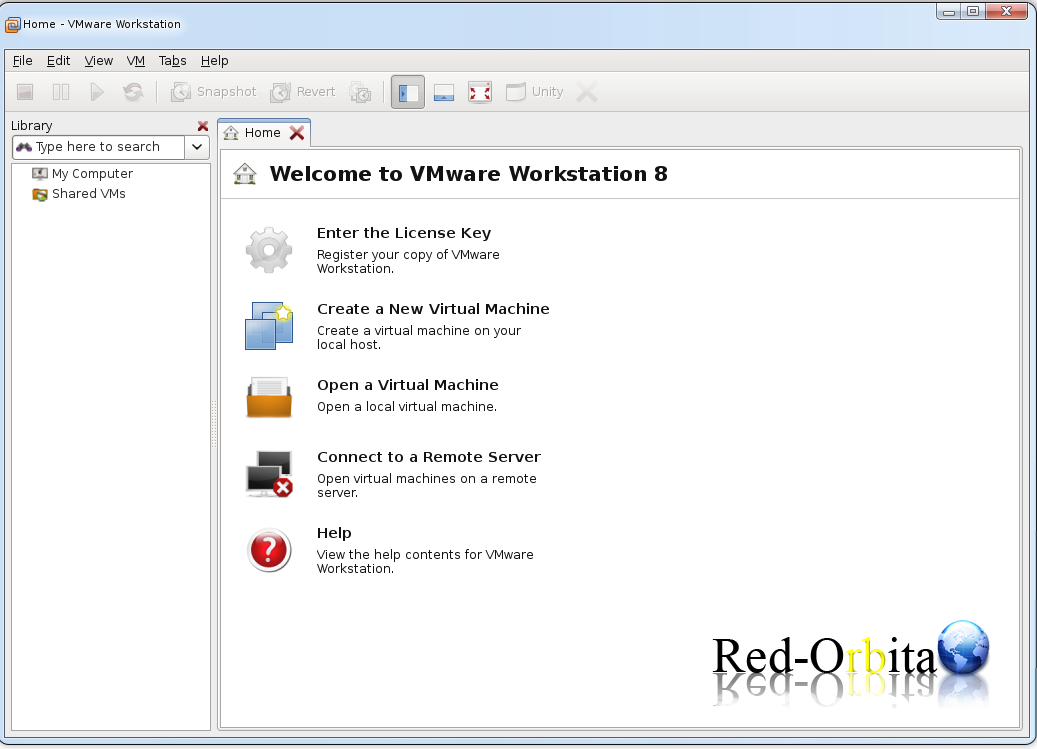
and ready to use!!!
Uninstall VMware Workstation 8.0
Once you've tried it... and you see that you don't want it... well... it's time to know how to uninstall it...
cd /usr/lib/vmware-installer/1.1/
and we execute:
sudo ./vmware-installer –uninstall-product vmware-workstation
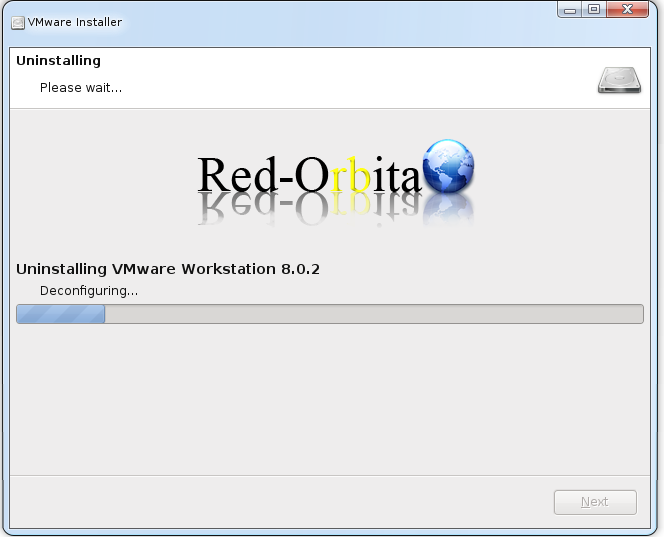
It shows us the uninstall wizard. We press yes.
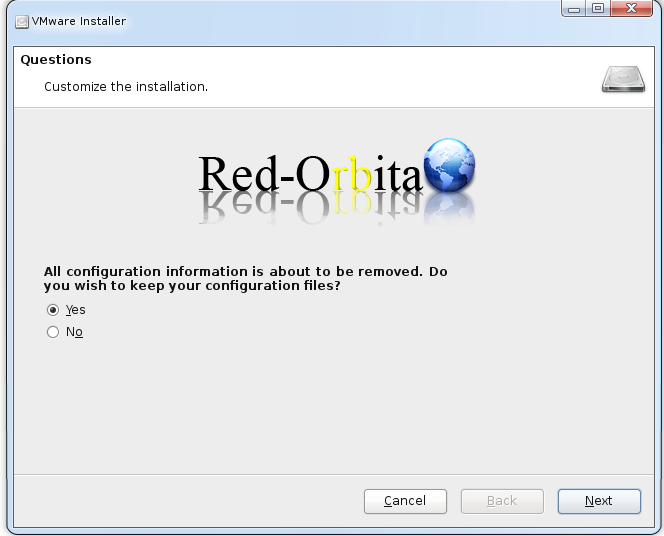
Start deleting everything…
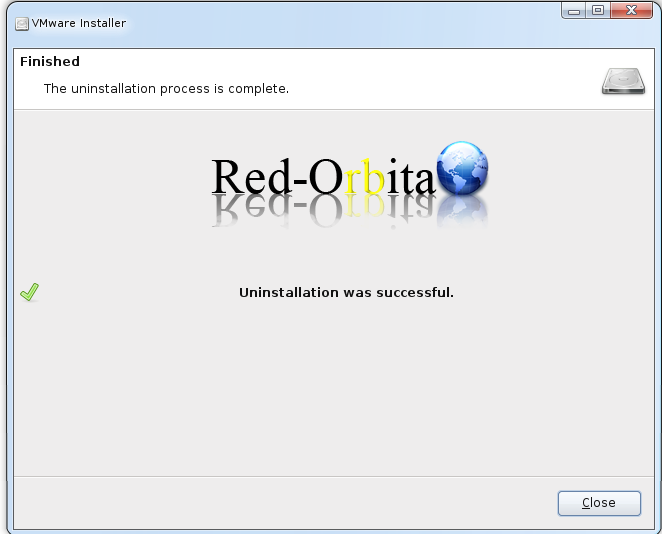
Ready!
I hope it is useful to you.
Greetings, rokitoh!!
wow!
Comments