
Tomcat es un web server with support servlets and JSPs. Tomcat is not a application server, como JBoss either JONAS. It includes the Jasper compiler, which compiles JSPs into servlets. The Tomcat servlet engine is often presented in combination with the Apache web server.
Tomcat can function as a web server by itself. In the beginning, there was a perception that the use of Tomcat autonomously was only recommended for development environments and environments with minimum requirements for speed and transaction management. Today that perception no longer exists and Tomcat is used as a stand-alone web server in environments with high traffic and high availability.
Since Tomcat was written in Java, works on any operating system that has the java virtual machine.
We install the necessary packages for the operation of Tomcat
root@srv01:~# apt-get install apache2 mysql-server openjdk-6-jreWe check that Java has been installed correctly.
root@srv01:~# java -version

java version «1.6.0_18»

OpenJDK Runtime Environment (IcedTea6 1.8.13) (6b18-1.8.13-0+squeeze2)

OpenJDK Client VM (build 14.0-b16, mixed mode, sharing)
We download Tomcat
wget http://apache.rediris.es/tomcat/tomcat-7/v7.0.35/bin/apache-tomcat-7.0.35.tar.gzWe decompress
tar xvzf apache-tomcat-7.0.35.tar.gzWe move the unzipped folder to /usr/local
mv apache-tomcat-7.0.35 /usr/local/We create a link
ln -s /usr/local/apache-tomcat-7.0.35 /usr/local/tomcatTo facilitate the management of Tomcat we add the catalina script to the path.
ln -s /usr/local/tomcat/bin/catalina.sh /usr/local/cantinawe add catalina to the runlevel.
ln -s /usr/sbin/catalina /etc/rc1.d/K99catalina
ln -s /usr/sbin/catalina /etc/rc2.d/S99catalinavi /usr/local/tomcat/conf/tomcat-users.xml<tomcat-users>
<role rolename=»manager»/>
<role rolename=»manager-gui»/>
<role rolename=»admin»/>
<user username=»admin» password=»tomcat» roles=»admin,manager,manager-gui»/></tomcat-users>#Tomcat auto-start
#description: Auto-starts tomcat
#processname: tomcat
#pidfile: /var/run/tomcat.pid
#this path should point to your JAVA_HOME Directory
export JAVA_HOME=/usr/lib/jvm/java-6-openjdk/
case $1 in
start)
sh /usr/local/tomcat/bin/startup.sh
;;
stop)
sh /usr/local/tomcat/bin/shutdown.sh
;;
restart)
sh /usr/local/tomcat/bin/shutdown.sh
sh /usr/local/tomcat/bin/startup.sh
;;
esac
exit 0/etc/init.d/tomcat start
Using CATALINA_BASE: /usr/local/tomcat
Using CATALINA_HOME: /usr/local/tomcat
Using CATALINA_TMPDIR: /usr/local/tomcat/temp
Using JRE_HOME: /usr
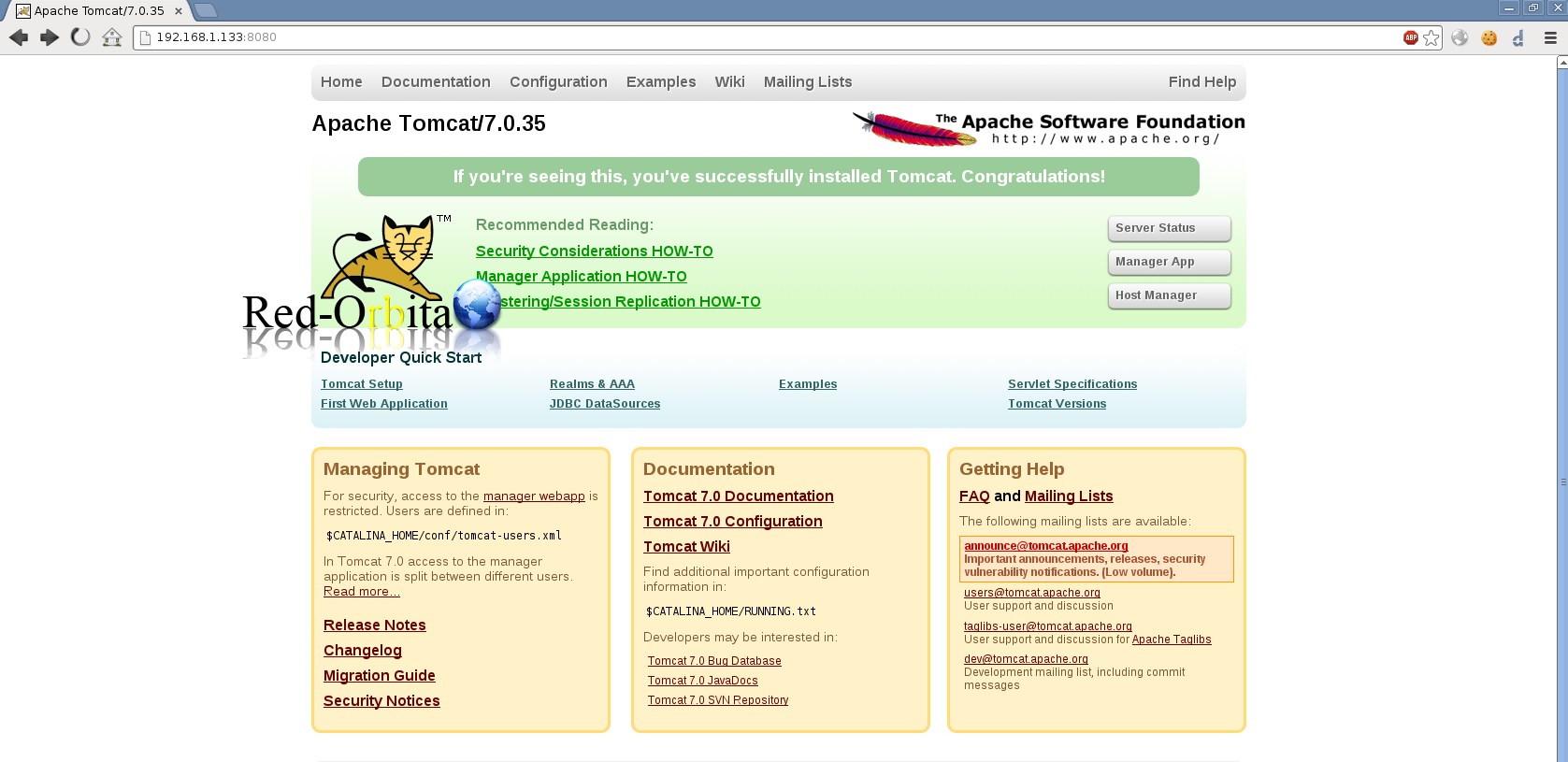
Using CLASSPATH: /usr/local/tomcat/bin/bootstrap.jar:/usr/local/tomcat/bin/tomcat-juli.jarWe access our web server as follows: http://IP_ADDRESS:8080
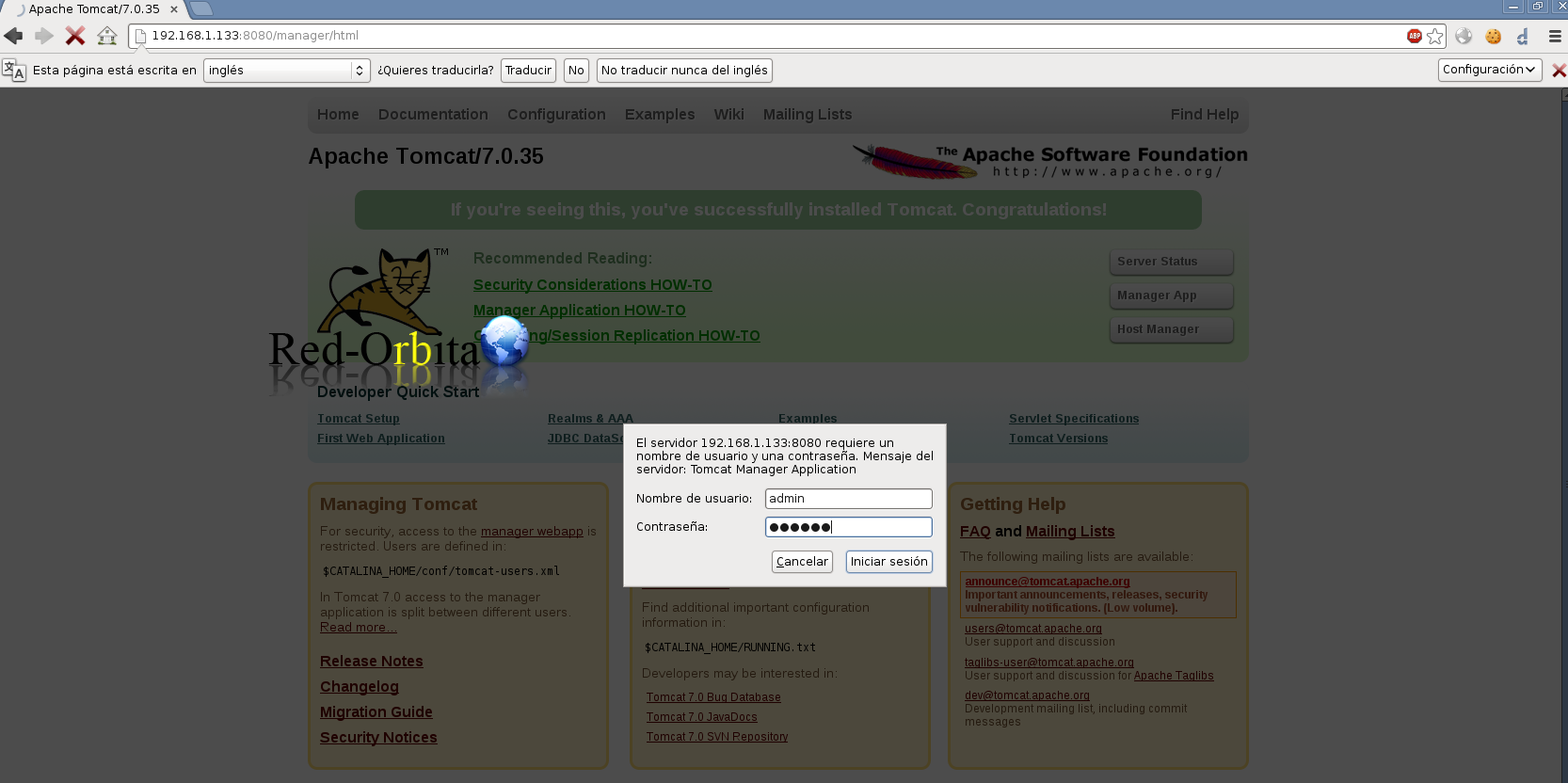
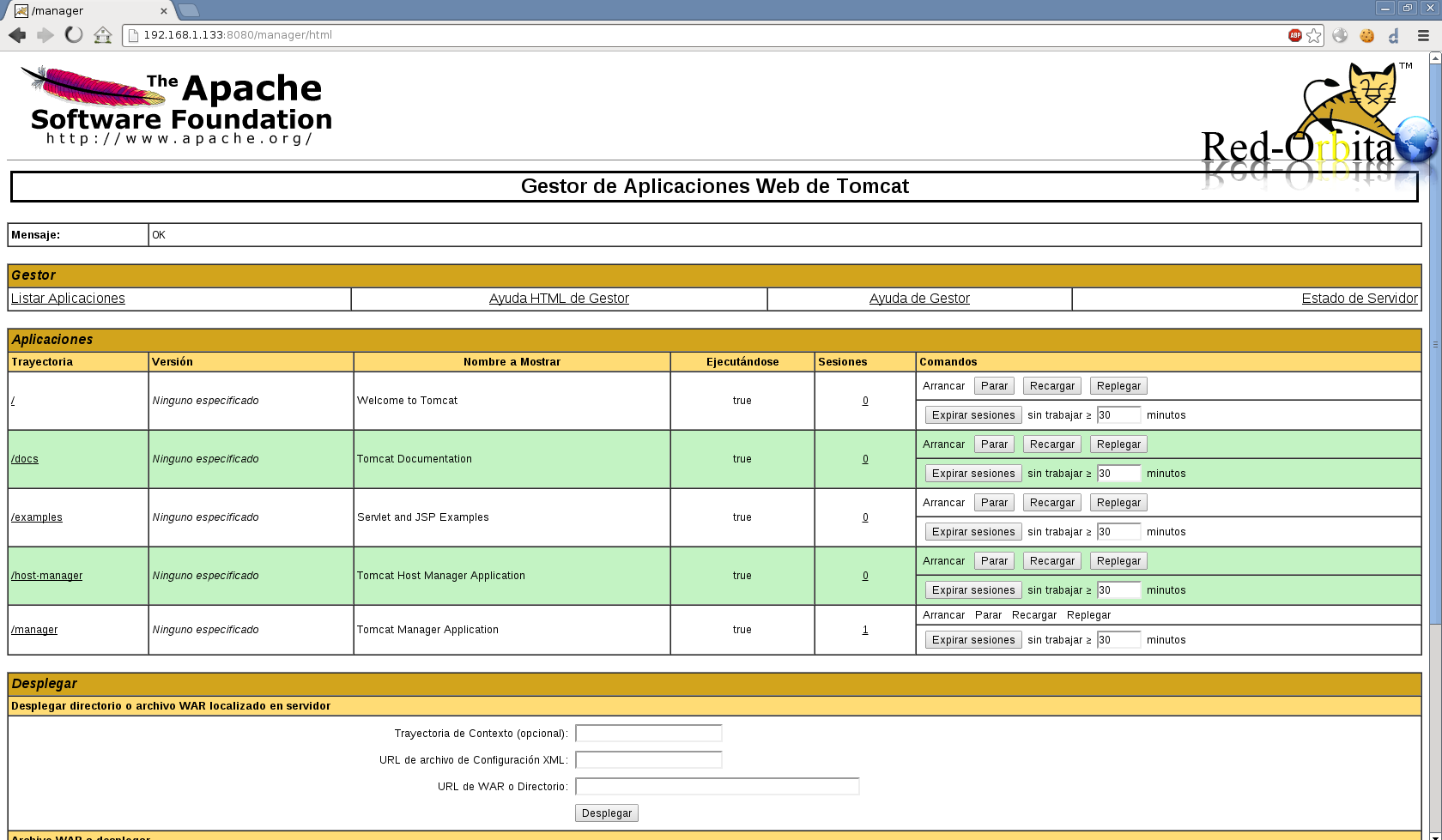
To access the manager http://IP_ADDRESS:8080/manager/html
It will show us a panel to log in, we have to access it with the credentials created previously in tomcat-users.xml. In our case it is Admin – Tomcat
Regards, rokitoh
:wq!
Comments