
Next we are going to explain how to configure an ISCSI disk under FreeNAS and connect it to our ESXI server
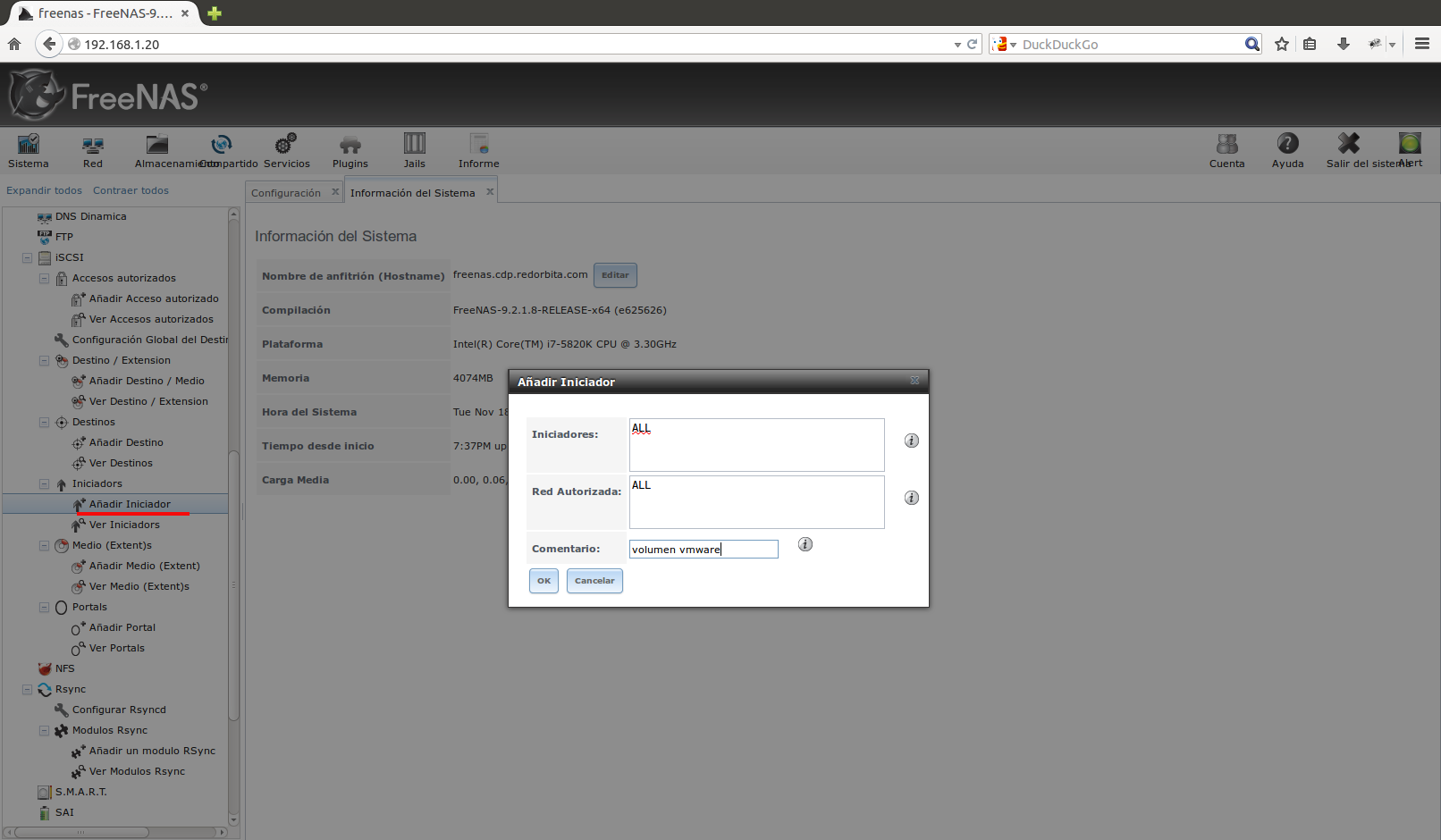
We create a launcher:
Services → ISCSI → Initiators → Add Initiator
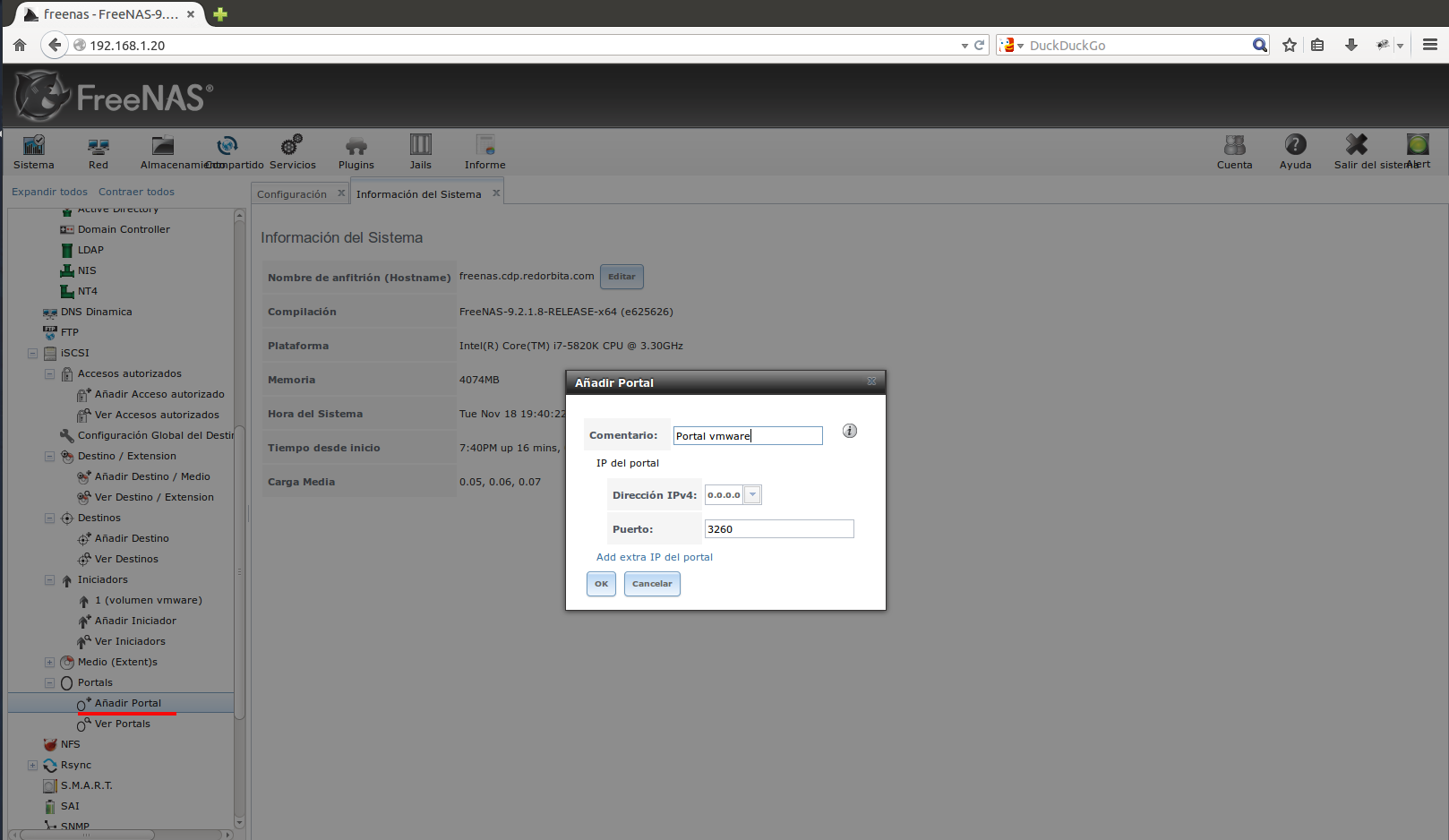
We create a portal:
Services → ISCSI → Portals → Add Portal
In this option, if we want to connect the ISCSI disk with a specific network adapter, we add the IP address of that adapter, otherwise we leave it by default: 0.0.0.0
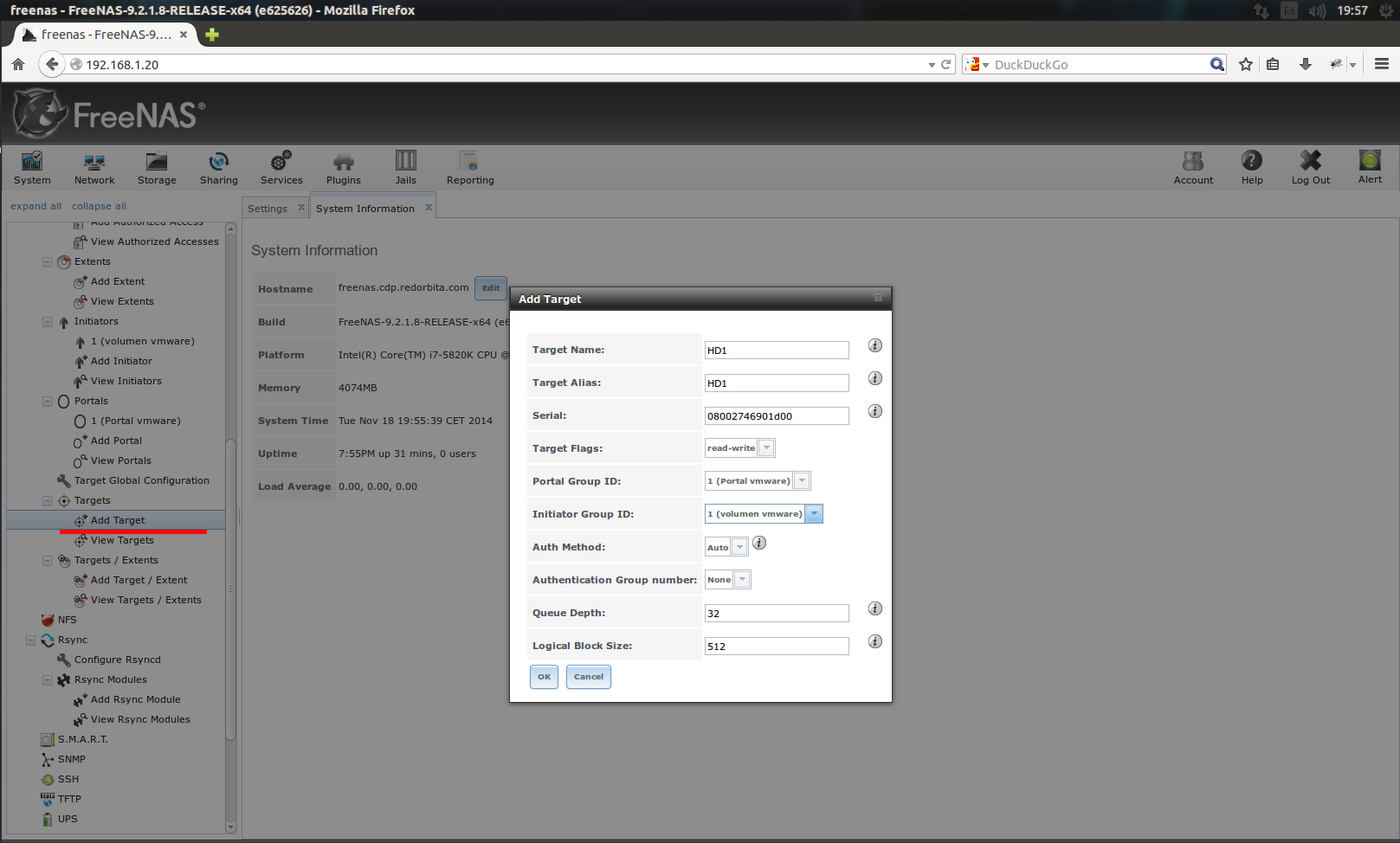
We create the card:
Services → ISCSI → Targets → Add Target
In this option we add the portal and the launcher created previously.
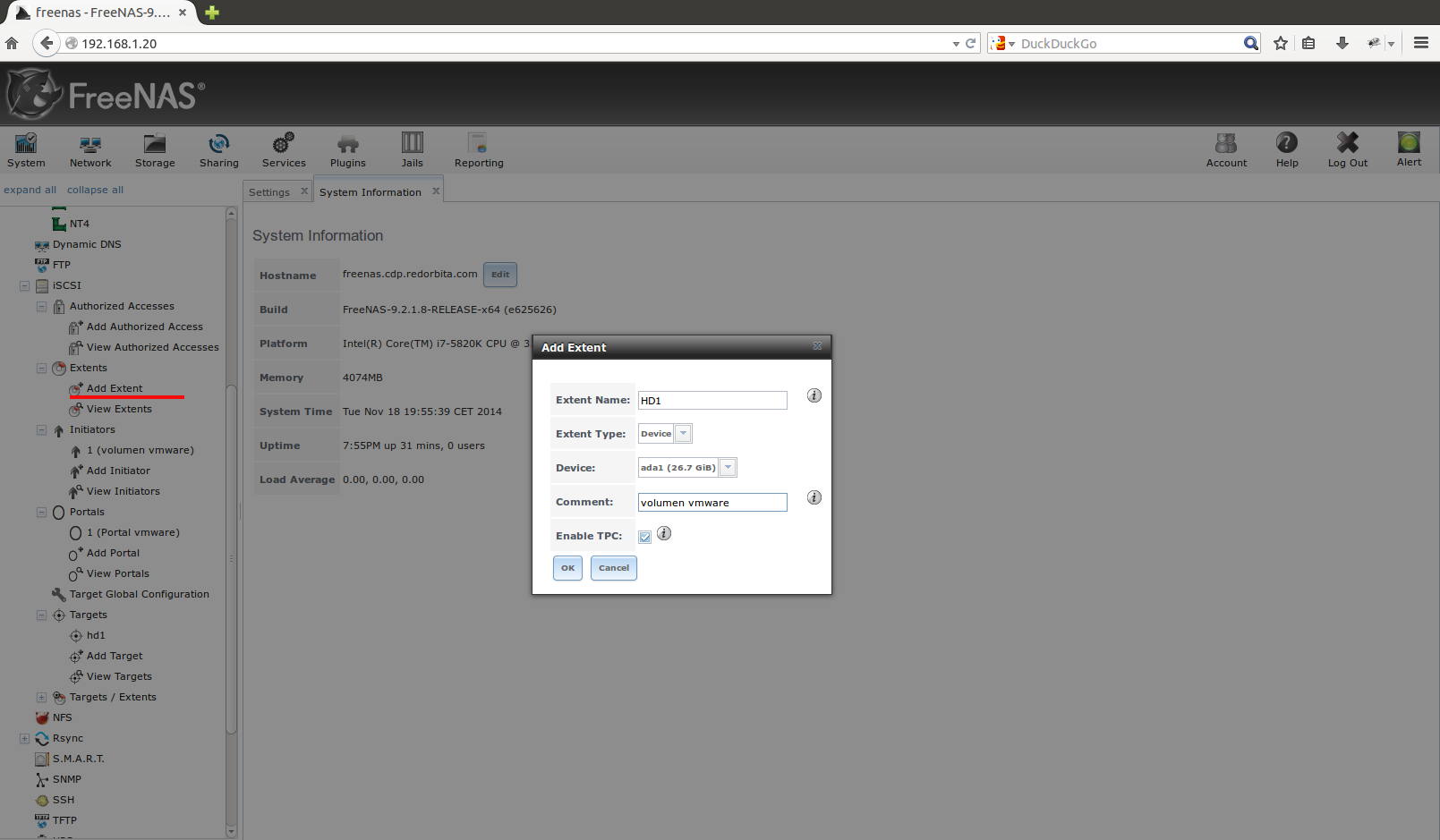
We create an extent device:
Services → ISCSI → Extents → Add Extent
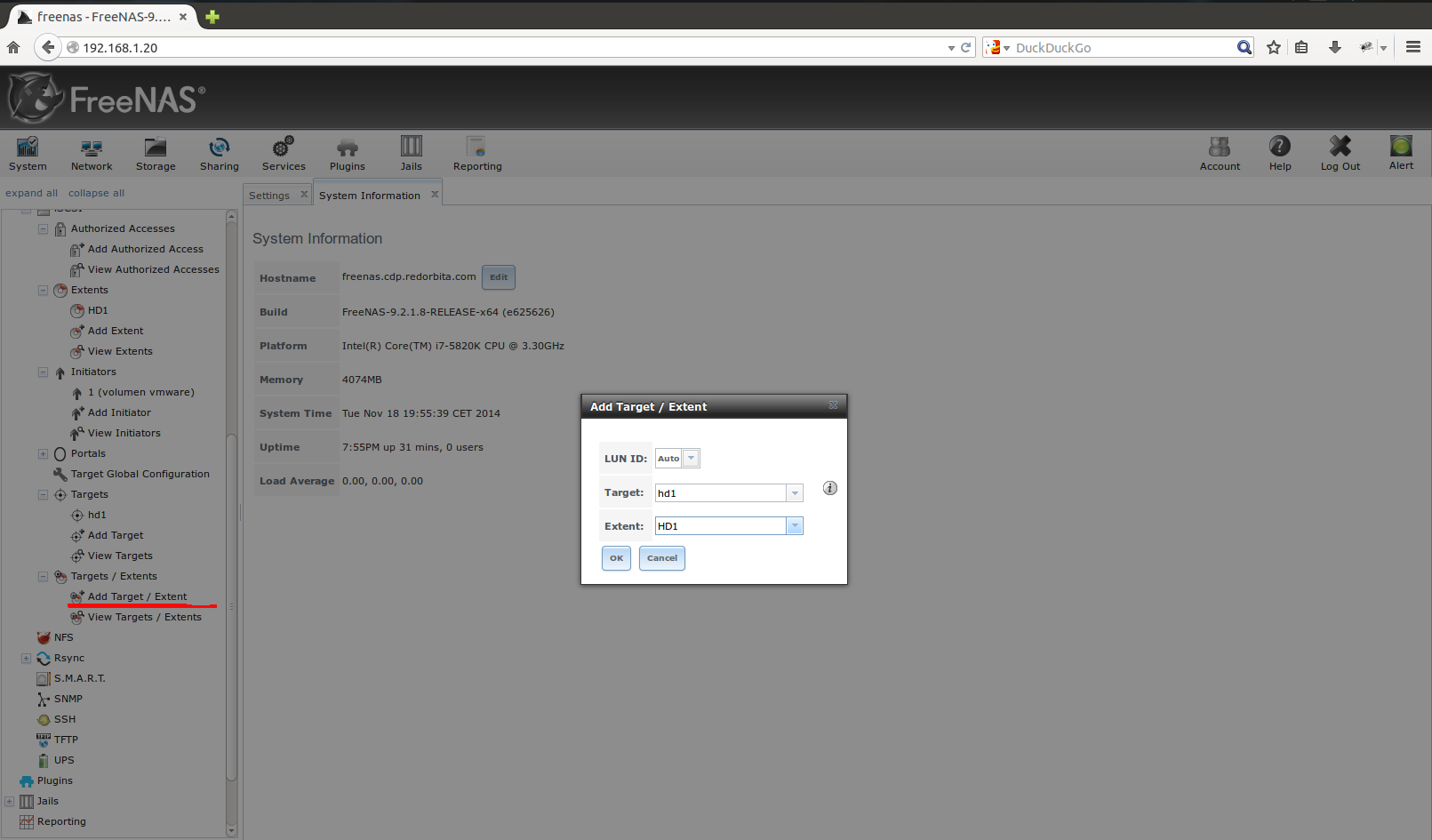
We associate the card to the device:
Services → iSCSI → Targets/Extents
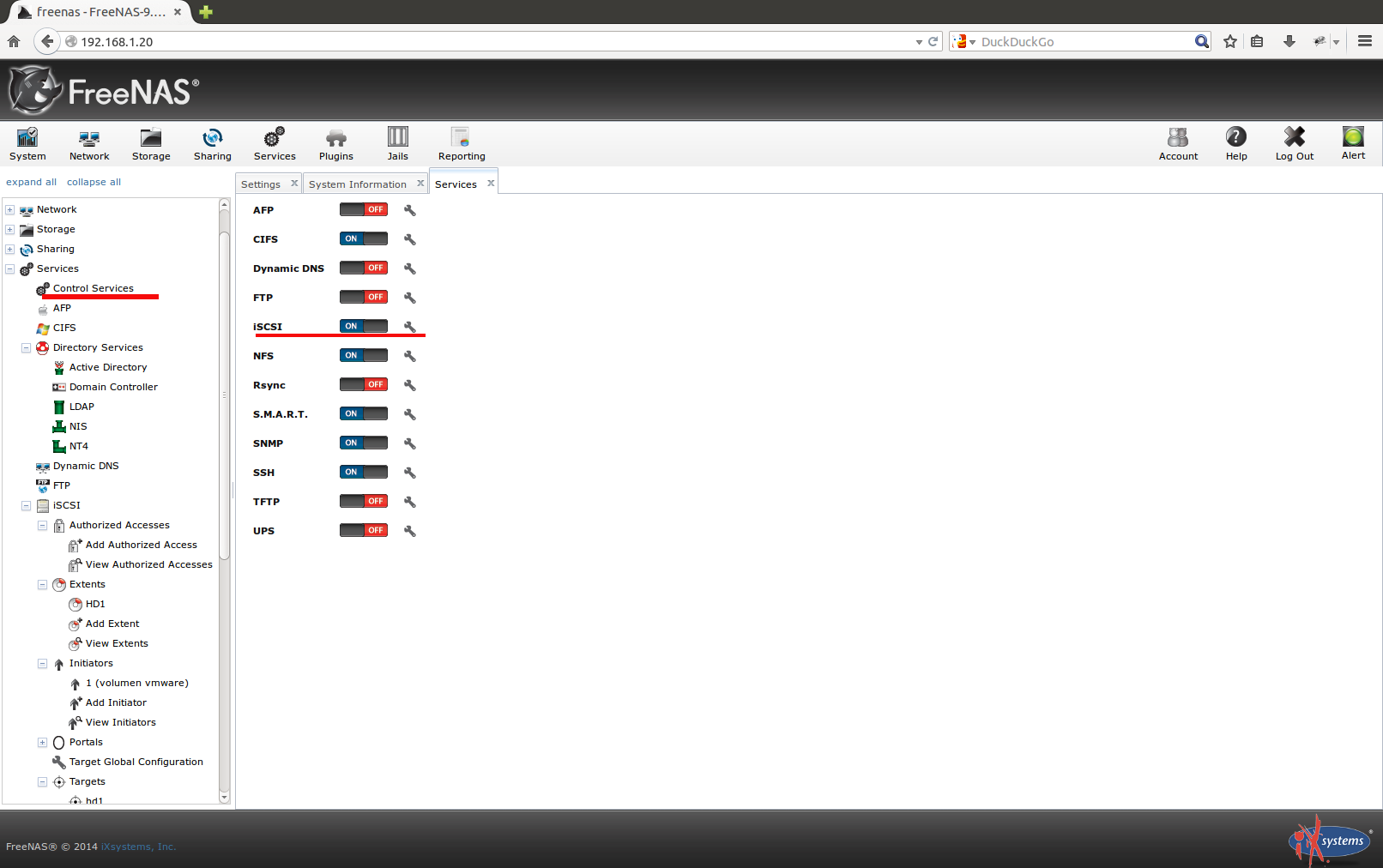
We activate the iSCSI service:
Services → Control Services
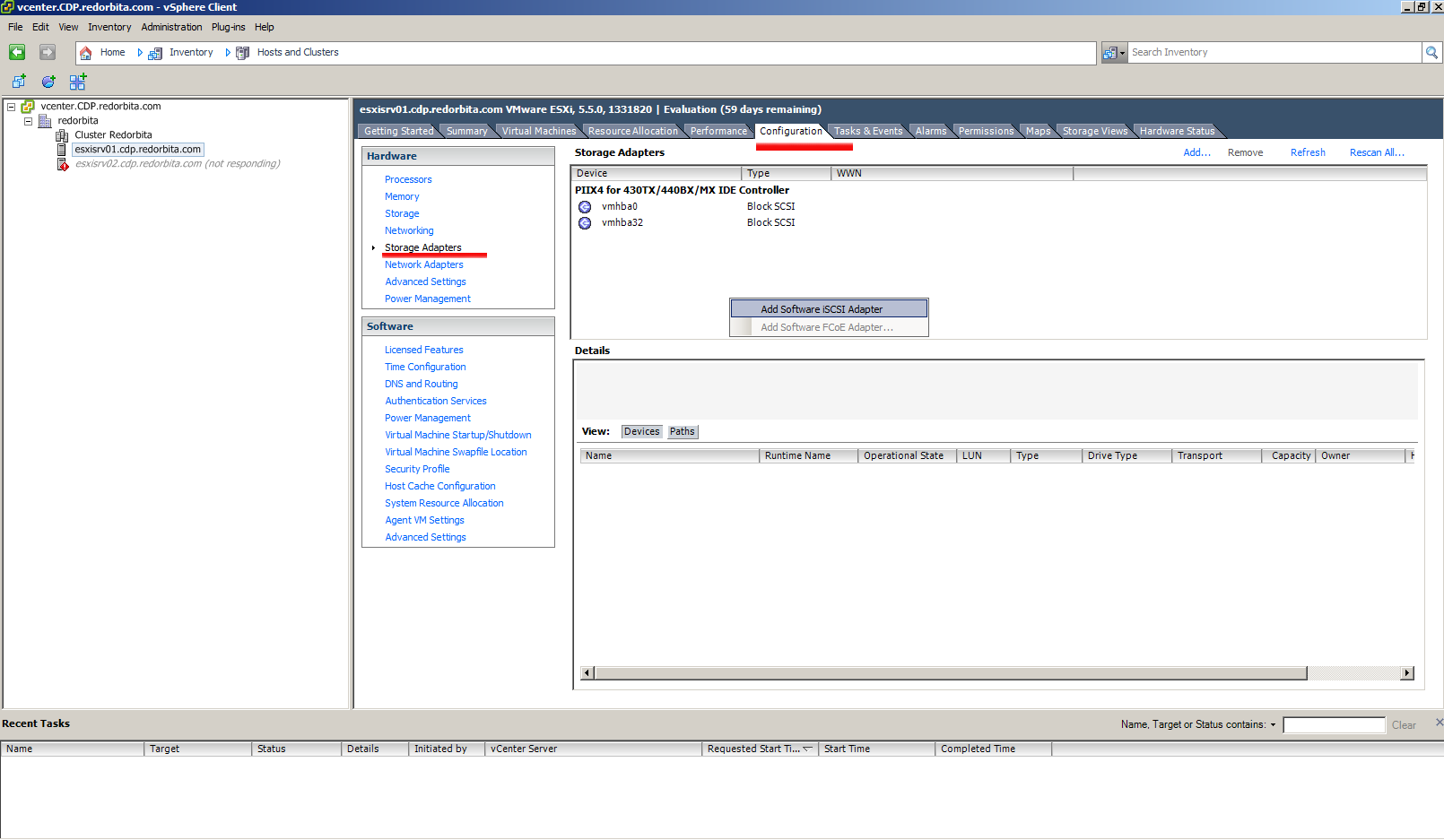
 We connect through our vmware vsphere client
Configuration >Storage Adapters > Right Click > Add software iSCSI Adapter
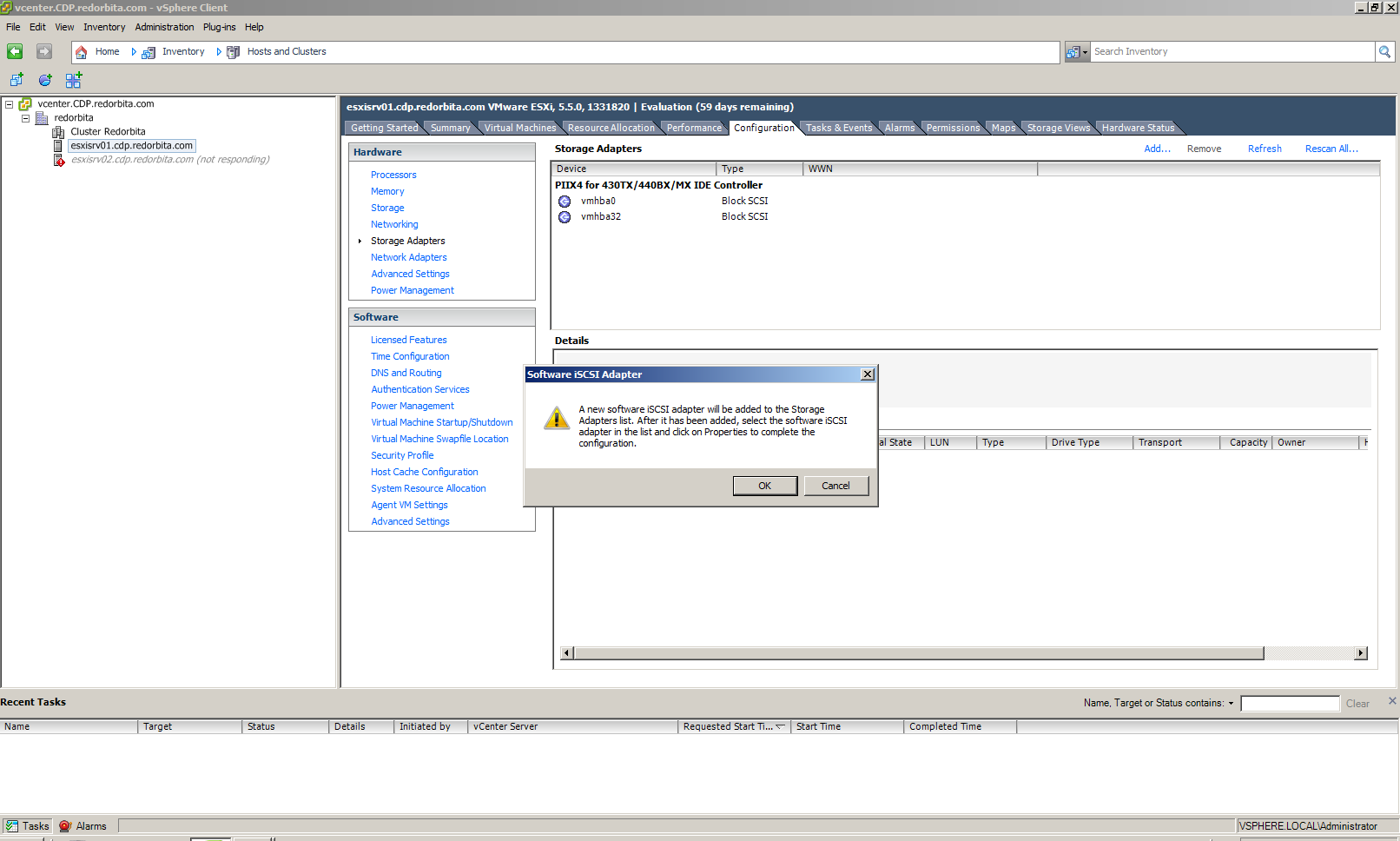
 We accept
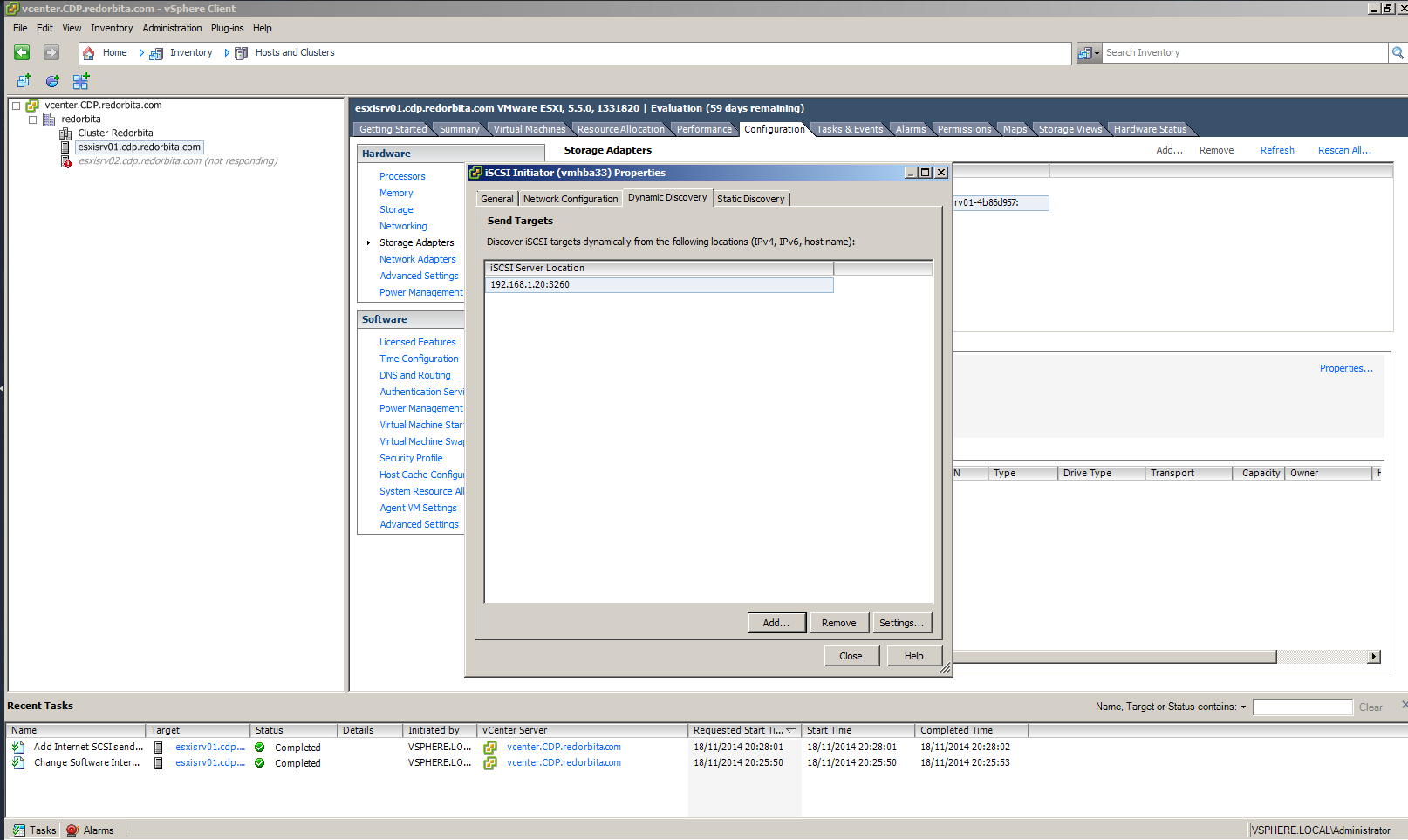
We select the created adapter and click on Properties
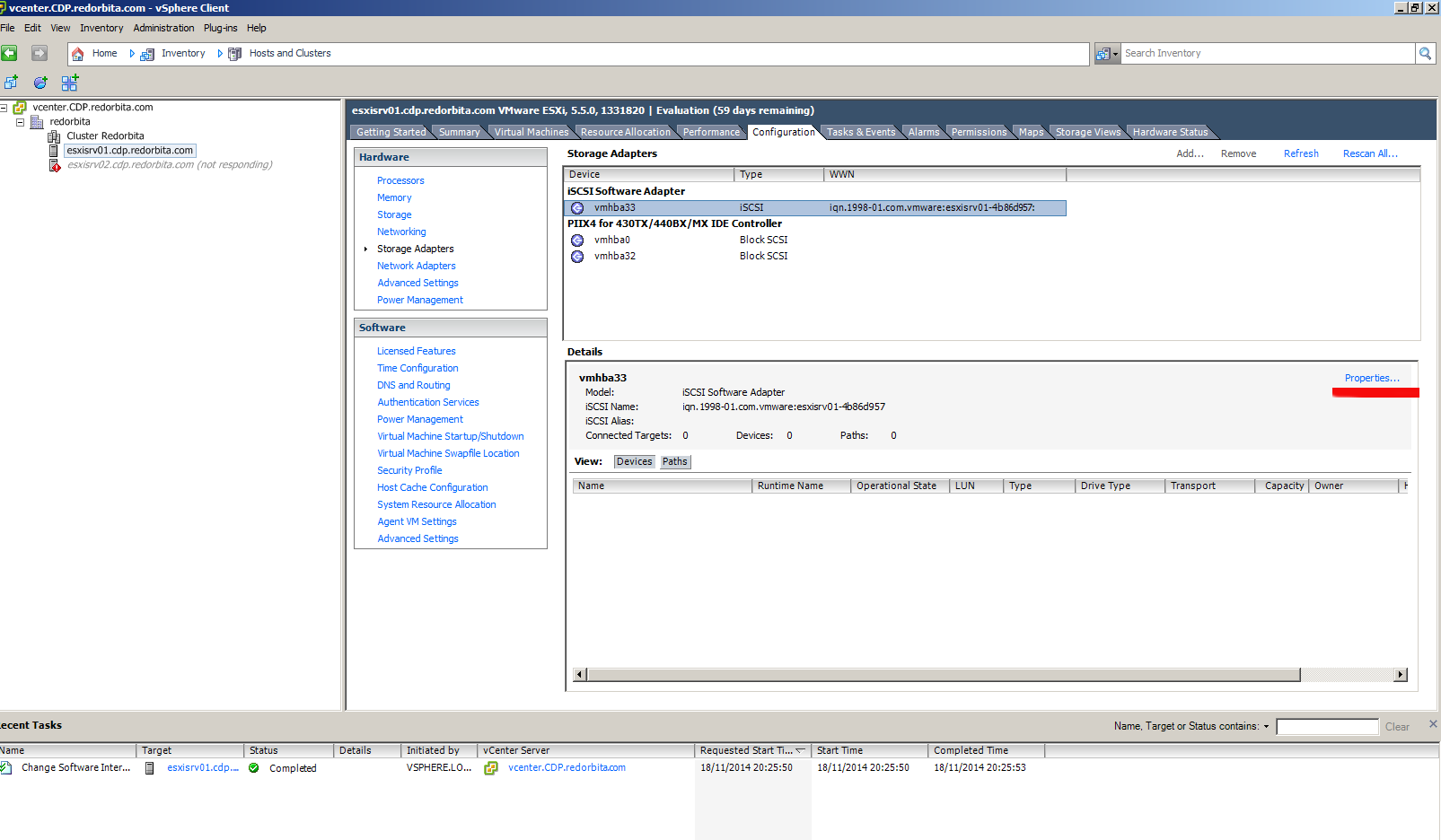 We check that it is activated.
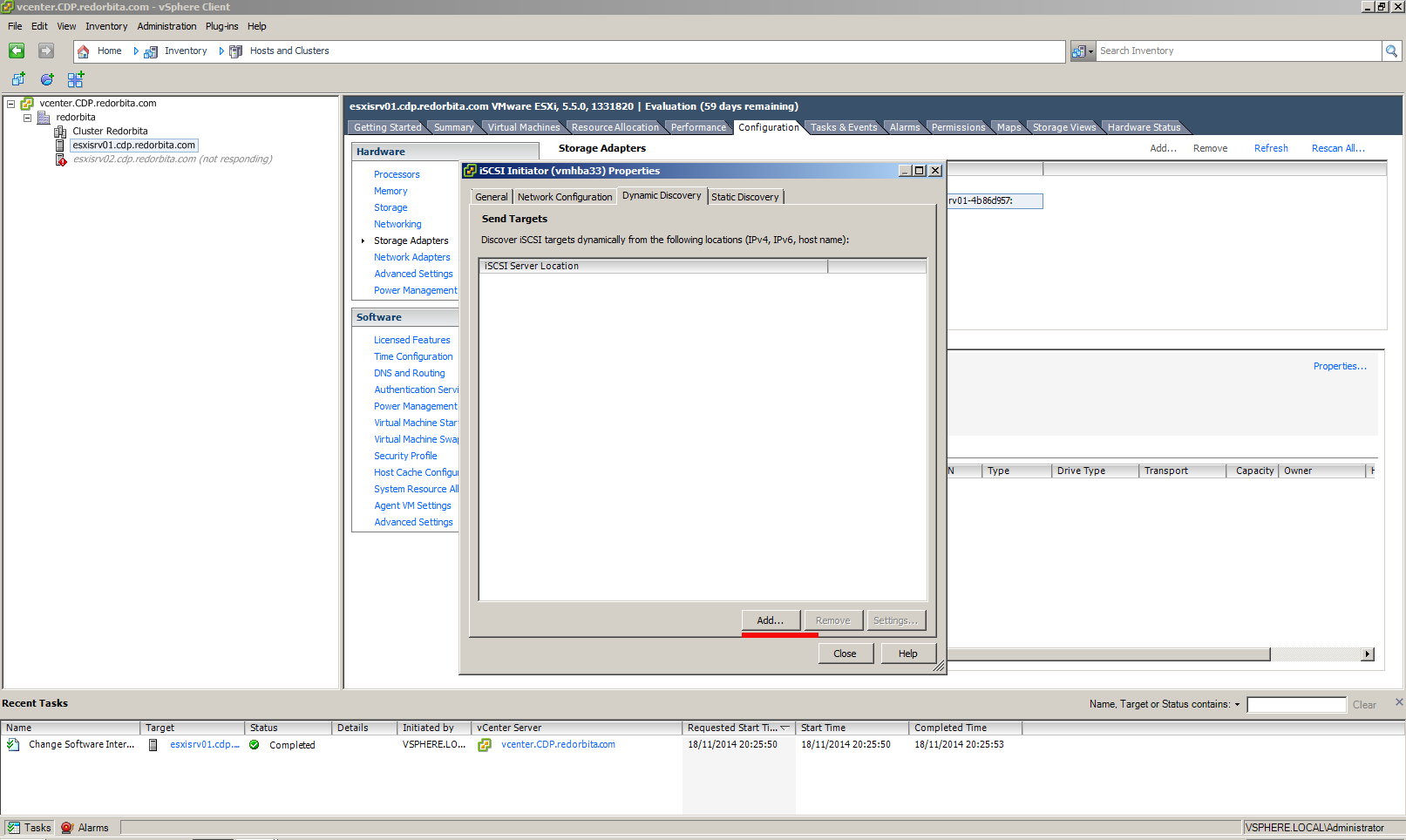
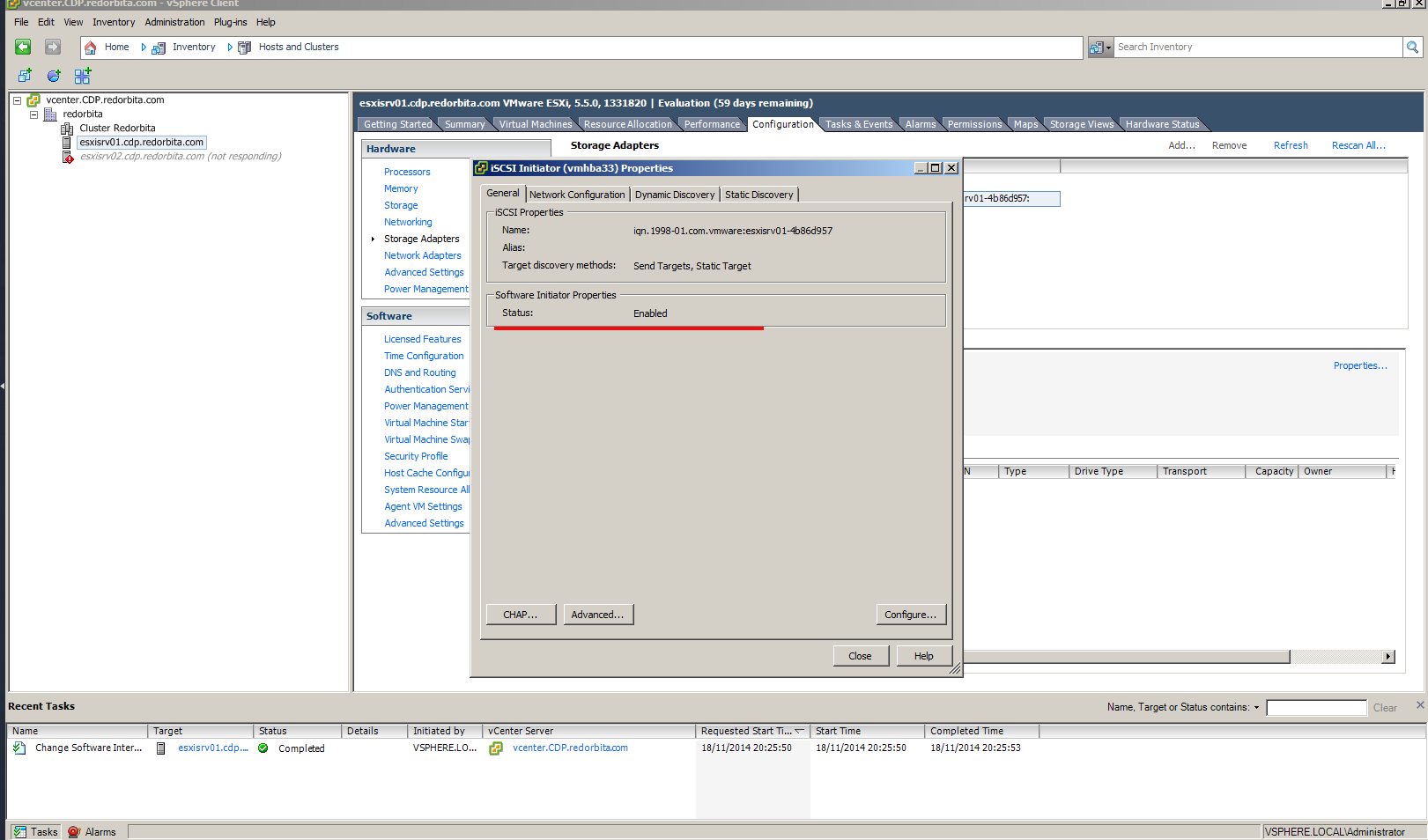 Dynamic Directory > Add
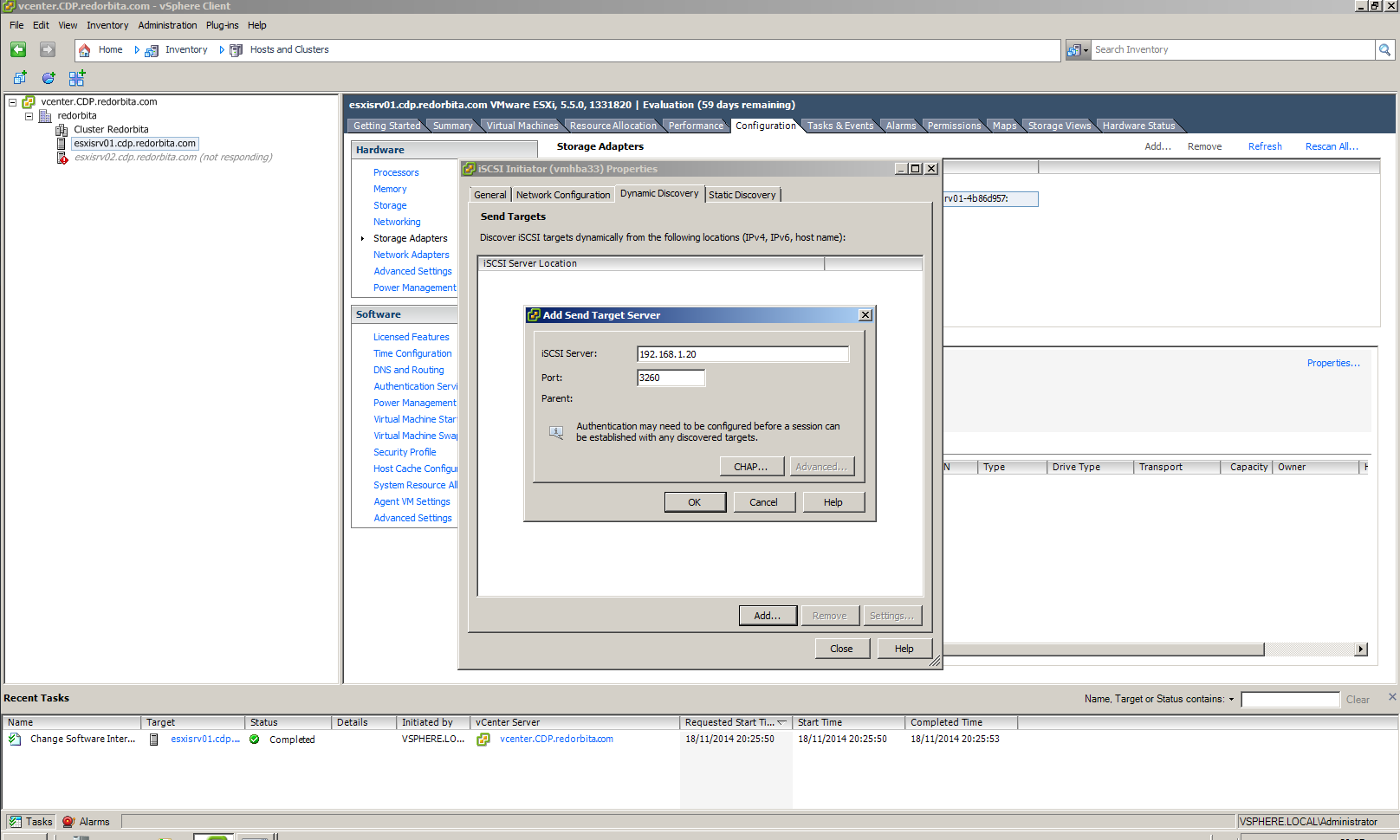
We add the IP of our FreeNAS server
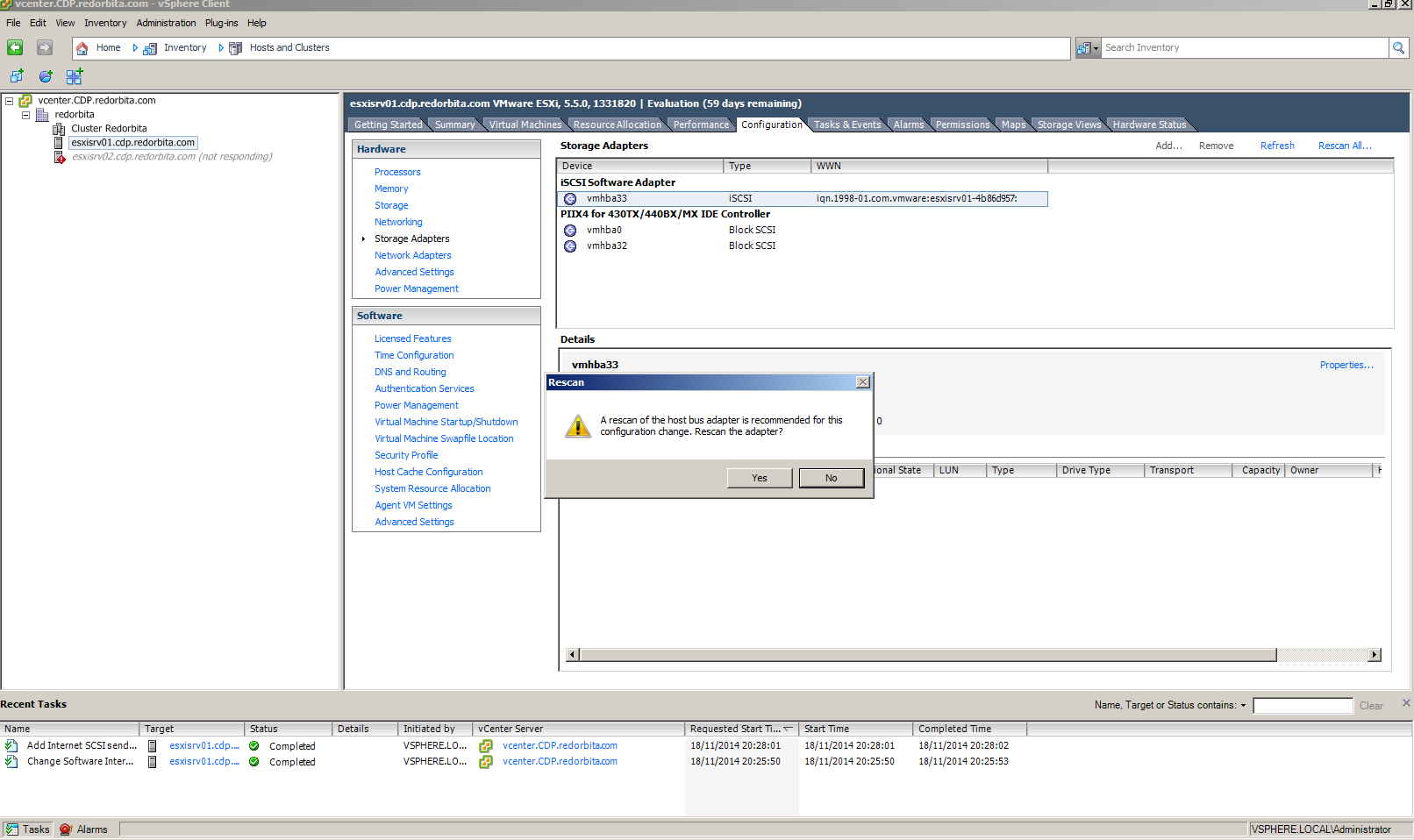
We select YES
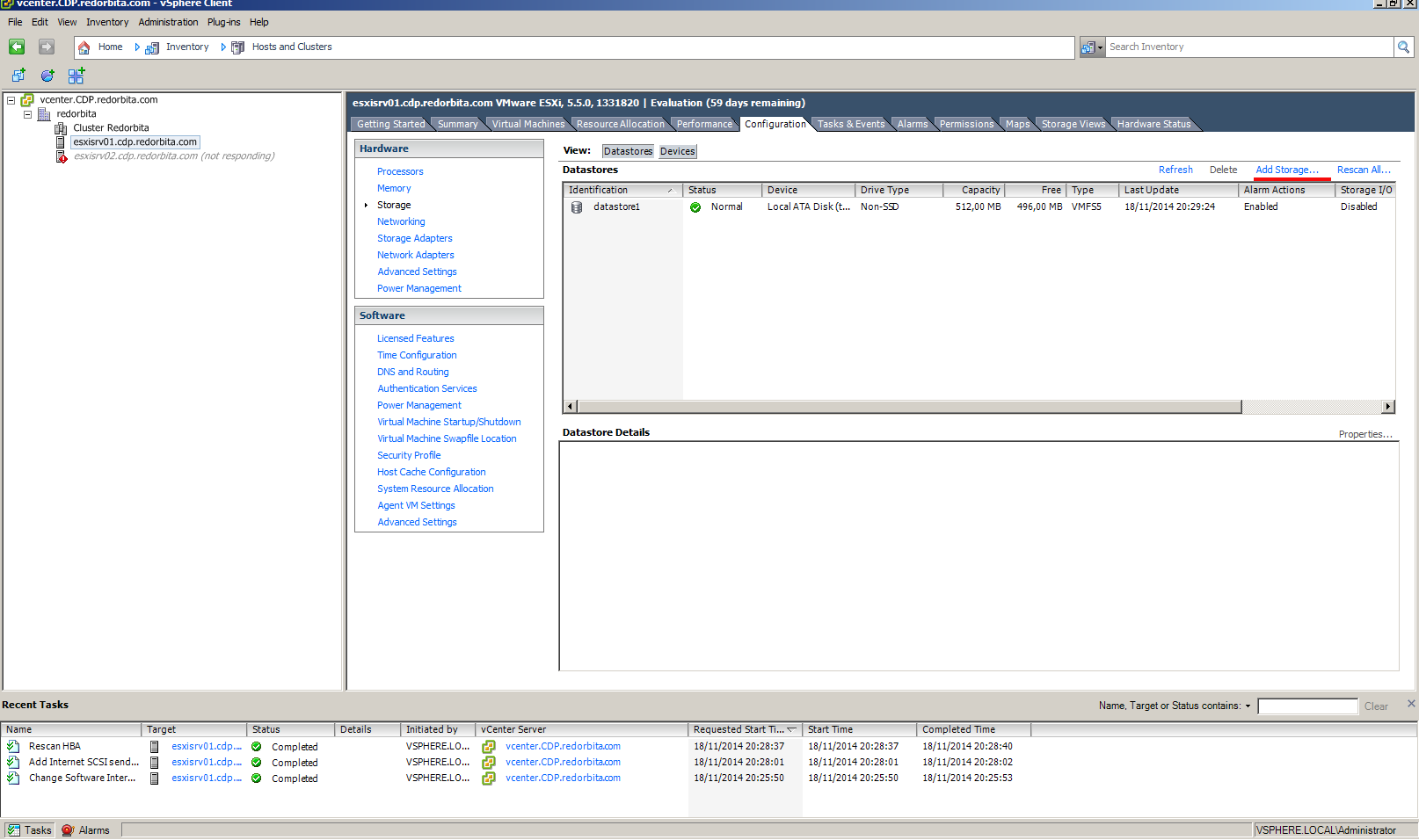
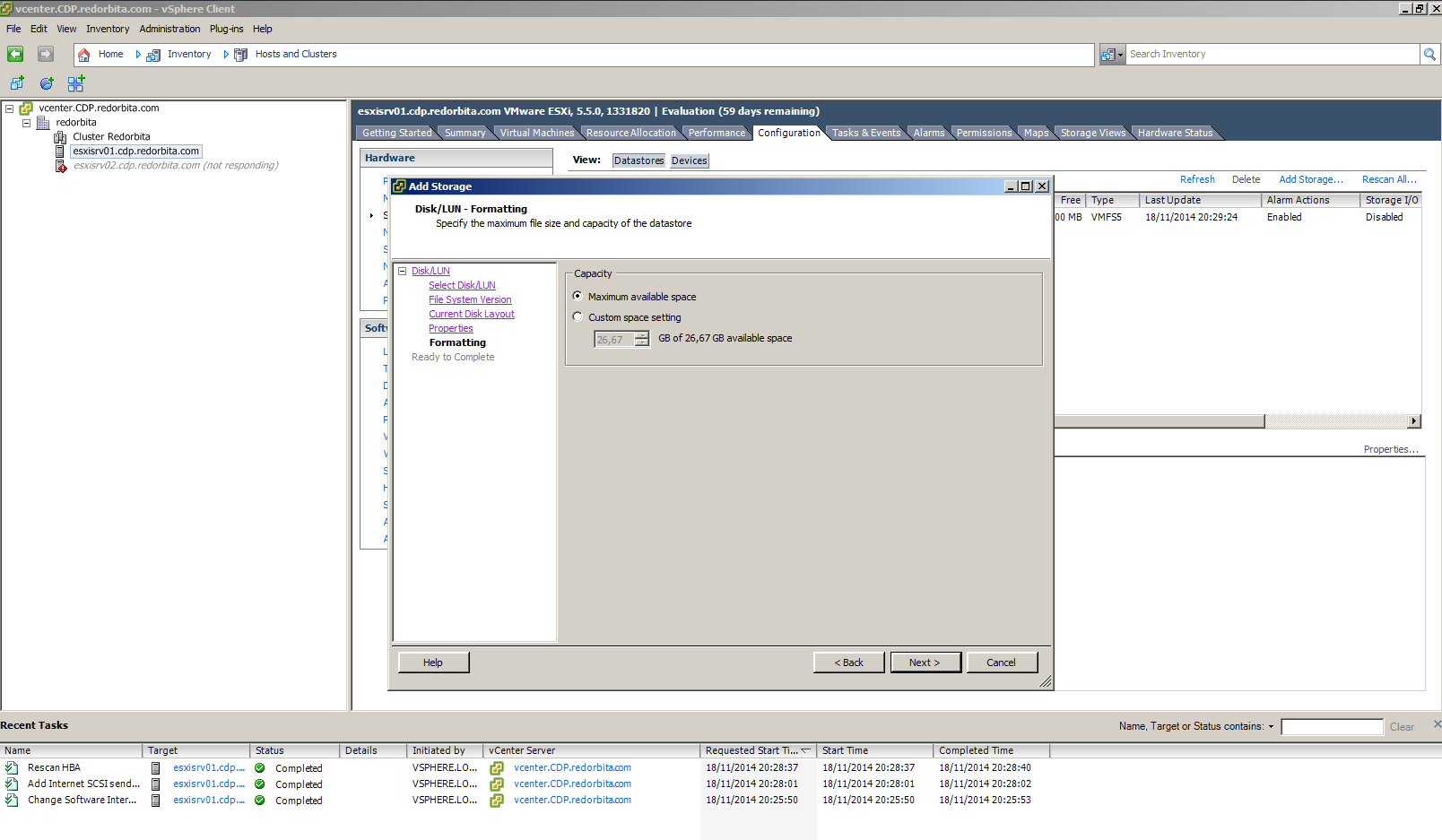
we are going to Add Store
Disk/LUN
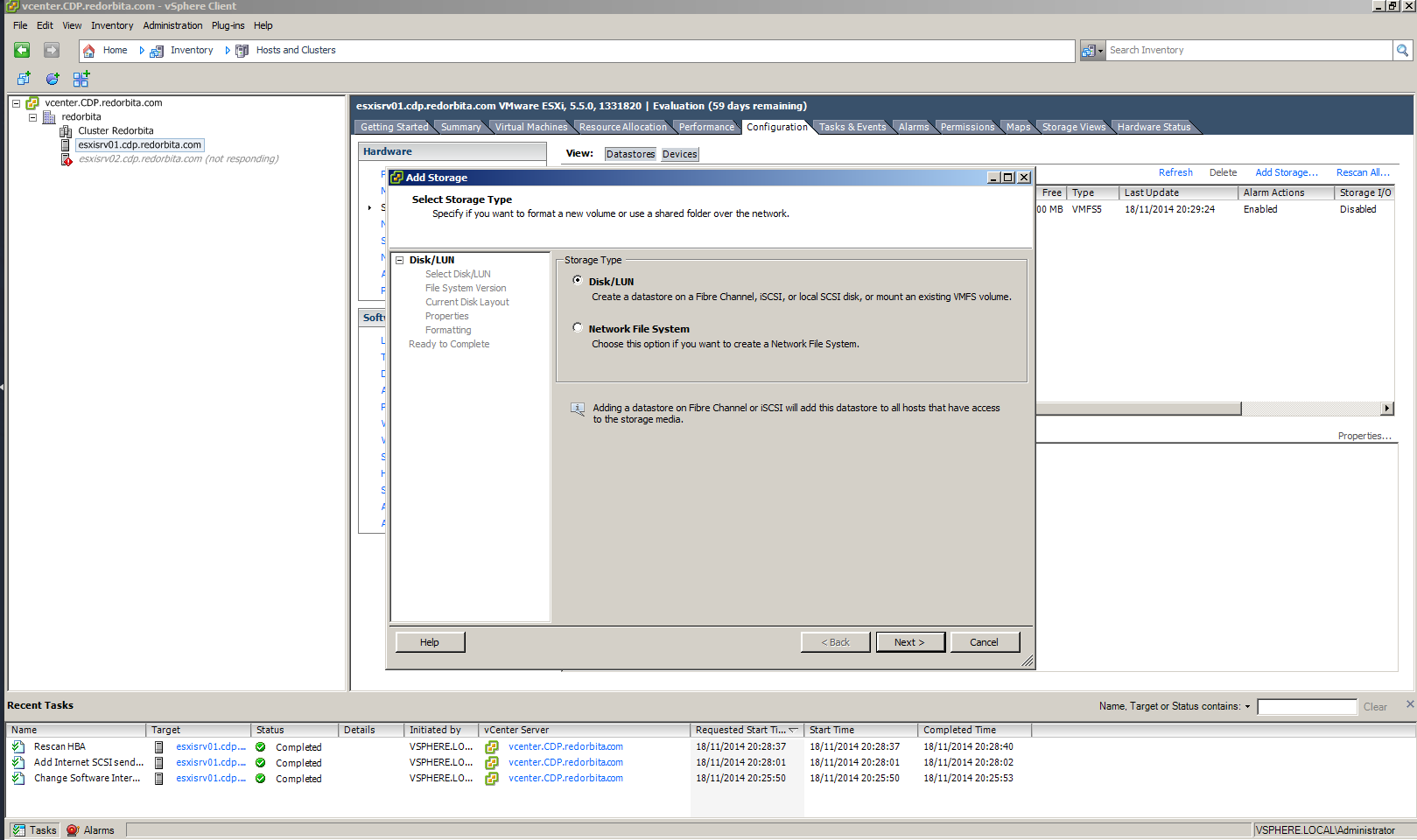
Following
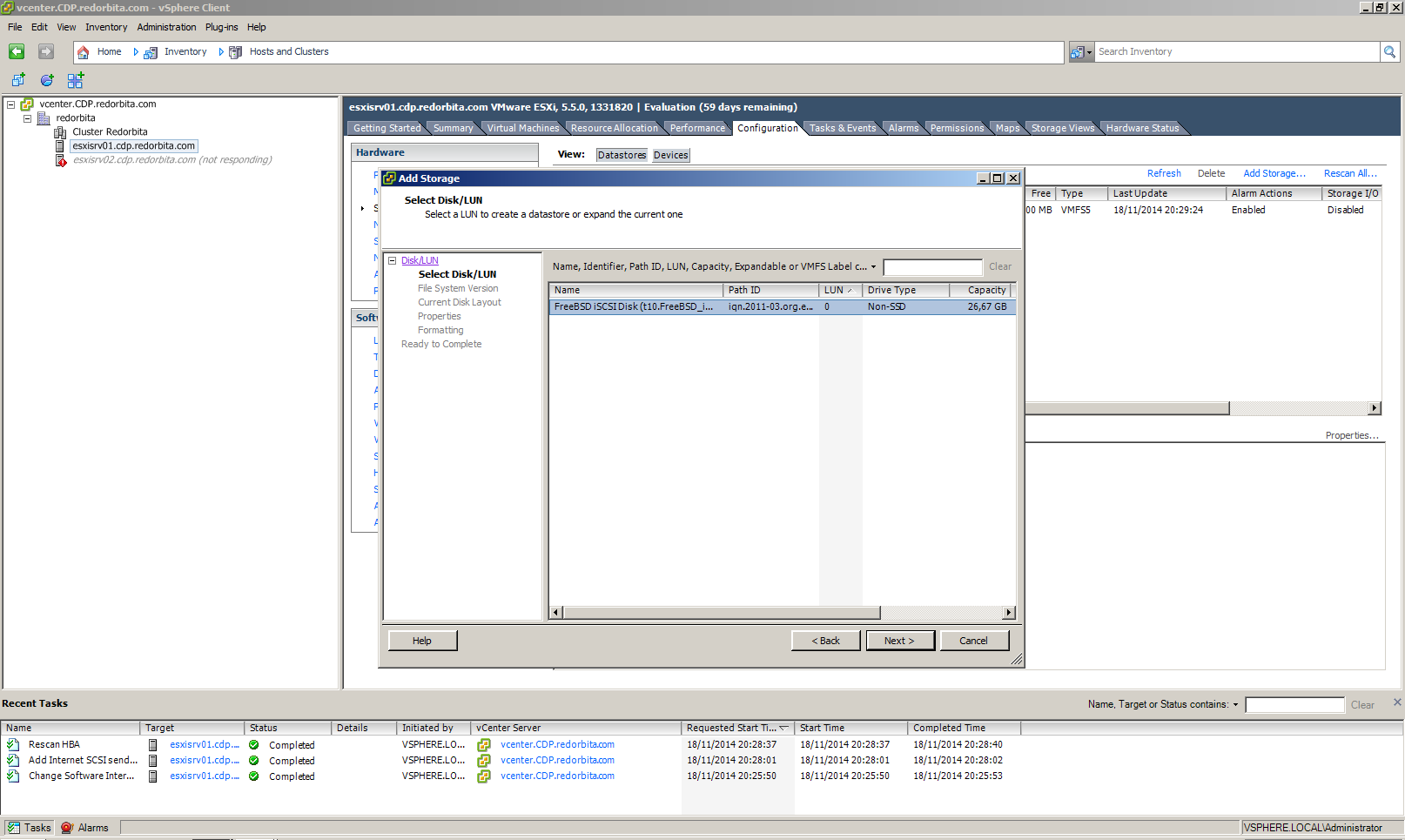
Following
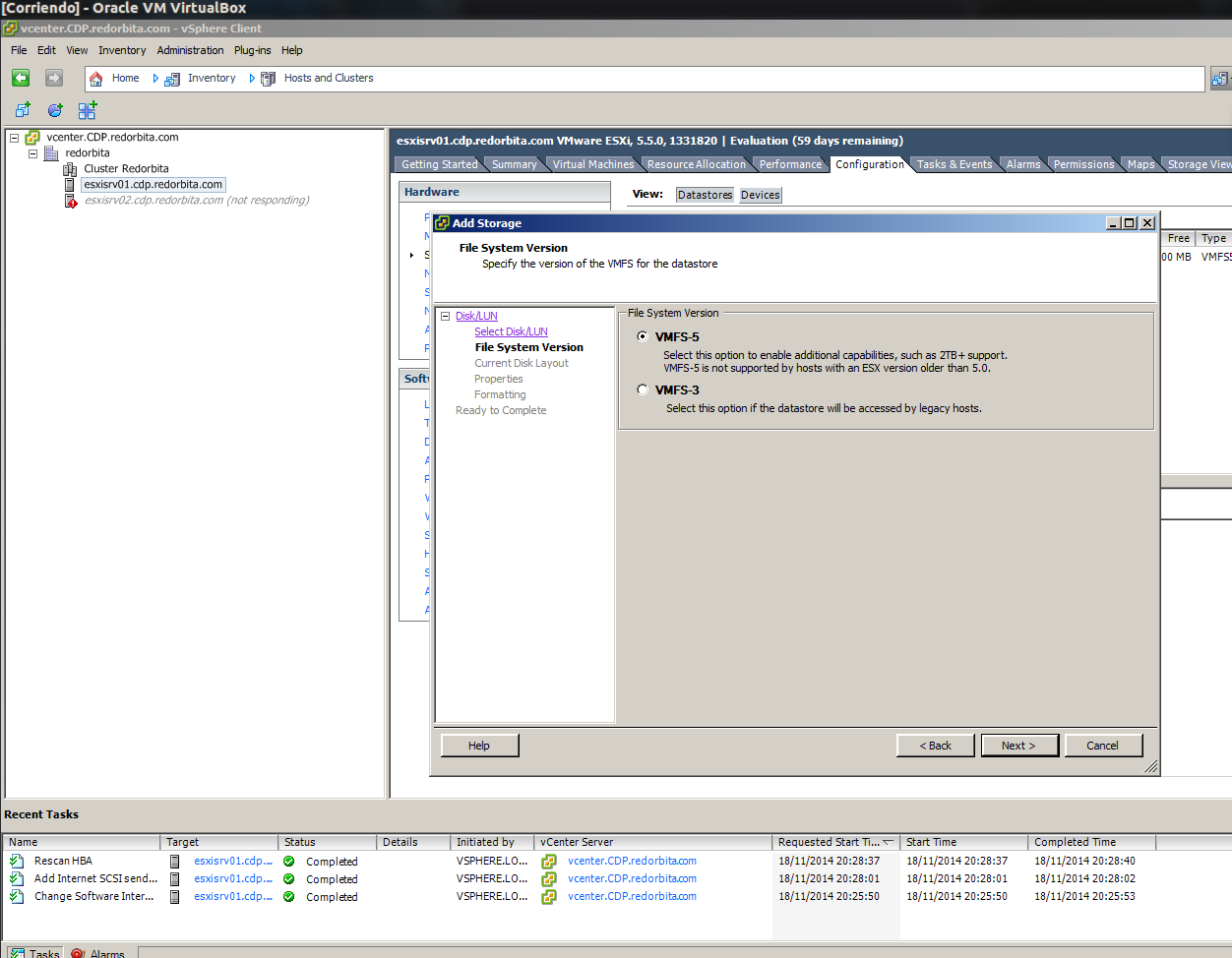
Following
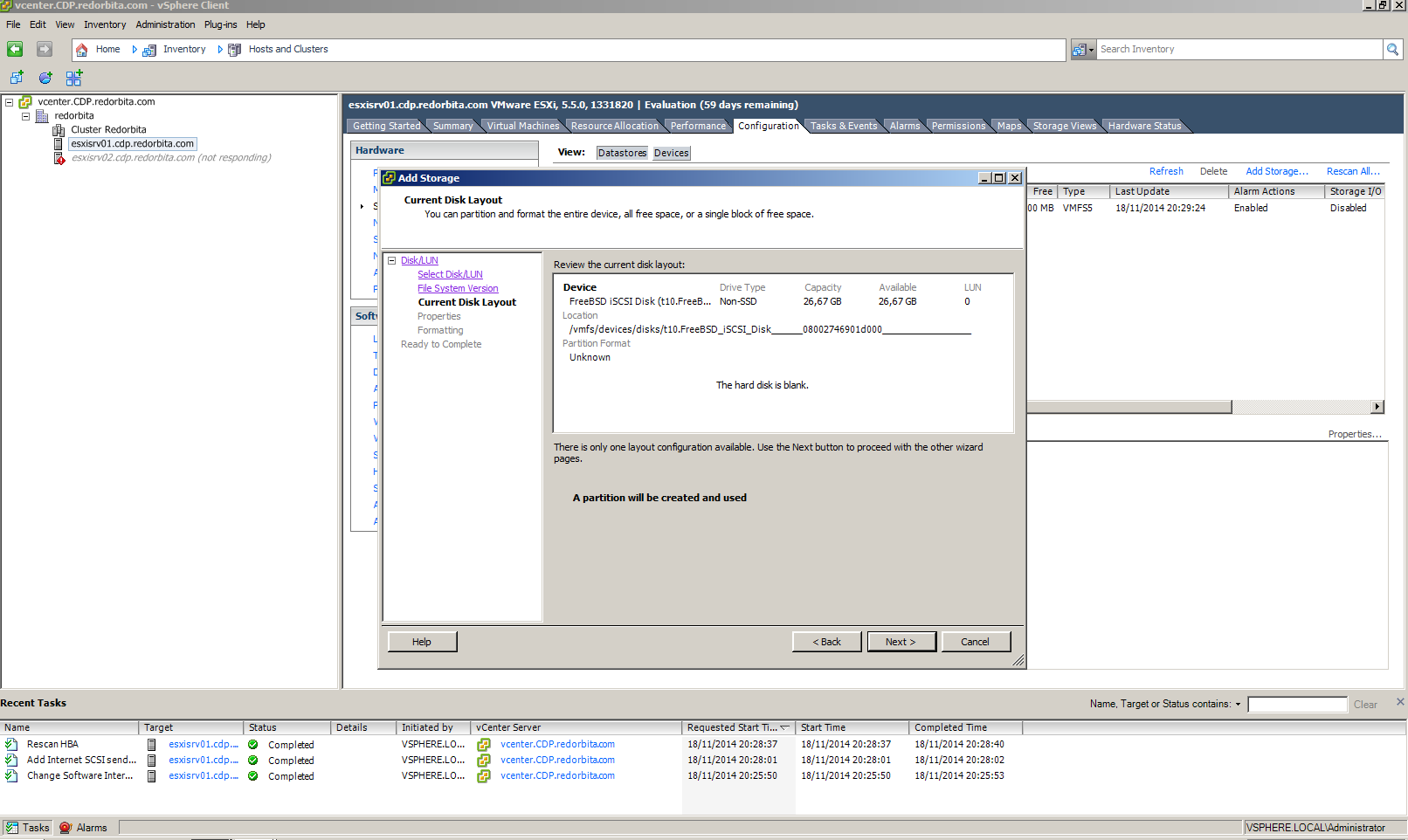
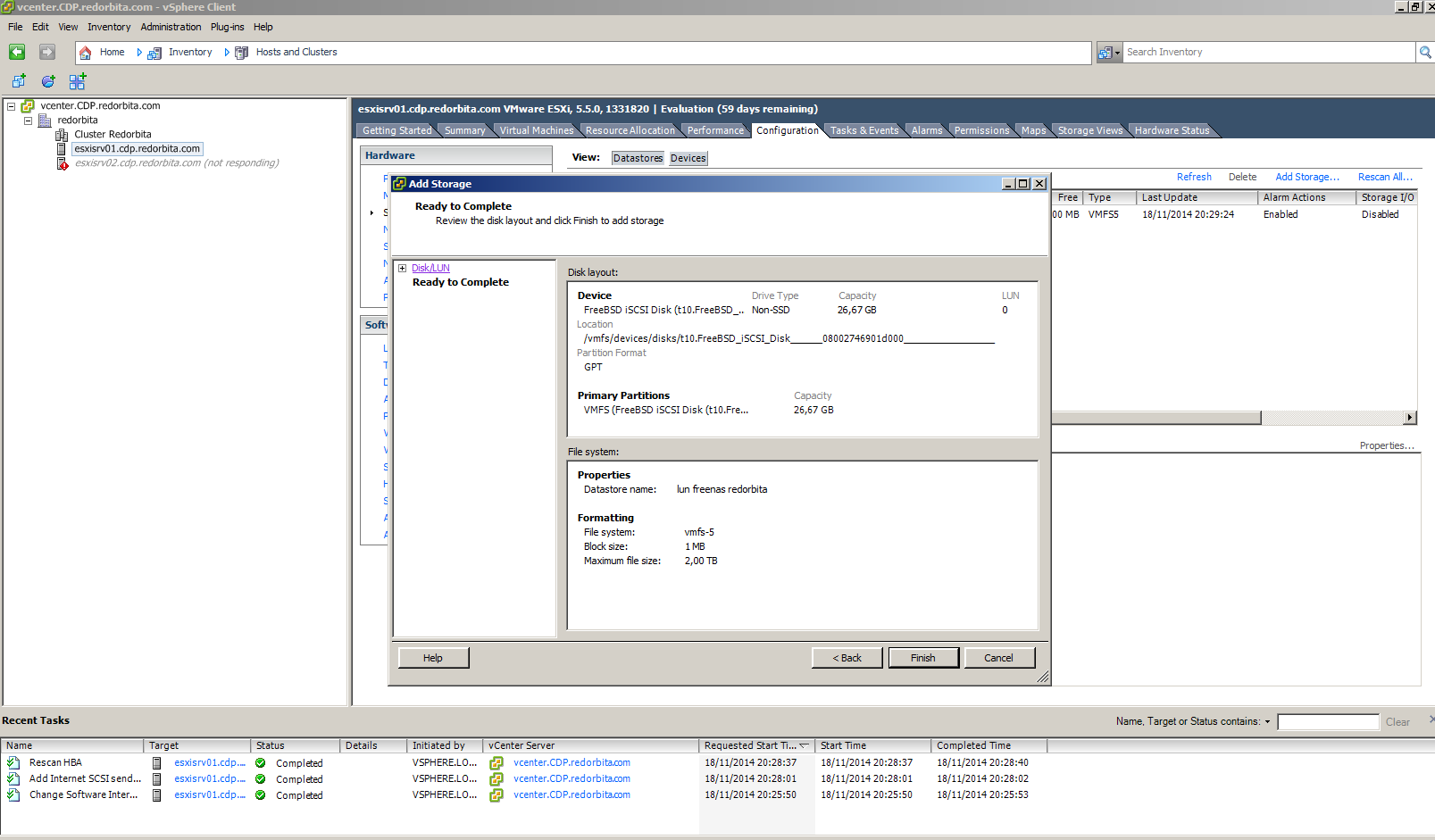
We add an identifying name.
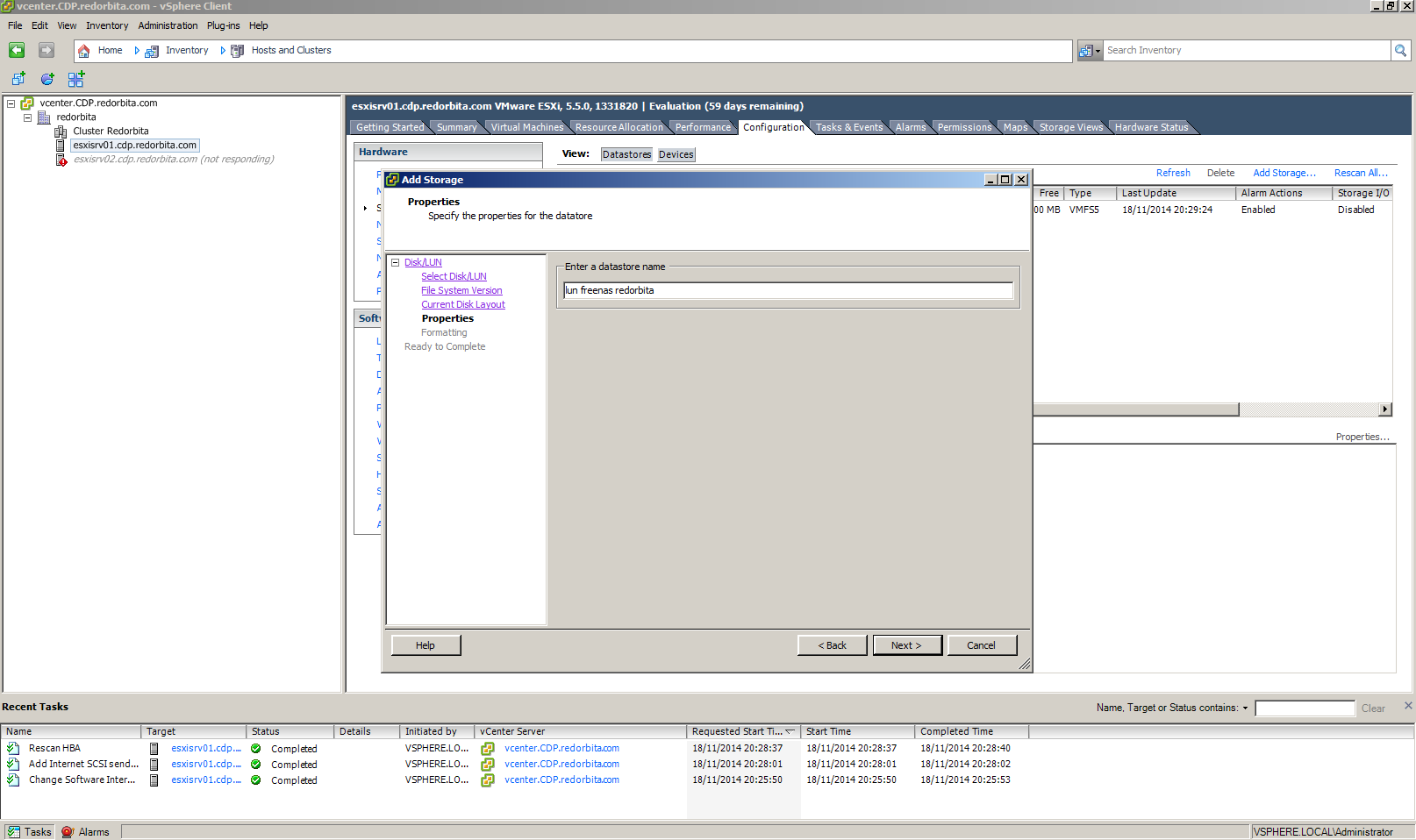
Following
We finish.
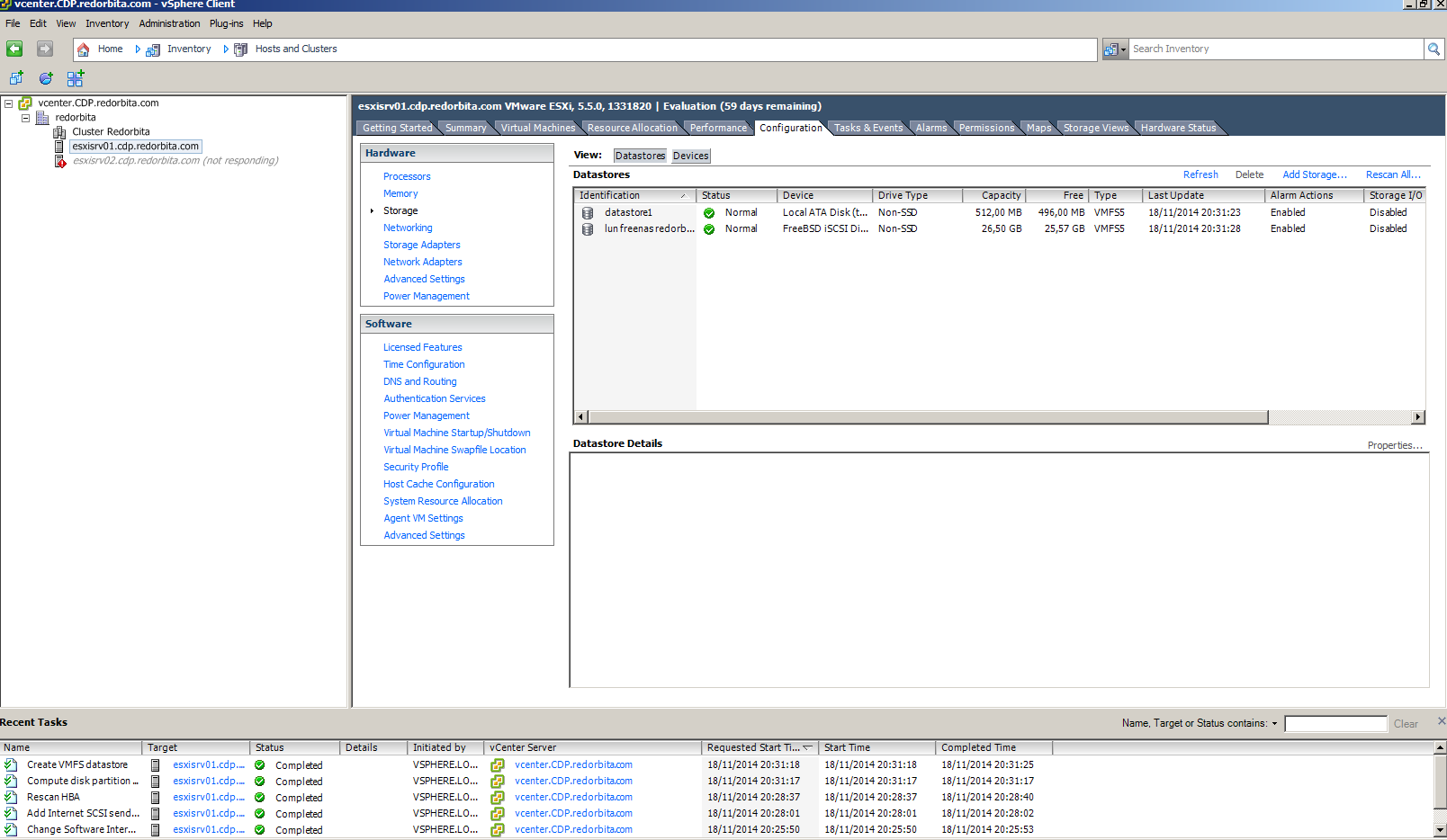
We now have the LUN added ready to start working.
 Regards, rokitoh
:wq!
Comments