
 What is Linux Docker?
The official definition translated verbatim is something like this:
Docker is an Open Source platform for developers and Sysadmins to build, load, and run applications. It consists of a lightweight, portable execution environment and packaging tools […] as a result it can be deployed faster and run the same application without changes on laptops, Data Centers or virtual machines of any Cloud
What we are interested in knowing as a summary is:
Docker is a container technology that allows us light virtualization to package environments, system configuration and applications, which we can later deploy on any other system compatible with this type of technology.
Facility
Debian:
We added the jessie-backports repositories in /etc/apt/sources.list
deb http://http.debian.net/debian jessie-backports mainWe update the repositories and install Docker.io
sudo apt-get update
sudo apt-get install docker.io
Red hat/Centos 7 via repository:
We add repository in /etc/yum.repos.d/docker.repo
/etc/yum.repos.d/docker.repo
[dockerrepo]
name=Docker Repository
baseurl=https://yum.dockerproject.org/repo/main/centos/7
enabled=1
gpgcheck=1
gpgkey=https://yum.dockerproject.org/gpg
We update the repositories and install Docker
yum update
yum install docker-engine
Script installation:
curl -sSL https://get.docker.com/ | shWe add our user to the docker group
usermod -aG docker rokitoh
We start the daemon:
[root@docker ~]# service docker start

Starting docker (via systemctl): [ OK ]
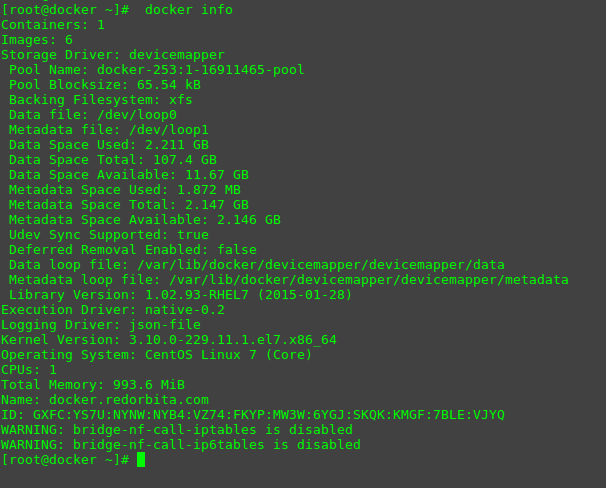
View information: docker info
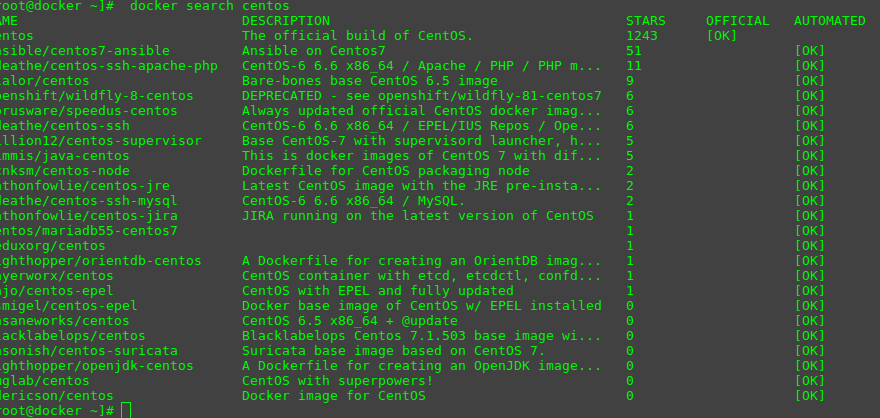
Using the docker search command we can search for the different images (CentOS, Debian, Fedora...) in this image I have proceeded to search for centOS:
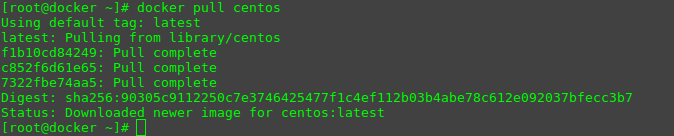
We download the images and then run them in a container: docker pull centos
Once downloaded, we can view the images using the command: docker images

Create a container
To create a container we execute the following command: docker run
Sintaxis: docker run <IMAGEN> <COMANDO_INICIAL>Example:
docker run -i -t debian /bin/bashWe can also create a container with a specific name with the option: -yam
docker run –name redorbita debian /bin/bashIf we had not downloaded the image in question, I would download it and install the container.
List containers: docker ps
If we execute "docker ps" It will only show the containers started and through the option "to" We will display all the containers.

Start/stop a container: docker stop/start <container ID>
In order to start or stop a container we can do it using the container ID or by the name that we have given it.

Save changes made to the container: docker commit <container ID> <container name>
We need to save all the changes made to the container because if we don't do it when it stops we will lose all the information

Delete container: docker rm <container ID/container name>
docker rm af2e3a87396d
docker rm redorbita
Regards, Rokitoh
:wq!
Comments